What should you look for when buying?
First check whether your broadband connection is fast enough. Then look at Wi-Fi coverage by the TV, and only then decide whether one access point will be enough.
Move your existing equipment
Choose this if: the wired connection is good, but Wi-Fi reception varies where you watch.
Bear in mind: moving the equipment may mean you need a longer cable, and won’t automatically overcome obstacles.
One router or access point
Choose this if: one well-positioned access point reaches the place where you watch.
Bear in mind: a higher Wi-Fi speed on the box doesn’t prove that the signal will be stronger beyond the hallway.
Multiple Wi-Fi access points or mesh
Choose this if: reception is still weak where you watch, even after you’ve tried a better location.
Bear in mind: the access points need to be placed where they can still connect reliably to each other; a wired connection may be an alternative to a wireless link.
| What to consider |
What should you check? |
Who is this important for? |
| Coverage where you watch |
Test by the TV and try placing the Wi-Fi access point higher up or in a more central location. Look out for walls and other obstacles. |
If I watch beyond the hallway, I want to know whether the signal reaches that spot before choosing an additional access point. Around 36% of consumers prioritise coverage where they watch. |
| Cause of buffering |
Compare a test over Ethernet with one by the TV. For Netflix, the Netflix Help Centre recommends at least 5 Mbps for 1080p and 15 Mbps for 4K UHD on a stable connection. |
If I don’t know whether the internet connection or Wi-Fi is slowing down my stream, I want to identify the cause first. Around 29% of consumers prioritise finding the cause. |
| Connection and mode |
Decide whether to keep your provider’s router, and check which router or access point modes and Ethernet ports are available. |
If I want to keep my provider’s router, the additional device needs to work with that connection. Around 21% of consumers prioritise compatibility and installation. |
| Expansion and maintenance |
Check whether you can add more access points to the system later, and look at the available security settings and updates. |
If I want to avoid unnecessary equipment and manage my network after installation, I’ll factor expansion and maintenance into my choice. Around 14% of consumers prioritise these factors. |
Joybuy products for this setup
This selection includes standalone routers and access points for a single-point setup, as well as mesh products for setups with multiple Wi-Fi access points.
 No image available
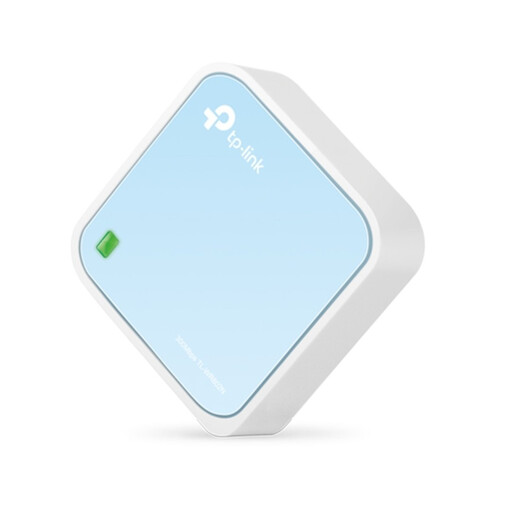
TP-Link TL-WR802N V4 router
A router for a single Wi-Fi access point setup; check coverage where you watch.
Wi-Fi 4 on 2.4 GHz; up to 300 Mbit/s wireless speed.
One wired network port, up to 100 Mbps.
View at Joybuy
 No image available
ASUS RT-AX52 AX1800 AiMesh router
A Wi-Fi 6 router for a single-point setup; according to the product description, you can expand it with AiMesh-compatible routers.
AX1800; dual-band on 2.4 GHz and 5 GHz.
You’ll need another AiMesh-compatible router to expand the system with AiMesh.
View at Joybuy
 No image available
TP-Link Deco X50 Wi-Fi 6 mesh pack (3-pack)
A mesh pack for a setup with multiple Wi-Fi access points; where you place them will partly determine how well they connect to each other.
Wi-Fi 6 (802.11ax); three gigabit ports per unit.
The product description mentions optional Ethernet backhaul between Deco units.
View at Joybuy
 No image available
Huawei eKit OptiX FG736 BE3600 dual-band Wi-Fi 7 mesh router
A mesh router for a setup with multiple units; the product description says they can work together as a single mesh network with one SSID.
Wi-Fi 7; BE3600; dual-band.
View at Joybuy
 No image available
TP-Link Omada EAP653 Wi-Fi 6 access point
An access point for a wired setup; check in advance that the mounting and connection are suitable for your installation.
Wi-Fi 6; supports Power over Ethernet (PoE).
One Ethernet port; the product description says it can be mounted on a ceiling or wall.
View at Joybuy
Frequently asked questions
How can you check whether a new router will reduce buffering when you watch a documentary?
First, test the connection on a computer using an Ethernet cable, then test it where you watch. If the wired connection is consistently too slow, look into your broadband connection or discuss it with your provider. If Wi-Fi is weak mainly by the TV, consider the router’s position or adding another access point.
Where should you put an additional Wi-Fi access point in a narrow hallway?
Don’t automatically put it at the furthest point. Choose an intermediate position with as few obstacles as possible, where the access point can still connect reliably to the other one, then test coverage by the TV. If you can run a cable, check whether the system supports Ethernet backhaul.
Can you use your own router in the Netherlands?
Yes. According to ACM ConsuWijzer, you’re free to choose your router in the Netherlands. However, connecting to the network is subject to connection and safety requirements; ask your provider for the necessary settings if needed. Separately check that any modem you want to replace is compatible with your connection.
What if a router you bought online isn’t right for you or breaks too soon?
According to ACM ConsuWijzer, online purchases generally come with a 14-day statutory cooling-off period after delivery, although exceptions apply. Your statutory guarantee is separate from any manufacturer’s warranty: if a product doesn’t perform as you could reasonably expect under normal use, the seller is responsible for providing a suitable solution.


