A different router can help if your existing internet connection is fast enough, but your Wi-Fi or the demands of several housemates are disrupting your stream. First, test the connection using an Ethernet cable, then check it by your screen. If coverage is good enough, one well-positioned router may be all you need; if the Wi-Fi is weak in other rooms, you may need a cable or a mesh system instead. Also check how the router connects to your modem and whether the specific model you buy carries the required CE marking.
Who is this advice for?
Housemates who stream at the same time
You share your connection with people who are watching videos, making calls or using other devices at the same time. So consider both your internet speed and Wi-Fi usage, not just the speed printed on the router box. VodafoneZiggo explains how simultaneous use puts extra strain on the network.
Viewers with weak Wi-Fi in their room
If your stream stutters mainly when you’re far from the Wi-Fi access point or behind walls, also consider router placement, a wired connection and mesh. The Dutch Authority for Digital Infrastructure points out that 5 GHz has a shorter range than 2.4 GHz.
Residents connecting their own router
If you want to add to or replace your provider’s equipment, check how it connects, whether security updates are available and which specific model you’re buying. ACM ConsuWijzer explains your freedom to choose a router, with security an important consideration.
Which factors should guide your choice?
| Factor to consider |
What to look for when buying |
Who should pay particular attention? |
| Simultaneous use |
First, test your internet speed using an Ethernet cable, then check the connection by your screen. Next, look for support for multiple devices. |
I want my film to keep playing while my housemates are online. Around 36% of consumers say simultaneous use is their main concern when buying. |
| Coverage in the room where you watch |
Test the connection where you watch; consider moving the router to a more central position and, if coverage is weak, compare an extra access point or a mesh system. |
If the signal drops behind walls or in another room, I want a usable connection there first. Around 29% of consumers prioritise coverage. |
| Connection to your screen |
Check whether your screen has a network port, whether you can run a cable to it and how many LAN ports are available. |
I mainly want a stable connection for my TV or media player, so I’ll check whether it’s practical to run a cable to the device. Around 21% of consumers say connecting their screen is their main concern. |
| Connection and setup |
Check your provider’s settings, the router or access point mode, available updates and the CE marking on the specific model. |
If you want to connect your own router and keep the shared network up to date, it helps to know how the settings and setup work. Around 14% of consumers put connection and setup at the top of their list. |
Which buying mistakes can you avoid?
-
Confusing the Wi-Fi speed on the box with your streaming speed
Your internet connection speed and the conditions in your home also play a part. A new router won’t automatically fix a shortfall from your provider.
First, test the speed using a computer connected by Ethernet, then check it by your screen. The Consumers’ Association recommends using an Ethernet cable for a speed test.
This helps you avoid buying a router that doesn’t fix the real bottleneck.
-
Buying mesh without planning where to put the access points
Extra Wi-Fi access points are only useful if you can place them in suitable spots and they can maintain a connection with each other. If coverage is good enough, one well-positioned router may be all you need.
Map out the weak spots and check how many access points are included in the box. Also see whether you can connect the points using Ethernet cables.
-
Assuming your own router can replace the modem on any connection
A router connected to an existing modem serves a different purpose from a device that replaces the modem. The connection method and provider settings may also differ.
Check how your provider’s equipment works and, if necessary, ask for the connection settings you need before replacing it.
-
Assuming a similar model name means it’s the same version
Hardware versions and the contents of a mesh package can vary. A product listing alone doesn’t confirm which version you’ll receive.
Check the full model name, hardware version, number of Wi-Fi access points and the CE marking on the specific device. The Dutch Authority for Digital Infrastructure states that equipment must carry the required CE marking.
Brands to compare
TP-Link
The Archer AX55 is a standalone Wi-Fi 6 router, while the Deco X50 is a mesh range with multiple Wi-Fi access points.
- TP-Link lists dual-band Wi-Fi 6 and OFDMA for the Archer AX55. For the Deco X50, the manufacturer mentions optional Ethernet backhaul.
- These specifications don’t guarantee measured performance in your home. For the Deco, check how many access points are included in the package you choose.
ASUS
The RT-AX58U is a Wi-Fi 6 router with router, access point and AiMesh node modes.
- The Dutch specifications page lists OFDMA and gigabit ports.
- ASUS notes differences between hardware versions V1 and V2, including the processor. Check the version before relying on specifications for a model on offer.
FRITZ!
The FRITZ!Box 4060 is designed to work behind a modem and has tri-band Wi-Fi 6, mesh features and telephony functions.
- FRITZ! lists a 2.5-gigabit WAN port and three gigabit LAN ports.
- The extra ports and telephony functions are most useful if your household needs them. The stated wireless speed isn’t the same as measured streaming speed.
Linksys
Linksys describes the Atlas 6 MX2000 as an expandable dual-band Wi-Fi 6 mesh router.
- Its modular design may be useful if you need more Wi-Fi access points later.
- Linksys says the warranty period depends on the country of purchase. Check the terms for the specific model you’re considering in the Netherlands.
Wi-Fi routers and mesh systems on Joybuy
This selection includes standalone routers and a mesh system for shared Wi-Fi use and coverage across different rooms. Check that the connection method and model are right for your home.
 No image available
ASUS RT-AX52 AX1800 dual-band Wi-Fi 6 router
A standalone router to consider if one Wi-Fi access point can provide good coverage where you watch.
Dual-band Wi-Fi 6; 2.4 GHz and 5 GHz.
View on Joybuy
 No image available
TP-Link Deco X50 (3-pack)
A mesh system to consider if you want Wi-Fi coverage in several areas of your home.
Dual-band Wi-Fi 6; 2.4 GHz and 5 GHz; pack of 3 access points.
View on Joybuy
 No image available
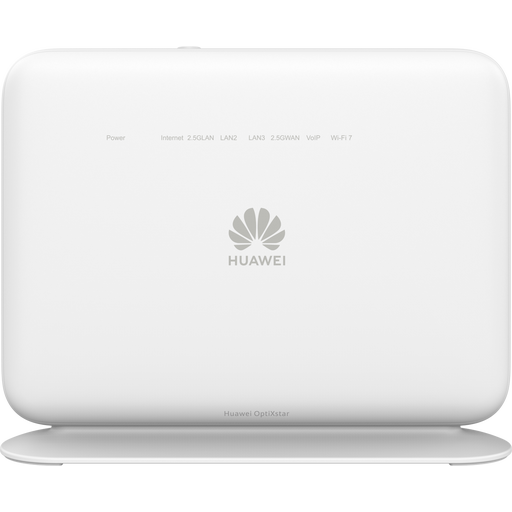
Huawei eKit OptiX LG8245B7N BE3600
A router option to compare if you’re looking for a model listed with a 4G dongle function.
Dual-band Wi-Fi 7; 4G dongle function.
View on Joybuy
 No image available
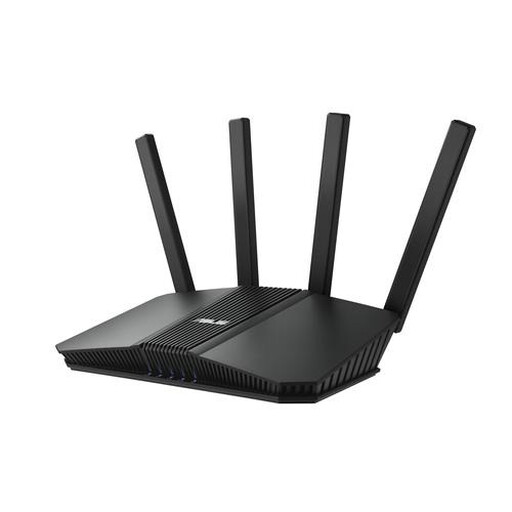
ASUS RT-BE82U BE6500
A standalone router to compare if one Wi-Fi access point is suitable for the room where you watch.
Wi-Fi 7; dual-band; 2.4 GHz and 5 GHz.
View on Joybuy
 No image available
ASUS RT-AX52 Pro AX3000
A standalone router to consider if one Wi-Fi access point can provide good coverage where you watch.
Dual-band; 2.4 GHz and 5 GHz.
View on Joybuy
Frequently asked questions
How can you tell whether your router or internet connection is making your film stutter?
First, test the speed using a computer connected by Ethernet, then check it by your screen. Netflix recommends a stable connection of at least 15 Mbps for one 4K stream. This is a recommendation for Netflix, not a guarantee for other streaming services or several simultaneous streams.
Can you connect your own router in the Netherlands?
Yes. ACM ConsuWijzer says you’re free to choose your router. A provider may refuse an unsafe device, so check the connection method and settings you’ll need, and keep your router up to date.
Are several mesh access points always better than one router?
No. One well-positioned Wi-Fi access point may be enough if coverage is good where you watch. Extra access points may be useful if coverage is weak in some rooms. Their placement and the connection between them still matter. TP-Link also lists support for a wired connection between Deco X50 access points.
Where should you place and maintain your router?
Try an open, more central spot outside a cupboard, and see whether moving the router improves the connection by your screen. The Dutch Authority for Digital Infrastructure recommends keeping equipment up to date, so install any available security updates.
Which product marking should you check on a Wi-Fi router?
Check that the specific model carries the required CE marking. The Dutch Authority for Digital Infrastructure states that this marking must appear on the equipment; a product listing alone doesn’t confirm which model you’ll receive.


