
Watching in a room with weak Wi-Fi
You want to watch a film through walls or on another floor. First, find out where the signal gets weaker.


First, test the wired connection at the router, then check the Wi-Fi where and on the screen you watch. A new router won’t fix a slow internet connection. One router may be enough if it provides good coverage where you watch, while mesh or an extra access point may be worth considering if walls or another floor weaken the signal. Also check that your older devices will still work and how the router connects to your existing modem.
You want to watch a film through walls or on another floor. First, find out where the signal gets weaker.
While the film is playing, other people may also be using a phone, laptop or TV. So don’t just look at the quoted top speed: consider simultaneous use and the connections you need too.
You want your existing devices to stay connected alongside newer Wi-Fi devices. Check which Wi-Fi versions and security settings are supported.
Choose this if: you’re not yet sure whether the problem is with your internet connection, router location or Wi-Fi where you watch.
The trade-off: repositioning may require a longer cable. If needed, ask your provider about moving its modem.
Choose this if: your internet connection performs well enough and one well-positioned router can reach where you watch.
The trade-off: a high quoted Wi-Fi speed doesn’t guarantee coverage through walls. To benefit from Wi-Fi 6 improvements, you’ll need compatible devices.
Choose this if: tests show weak coverage in other rooms or on another floor, and there are suitable places for extra access points.
The trade-off: extra access points need equipment and power sockets. Check whether you can connect them by cable.
| What to consider | What should you check? | Who is this important for? |
|---|---|---|
| Coverage where you watch | Compare a wired test at the router with a test where you watch. Take walls and floors into account. | If the film keeps buffering through walls or on another floor, I want to know whether the Wi-Fi signal is weak there. Around 36% of consumers in this situation prioritise coverage where they watch. |
| Simultaneous use | Test on the device you watch on and check whether you need wired connections for your TV or player. | I want to watch a film while other devices are online, so I compare the connection and available ports. Around 29% of consumers prioritise simultaneous use. |
| Older and newer devices | Check the Wi-Fi versions and test the security setting with the devices you want to keep using. | If my older devices need to stay connected alongside newer ones, I want to know which Wi-Fi and security settings they support. Around 21% of consumers prioritise this compatibility. |
| Connection and maintenance | Check how the router connects to your existing modem, how many access points you need and whether firmware is available for the exact model. | I want a setup that connects to my existing network without unnecessary extra equipment or complicated maintenance. Around 14% of consumers prioritise compatibility with their setup and maintenance. |
A slow connection from your provider and weak Wi-Fi need different solutions. A new router won’t automatically fix a problem with your internet connection.
First, test the connection by cable at the router, then test it where and on the device you watch on.
Walls, floors and the connection between access points all affect coverage. A package with several access points also works differently from a single transmitter.
Check how many access points are included, where you can place them and whether you can connect them via Ethernet.
Older devices may connect without benefiting from Wi-Fi 6 improvements. Some older or non-certified devices may also have problems with WPA3 transition settings.
Check your devices’ specifications and test the security setting before replacing your existing setup.
Connecting a router behind an existing modem is different from replacing the modem; you may need different connection details or settings to do that.
Decide in advance which device will stay in place. If you want to replace the modem, ask your provider for the connection details and requirements.
The Archer AX55 is a standalone router, while the Deco X50 is a mesh range. The right setup depends on the coverage you need at home.
The RT-AX57 is a standalone Wi-Fi 6 router with the option to add a compatible device to an AiMesh network.
The FRITZ!Box 4060 is designed to work with an existing modem and includes mesh and telephone features.
The Nighthawk RAX10 is a specific Wi-Fi 6 router model.
This selection includes mesh products for adding extra access points, as well as a standalone router. Compare the number of units, the connection options listed and how each product connects to your existing modem.
 No image available
A mesh option to consider if you’re thinking about adding extra access points and want to connect wired devices too.
The product description lists Wi-Fi 6, Powerline backhaul and gigabit Ethernet ports on each unit.
The description mentions WPA2/WPA3 and router and access point modes. Check that the security setting and setup you want will work with your devices.
 No image available
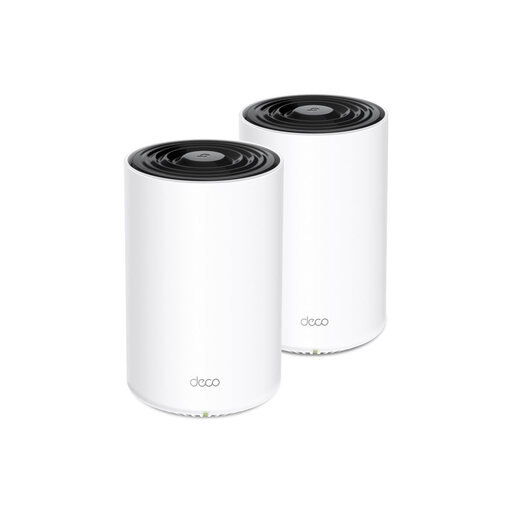
A mesh set with two units to consider if you need more than one access point.
The product name lists Wi-Fi 6 and a two-unit pack. The description mentions Ethernet backhaul and wired connections.
Check where you can place the units and whether a wired connection between them will work in your home.
 No image available
A standalone router to consider if you want to start with one device and may want to expand with AiMesh later.
The product name lists Wi-Fi 6, dual-band and gigabit Ethernet. The description mentions OFDMA, MU-MIMO and support for older Wi-Fi standards.
Check that the settings and standards listed are suitable for the devices you use.
 No image available
A mesh set with three units to compare if you need Wi-Fi in several parts of your home.
The product name lists Wi-Fi 6 and three units. The description mentions OFDMA, MU-MIMO and gigabit Ethernet ports.
Check whether you can position three units around your home and which devices you want to connect by cable.
 No image available
A dual-band mesh router to look at if you’re considering a Wi-Fi 7 mesh setup.
The product name lists Wi-Fi 7 and mesh. Check that its Wi-Fi support is compatible with the devices in your household.
Netflix recommends a stable connection of at least 15 Mbps for one UHD 4K stream, and 5 Mbps for Full HD. These are Netflix’s recommendations, not a guarantee for every streaming service or for several streams at once. Test the connection on the device you watch on before replacing your router.
ACM ConsuWijzer explains that, in principle, you can choose your own router in the Netherlands, but notes that this isn’t always possible. Check your provider’s terms and the connection details you’ll need. Using your own router behind the existing modem is different from replacing the modem.
Check which security settings the device supports and test your chosen setting with it. The Wi-Fi Alliance describes a WPA3/WPA2 transition mode, but warns that some older or non-certified devices may have problems with it. The Alliance suggests a separate network as an alternative.
Regularly check whether firmware is available for the exact model and hardware version, and follow the manufacturer’s installation instructions. ACM ConsuWijzer highlights the importance of updates for protecting your network and personal data.
No. According to the Dutch government, there is no fixed statutory guarantee period in the Netherlands; you’re entitled to a product that does what you could reasonably expect it to do. A manufacturer’s guarantee is additional. If a product is faulty, contact the seller.