Start with one router if you get a good connection both in your home office and in the hallway when the router is suitably positioned. If either area still has poor coverage, consider a mesh system with a second Wi-Fi point. For a desktop computer, an Ethernet cable could be a targeted solution. Also check how the equipment connects to your modem and whether future Wi-Fi points will work with the system you choose.
Who is this choice relevant to?
Home worker with a dedicated workspace
You want a good connection at your desk and can check whether you can connect your computer using an Ethernet cable. TP-Link and NETGEAR product information describes router and Ethernet options to help you weigh up your choices.
Resident with weak Wi-Fi in the hallway
You want Wi-Fi in two areas and need to consider where a second Wi-Fi point could go. TP-Link describes mesh setups with multiple units, but positioning in your home remains key.
Self-installer
You want to connect your own router or expand your setup later, and need clarity on provider settings and compatibility. ACM ConsuWijzer provides information on choosing your own router; also check which settings your provider requires.
What should you look for when choosing?
First, consider where you need a connection. One router may be enough if you get good coverage in both areas, while a second Wi-Fi point gives you another setup option if the hallway is still a weak spot.
A standalone Wi-Fi router
Choose this option: if the connection at your desk and in the hallway is already good enough with suitable positioning.
Bear in mind: one device won’t automatically solve the problem of a hard-to-reach area.
Mesh system with two Wi-Fi points
Choose this option: if one router doesn’t provide good coverage in the hallway or home office, and you can position a unit in both areas.
Bear in mind: both units need a suitable position and a power supply. With a wireless connection between them, positioning also affects how well they connect to each other.
Keep your existing router and connect your workspace by cable
Choose this option: if your desktop computer is the main device that needs a wired connection and you can run a cable.
Bear in mind: the cable won’t improve Wi-Fi coverage in the hallway; check that you have a spare LAN port.
| What to consider |
What to look for when buying |
Who is this important to? |
| Coverage and positioning in the hallway |
Check the connection in the areas where you need it and consider where a second point could go and get power. |
If I need Wi-Fi in a narrow hallway, I want to know whether I can position an extra point there; around 36% of consumers give hallway coverage top priority. |
| Connection in your workspace |
Check whether you can connect your computer by cable and whether there’s a spare LAN port. |
If you mainly use a desktop computer, an Ethernet cable may be worth considering; around 29% of consumers give their workspace connection top priority. |
| Connecting and expanding later |
Check how the router connects to your modem and whether the exact model is compatible with a Wi-Fi point you add later. |
If I want to keep my existing connection or expand my setup later, I’ll check the provider settings and mesh compatibility in advance; around 21% of consumers prioritise connecting and expanding their setup. |
| Security and maintenance |
Check how to update the firmware, change the default administrator password and decide whether you need remote management. |
If you manage your own router, you’ll want to know how updates and access settings work; around 14% of consumers give security and maintenance top priority. |
What to watch out for when buying
-
Assuming the stated maximum speed guarantees Wi-Fi in the hallway
A product’s stated speeds don’t tell you on their own whether the signal will reach every area of your home. Positioning and layout also play a part.
Check the connection at your desk and in the hallway before deciding whether one router is enough.
-
Assuming all Wi-Fi points from the same brand work together
A brand may have different mesh product families that don’t form a single network together. For example, TP-Link says that OneMesh devices and Deco Mesh don’t form one mesh network together.
Before expanding your setup, check the exact product family and model compatibility.
This may mean you need a different, compatible Wi-Fi point to expand your setup.
-
Confusing a standalone router with a replacement fibre modem
A router and a modem have different roles, and equipment for different types of network connection isn’t necessarily interchangeable. ACM ConsuWijzer advises checking your connection and the required settings with your provider.
Decide whether you’ll connect the router behind your existing modem or replace your provider’s equipment. If you’re connecting directly, ask which equipment and settings are suitable for your connection.
Relevant brands and product ranges
TP-Link
The Archer AX55 is a standalone Wi-Fi 6 router; Deco X50 is a mesh product range, also available as a 2-pack.
- TP-Link describes optional Ethernet backhaul for Deco X50 units.
- Check the product family before expanding your setup: according to TP-Link, OneMesh devices and Deco Mesh don’t form one mesh together. Product specifications don’t tell you how much coverage you’ll get in your home.
ASUS
The RT-AX58U is a standalone Wi-Fi 6 router with gigabit LAN ports and an AiMesh node mode.
- ASUS describes wired backhaul for compatible AiMesh setups.
- Check that the exact model combination is compatible and whether you need a second device; having one router doesn’t tell you how much coverage you’ll get in your hallway.
FRITZ!
The FRITZ!Box 4060 is designed for use behind a modem and has a 2.5-gigabit WAN connection.
- FRITZ! lists three gigabit LAN ports and support for the FRITZ! mesh ecosystem.
- You’ll need a compatible second device for extra coverage; the stated mesh support isn’t a measure of the coverage you’ll get in your home.
NETGEAR
NETGEAR describes the Nighthawk RAX10 as a standalone Wi-Fi 6 router.
- NETGEAR’s data sheet lists four gigabit LAN ports and one gigabit WAN port.
- The coverage stated by NETGEAR isn’t a measurement for your home or hallway.
Joybuy products for this setup
This selection includes mesh systems with two Wi-Fi points and a standalone router, for reaching the hallway or connecting a dedicated workspace.
 No image available
TP-Link Deco BE68, 2-pack
For a setup with two Wi-Fi points; the product description also mentions Ethernet ports on the units.
Tri-band Wi-Fi 7; multi-gigabit WAN/LAN ports.
Both units need a suitable position and a power supply.
Joybuy
 No image available
ASUS ZenWiFi BT8, 2-pack
For a mesh setup with two units; the product description mentions setup using the ASUS Router app.
Tri-band Wi-Fi 7 on 2.4, 5 and 6 GHz; Ethernet ports.
Both units need a suitable position and a power supply.
Joybuy
 No image available
ASUS RT-AX52 Pro AX3000
For a setup with one standalone router; the product description mentions AiMesh expansion.
Dual-band; Gigabit Ethernet.
To expand your setup using AiMesh, you’ll need a compatible ASUS AiMesh device.
Joybuy
 No image available
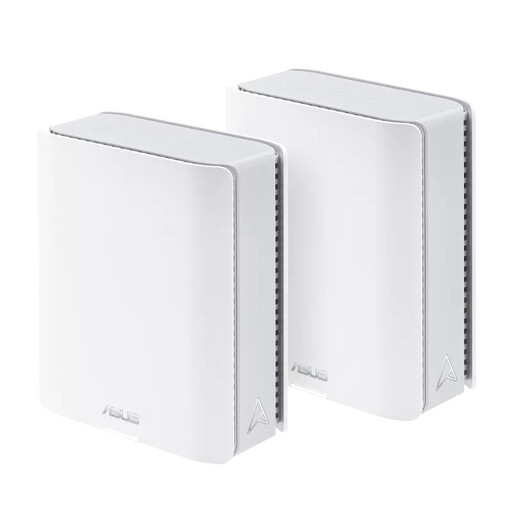
ASUS ZenWiFi BT10, 2-pack
For a mesh setup with two units; the product description mentions setup using the ASUS app.
Tri-band Wi-Fi 7 on 2.4, 5 and 6 GHz; Ethernet ports.
Both units need a suitable position and a power supply.
Joybuy
 No image available
TP-Link Deco X50, 2-pack
For a mesh setup with two Wi-Fi points; TP-Link describes optional Ethernet backhaul between the Deco units.
Dual-band Wi-Fi 6 on 2.4 and 5 GHz; Ethernet ports on the units.
Both units need a suitable position and a power supply.
Joybuy
Frequently asked questions
Can I connect my own router in the Netherlands?
Yes. ACM ConsuWijzer says you can choose your own router. If you connect it directly to your provider’s network, the equipment must meet the relevant safety and network requirements. Ask your provider which settings are needed for your connection.
Does a mesh point have to go in the middle of a narrow hallway?
Not necessarily. Check the connection in the areas where you want to use Wi-Fi and between the mesh points. If the wireless connection between the points is weak, Ethernet backhaul may be an alternative with compatible equipment.
Can I simply add another TP-Link Wi-Fi point later?
No, check the mesh product family and exact model first. TP-Link says that OneMesh devices and Deco Mesh don’t form one mesh network together.
What maintenance does your own router need?
Check for firmware updates and change the default administrator password. The National Cyber Security Centre also recommends disabling remote management as part of basic router security if you don’t need it.


