What should you look for when choosing?
Before you buy, also check the CE mark on the exact model: according to the Dutch Digital Infrastructure Inspectorate, only products bearing the CE mark may be sold in Europe.
A single standalone Wi-Fi router
Choose this option if: both workspaces get a strong enough signal from a well-positioned router.
Bear in mind: one device is easier to position, but won’t automatically solve a weak signal behind obstacles.
Mesh with multiple Wi-Fi access points
Choose this option if: the second room in particular has poor coverage and you can place an extra access point there.
Bear in mind: an extra access point needs a suitable location and power supply; a wired connection also requires a cable route.
A router connected to your existing modem
Choose this option if: you’re keeping your provider’s modem and want to connect fixed work devices by cable.
Bear in mind: check your provider’s connection requirements and settings first; a faster WAN port won’t automatically make your internet connection faster.
| What to consider |
What to look for when buying |
Who is this important for? |
| Connection when several people are working at once |
Check the signal in both workspaces and the number of available Ethernet ports. |
If I make video calls while other people use the connection, I mainly want to know whether it will remain reliable at my regular workspace. Around 31% of consumers say working at the same time is their main concern when buying. |
| Keeping guest access separate |
Check whether guest users are isolated from the local network and whether they need access to shared devices. |
When visitors only need internet access, I want to make sure they can’t also access local work devices. Around 31% of consumers give separate guest access top priority. |
| Coverage in the second room |
Check the signal in the workspace and whether you can place or connect an extra access point there by cable. |
If I also work in a second room, I want to know whether one router will provide enough coverage or whether I’ll need an extra access point. Around 23% of consumers prioritise coverage in a second room. |
| Connection and setup |
Decide whether you’re keeping your provider’s modem and which connection settings you’ll need. |
When I want to connect my own equipment to or behind my provider’s existing equipment, I want to know in advance which settings are needed. Around 15% of consumers say connection and setup are their main concern when buying. |
Joybuy products for these workspaces
This selection includes mesh kits for Wi-Fi in multiple locations and standalone routers for a compact setup. Compare where you can place them, guest access and wired connections with the needs of your workspaces.
 Image unavailable
ASUS ZenWiFi BT8 (2-pack), tri-band Wi-Fi 7
This mesh kit is designed to provide Wi-Fi in multiple locations; each unit needs a suitable spot near a power socket.
2-pack; tri-band 2.4 GHz, 5 GHz and 6 GHz; Wi-Fi 7 (802.11be). The product description mentions guest network functionality and Ethernet ports, including 2.5-gigabit ports.
View at Joybuy
 Image unavailable
TP-Link Deco X50 (3-pack), dual-band Wi-Fi 6
A mesh kit with three units for Wi-Fi across multiple workspaces; actual coverage also depends on where you place them.
Wi-Fi 6 (802.11ax); dual-band 2.4 GHz and 5 GHz. The product description lists gigabit ports on each unit and OFDMA/MU-MIMO.
View at Joybuy
 Image unavailable
Huawei eKit OptiX FG630 AX3000 dual-band Wi-Fi 6 mesh router
A mesh option to compare if you want to extend Wi-Fi to more than one location; positioning also affects coverage.
Dual-band Wi-Fi 6. The product description mentions a shared network name and roaming between mesh points.
View at Joybuy
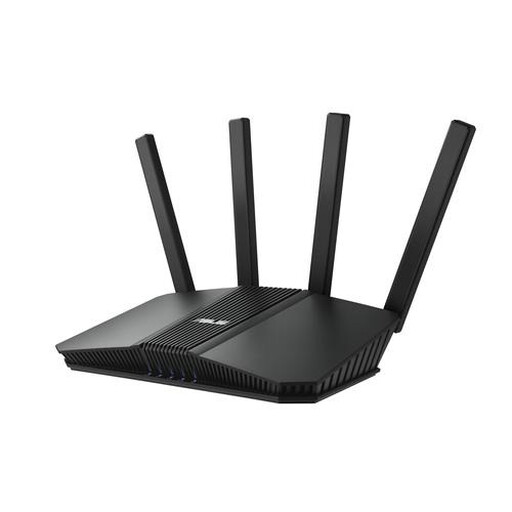 Image unavailable
ASUS RT-BE82U BE6500 dual-band Wi-Fi router
A standalone router to compare if one well-chosen position gives both workspaces a strong enough signal.
Wi-Fi 7; dual-band 2.4 GHz and 5 GHz. The product description lists four Ethernet ports, including a 2.5-gigabit port, and WPA3-Personal.
View at Joybuy
 Image unavailable
TP-Link Deco XE75 (3-pack), tri-band Wi-Fi 6E
A mesh kit with three units to compare if you need Wi-Fi in several workspaces; make sure you have suitable locations and power sockets.
Tri-band 2.4 GHz, 5 GHz and 6 GHz; Wi-Fi 6E (802.11ax). The product description lists guest access, WPA3 and three gigabit Ethernet ports per unit.
View at Joybuy
Frequently asked questions
Can I connect my own router in the Netherlands instead of using only my provider’s equipment?
Yes. The Netherlands Authority for Consumers and Markets’ ConsuWijzer says you can choose your own router. If you use your own modem, technical and security requirements also apply. Ask your provider which settings you need if you’re connecting your own equipment to the network.
Do I need a licence for Wi-Fi between these workspaces?
No. The Dutch Digital Infrastructure Inspectorate says Wi-Fi at home or in a commercial building is licence-exempt if you use the designated frequencies and comply with the conditions of use. Those conditions still apply.
How can I stop visitors accessing local work devices?
Check the guest network setting and test whether a guest device can access local devices. ASUS describes guest internet access with limited access to the local network on the RT-AX57. This is a model-specific feature and doesn’t automatically apply to other routers.
What if a router breaks down too soon during normal use?
As well as any manufacturer’s warranty, you’re covered by your statutory rights. If the product doesn’t meet what you could reasonably expect, the seller must offer an appropriate free solution, according to the Netherlands Authority for Consumers and Markets’ ConsuWijzer. There’s no single fixed statutory warranty period for every router.
What should I bear in mind when installing and maintaining it?
Place an extra Wi-Fi access point where it can get a reliable connection, and secure your network. If you connect your own equipment directly, also check your provider’s settings and security requirements.


