Who is this choice relevant to?

A family with weak Wi-Fi beyond the hallway

Wants to watch family videos in several rooms and is first checking whether moving the router or adding Wi-Fi points could help. The Dutch Authority for Digital Infrastructure highlights the importance of router placement and the difference in coverage between Wi-Fi frequency bands.

A family sharing videos between devices

Considers both the connection to devices and the connection between any Wi-Fi points. An Ethernet cable between points may be useful; TP-Link describes this option for Deco systems as Ethernet backhaul.

A family with an existing internet provider’s modem

Wants to know whether their own router or mesh system can work alongside their current connection, without replacing the modem unnecessarily. ACM ConsuWijzer provides information about choosing your own modem or router.

What should you look out for?

Move your existing router

Choose this if: Wi-Fi is patchy in certain areas and you can move the router to a different spot.

The trade-off: You can try a different setup first, but it won’t always solve the problem if distance or obstacles are affecting the signal.

One router, with no extra points

Choose this if: the connection is already good enough everywhere you watch videos, or you need a different type of connection.

The trade-off: A higher advertised Wi-Fi speed alone doesn’t prove that the signal will be strong at the other end of the hallway.

Mesh with a wireless connection

Choose this if: one router doesn’t provide enough coverage, you can position several points and running Ethernet between them isn’t practical.

The trade-off: Each extra point still needs to be able to make a good wireless connection to the network.

Mesh with Ethernet between the points

Choose this if: you can run a cable between the points and want their connection to be wired.

The trade-off: This setup requires cabling, as well as suitable ports and settings.

What to consider What should you check? Who is this important to?
Coverage at both ends of the hallway Test the connection in the places where you watch videos. If possible, try moving the router first, then check where an extra point can get a connection. The Dutch Authority for Digital Infrastructure notes that 5 GHz has a shorter range than 2.4 GHz. If I want to watch family videos in rooms on both sides of the hallway, I want to know whether Wi-Fi reaches them before I buy extra equipment. Around 36% of consumers prioritise coverage in these areas.
Connection between devices and Wi-Fi points Work out which devices can be connected by cable and whether it’s possible to run an Ethernet cable between Wi-Fi points. Check that the exact system supports Ethernet backhaul; TP-Link describes this feature for Deco units. If I share videos between devices, I consider not only their connection but also the connection between any Wi-Fi points. Around 29% of consumers prioritise this connection.
Connection to your existing modem Decide whether you’ll keep your internet provider’s modem, and check the available Ethernet port and whether the chosen system has router or access point mode. If I want to keep using my existing internet connection, I want to know in advance how my own router or mesh system will connect to it. Around 21% of consumers make compatibility with existing equipment their top priority.
Security and maintenance Check how firmware updates work for the exact model and whether the router has the correct CE marking. The Dutch Authority for Digital Infrastructure lists Wi-Fi routers among the equipment that must have the correct CE marking. If I manage my own router, I want to know how to keep it updated and what to check when choosing one. Around 14% of consumers prioritise secure management.

Common buying mistakes

  • Focusing only on the advertised Wi-Fi speed

    An advertised speed doesn’t tell you how good the connection will be at the far end of the hallway. Router placement and the connection between points also play a part.

    Test the Wi-Fi where you watch family videos, then compare moving the router with using one router, wireless mesh or wired points.

    If coverage is still insufficient there, your chosen setup may require extra Wi-Fi points or cabling.

  • Assuming every wireless point performs equally well

    In its test of the three-point TP-Link Deco X50 system, Tweakers found that clients connected to more distant wireless satellites performed less well. This finding applies to the version tested and isn’t a general conclusion about all mesh systems.

    Check where you plan to position the points, and consider connecting them via Ethernet if you can run cables along the hallway.

  • Overlooking extra features and maintenance

    Tweakers reported that the tested Deco X50 required a subscription for all its advanced security and parental control features. Check which features you want to use and what applies to the exact version you’re considering.

    Also check how firmware updates are delivered and which features are included with your chosen model.

Brands worth comparing

TP-Link

Deco mesh systems and routers for anyone considering several Wi-Fi points or a wired connection between Deco points.

  • TP-Link Netherlands lists the Deco X50 in versions with two and three points, among other options, and with gigabit ports.
  • In Tweakers’ test of the three-point Deco X50 system, clients connected to more distant wireless satellites performed less well. This doesn’t automatically apply to wired setups or other TP-Link models.

ASUS

The ZenWiFi XD5 is a mesh option to consider when deciding where to position multiple units around your home.

  • ASUS describes the XD5 as an AX3000 Wi-Fi 6 system with three routers.
  • A coverage figure quoted by ASUS doesn’t guarantee coverage in a home with a narrow hallway. Compare the setup you have in mind and test the connection where you’ll use it.

FRITZ!

Mesh systems and compatible networking equipment for anyone looking to compare different mesh setups.

  • Tweakers included a FRITZ! mesh system with two access points in a comparison with systems that had three.
  • The setup tested had a different number of access points; don’t assume the findings apply to other FRITZ! products.

NETGEAR

Orbi mesh systems offer another type of wireless connection between points to compare.

  • Tweakers included the Orbi RBK762 as a tri-band system in the same test.
  • NETGEAR’s claims about coverage and uninterrupted streaming are brand claims. Check the exact model and your home’s layout before choosing a setup.

Joybuy routers and mesh products

This selection includes both a standalone router and mesh systems for Wi-Fi coverage in several areas of your home.

TP-Link Deco E4 (3-pack) dual-band Wi-Fi 5 mesh system

TP-Link Deco E4 (3-pack) Dual-band Wi-Fi 5

A three-unit mesh system for anyone looking to get Wi-Fi in several areas of their home.

Dual-band: 2.4 GHz and 5 GHz. Wi-Fi 5 (802.11ac) and two network ports per unit.

View at Joybuy
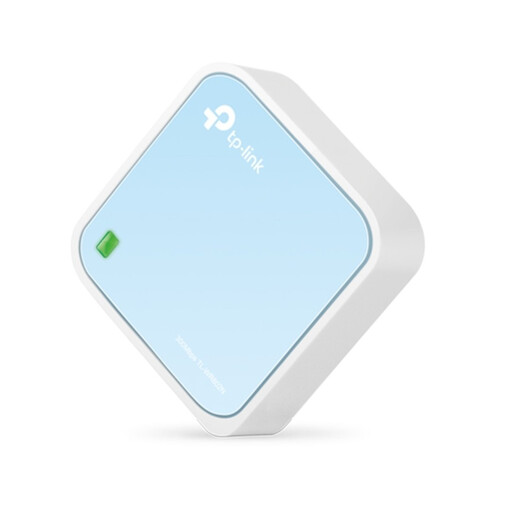
TP-Link TL-WR802N V4 router

TP-Link TL-WR802N V4

A standalone router for anyone considering a setup without extra Wi-Fi points.

Wi-Fi 4 on 2.4 GHz. The network port offers wired speeds of up to 100 Mbps.

View at Joybuy

ASUS ZenWiFi BT8 (2-Pack) tri-band Wi-Fi 7 mesh system

ASUS ZenWiFi BT8 (2-Pack) tri-band Wi-Fi 7

A two-point mesh system for anyone considering multiple Wi-Fi points around the home.

Tri-band on 2.4, 5 and 6 GHz; Wi-Fi 7 (802.11be). The product description mentions AiMesh integration.

View at Joybuy

ASUS ZenWiFi BD4 dual-band Wi-Fi 7 mesh system

ASUS ZenWiFi BD4 dual-band Wi-Fi 7

A ZenWiFi mesh option for anyone considering a wired connection between mesh points.

Dual-band on 2.4 and 5 GHz; Wi-Fi 7 (802.11be). Two 2.5-Gbps Ethernet ports and a listed wired backhaul option.

View at Joybuy

TP-Link Deco M4 (3-Pack) dual-band Wi-Fi 5 mesh system

TP-Link Deco M4 (3-Pack) dual-band Wi-Fi 5

A three-unit mesh system for anyone looking to use Wi-Fi in several areas of their home.

Dual-band: 2.4 GHz and 5 GHz. Wi-Fi 5 (802.11ac) and two Ethernet ports per unit. The product description lists HD streaming as a use case.

View at Joybuy

Frequently asked questions

Will a faster router automatically help in the room beyond the hallway?

Not necessarily: an advertised speed alone doesn’t tell you how good the Wi-Fi will be in that spot. The Dutch Authority for Digital Infrastructure highlights the effect of your surroundings and the shorter range of 5 GHz compared with 2.4 GHz. Test the connection where you watch videos and, if possible, try moving the router first.

How do you connect Deco Wi-Fi points to each other with a cable?

TP-Link describes Ethernet backhaul for Deco units connected by cable. Follow the instructions for your exact system and check in the app that the satellite is actually using Ethernet backhaul; the connection method may differ between router and access point modes.

Can you use your own router in the Netherlands instead of your provider’s?

Yes. According to ACM ConsuWijzer, you can choose your own modem or router as long as it meets the applicable requirements. Ask your provider about the connection settings for your service, and check that the equipment is suitable for the connection you plan to use.

Which router features might require a subscription?

It depends on the product and feature. Tweakers reported that the tested TP-Link Deco X50 required a subscription for all its advanced security and parental control features. Check which features you want to use and what applies to the exact version you’re considering.

What should you keep doing after installing your own router?

Check for firmware updates and change the default login details where applicable. VeiligInternetten recommends keeping your own router up to date; check how updates work for the exact model and whether automatic updates are available.
