Who is this relevant to?

Teacher running online group lessons

You teach by video from home and want to know whether the connection where you teach is suitable for your video settings. Zoom’s Technical Library sets out the bandwidth requirements for different meeting settings.

Teacher welcoming pupils into their home

You want to give visitors internet access without letting them onto your private home network. Check whether the model you choose offers guest access and the network separation you need.

Renter with a weak connection where they teach

You’re mainly having trouble with the connection where you teach and want to check whether simply moving your router will be enough before choosing extra Wi-Fi equipment.

What should you look for when choosing?

Keep your provider’s router

Choose this if: the connection where you teach is stable and you can already set up the guest access you need.

The trade-off: you won’t need to add another device, but your options depend on your current router.

A separate Wi-Fi router

Choose this if: you need more control or have confirmed that the Wi-Fi from your current equipment is the problem.

The trade-off: installation and updates need extra attention; check how the router will work with your existing equipment.

An extra access point or mesh system

Choose this if: a trial lesson reveals a weak spot that you can’t fix by moving your existing router.

The trade-off: you’ll be adding equipment; consider whether it’s practical to install a wired access point.

What to consider What should you look for? Who is this important to?
Video lessons Test upload and download speeds where you teach during normal use, then compare them with your teaching platform’s requirements. If I teach group lessons, I want the picture and sound to suit my lesson settings. Around 40% of consumers put video lessons first.
Guest access Check whether the exact model offers a guest network and keeps guest devices separate from private devices. If pupils bring their own devices, I want to share internet access without exposing my private network. Around 30% of consumers prioritise separate access.
Connection and management Decide whether you’ll connect a router behind your provider’s equipment or replace the modem; check the settings you’ll need and whether firmware updates are available. If I want to set it up without complicated changes, I look at how the device connects and what maintenance it needs. Around 20% of consumers make this their top priority.
Coverage where you teach Test the connection where you teach first and try moving your existing router before deciding to extend your Wi-Fi. If the connection is weak specifically where I teach, I want to know whether moving the router will help or whether I need to extend the signal. Around 10% of consumers prioritise coverage.

Common mistakes

  • Confusing the Wi-Fi speed on the box with the speed of a video lesson

    A router’s stated radio speed is not the same as the upload and download speed of your internet connection.

    Test the connection where you teach and check the requirements of the video platform you use.

  • Connecting a second router without deciding how to set up your network

    Connecting a router behind your provider’s existing equipment is different from replacing the modem.

    Check in advance which connection and operating mode you’ll need. If you’re replacing the modem, ask your provider for the settings you’ll need.

  • Buying a large mesh system before testing where you teach

    In a compact home, the connection may be weak in one particular spot, even though simply moving your existing router could make a difference.

    Test it during a lesson or trial lesson first, then consider adding an access point or mesh system.

  • Assuming a guest network is automatically secure

    The separation available depends on the model and its settings.

    Once it’s set up, use a guest device to check that private devices can’t be accessed, and use a secure guest network where appropriate.

Brands to consider

TP-Link

The Archer AX55 is a standalone dual-band Wi-Fi 6 router to consider if you’re looking for a router to use behind your existing equipment.

  • TP-Link Netherlands lists stated Wi-Fi speeds of 2402 Mbps on 5 GHz and 574 Mbps on 2.4 GHz for the Archer AX55.
  • These are stated Wi-Fi speeds, not guaranteed internet speeds in your home. Check the version and installation requirements.

FRITZ!

According to FRITZ!, the FRITZ!Box 4060 combines a router with guest access and connection options for use behind a modem.

  • FRITZ! documents separation between the guest network and home network for this model.
  • The 4060 offers more than just Wi-Fi for a teaching space, so consider whether you need those features.

ASUS

The ASUS RT-AX86S is a Wi-Fi 6 router with an access point mode for use alongside existing equipment.

  • ASUS specifies gigabit ports and an access point mode for the RT-AX86S.
  • Don’t confuse the RT-AX86S with the RT-AX86U; ASUS lists different hardware for that version.

Joybuy products

This Joybuy selection includes standalone routers and mesh models for guest access, a wired connection or extending your Wi-Fi. Before buying, check that the exact version intended for the Dutch market has the relevant CE mark and documentation, and is compatible with your provider’s equipment.
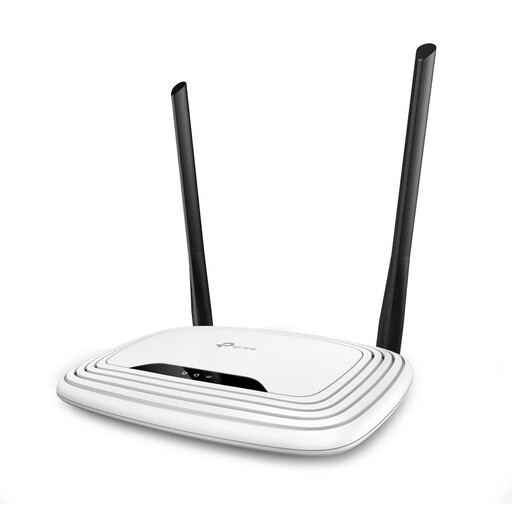
TP-Link TL-WR841N wireless router

TP-Link TL-WR841N

Could suit you if you’re looking for a home router with a guest network.

Wi-Fi 4 on 2.4 GHz; four Fast Ethernet LAN ports and an Ethernet WAN connection.

The LAN ports are Fast Ethernet (10/100 Mbit/s); Wi-Fi operates on a single band, 2.4 GHz.

Joybuy
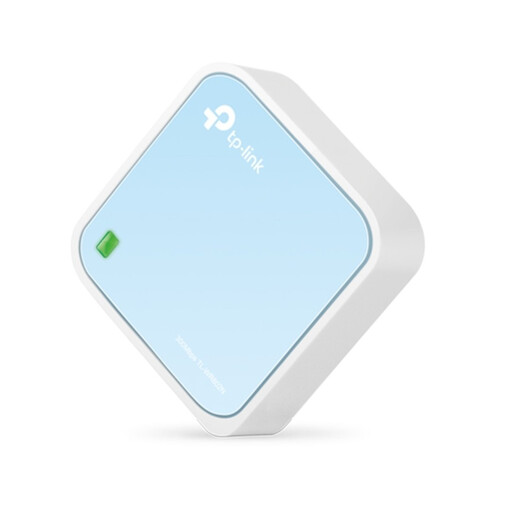
TP-Link TL-WR802N V4 router

TP-Link TL-WR802N V4

A compact router option if you’re looking for a straightforward home Wi-Fi connection.

Wi-Fi 4 on 2.4 GHz; one network port with wired speeds of up to 100 Mbps.

Joybuy

ASUS ZenWiFi BD4 dual-band mesh Wi-Fi

ASUS ZenWiFi BD4

Could suit you if you want to extend your Wi-Fi and need guest network access.

Dual-band Wi-Fi 7 on 2.4 GHz and 5 GHz; the product information lists mesh and wired backhaul as options.

The description says it can be set up using the ASUS Router app.

Joybuy

ASUS RT-AX52 AX1800 dual-band router

ASUS RT-AX52 AX1800

Could suit you if you’re looking for a router with a wired gigabit connection or the option to extend your network.

Dual-band Wi-Fi 6; the product information lists Gigabit Ethernet and AiMesh compatibility.

The description says it can be set up using the mobile app.

Joybuy

Huawei eKit OptiX FG630 AX3000 mesh router

Huawei eKit OptiX FG630 AX3000

Could suit you if you’re considering a mesh setup to extend Wi-Fi to a weak spot.

Dual-band Wi-Fi 6 mesh router; the product information lists management through the Huawei AI Life app.

Joybuy

Frequently asked questions

Can I use my own router in the Netherlands?

Yes. According to ACM ConsuWijzer, you have the freedom to choose your router. Connecting a standalone router behind your existing modem is different from replacing the modem; if you replace it, you’ll need the correct connection settings.

Do I need to buy a router with a particular speed for group video lessons?

Don’t choose based only on the speed shown on the router. Zoom lists estimated peak requirements of 2,6 Mbps upload and 1,8 Mbps download for a 720p group call in its app. Other platforms, settings and simultaneous users may differ. Test the connection you’ll use during lessons.

Do I need a licence for ordinary home Wi-Fi?

Usually not: the Dutch Authority for Digital Infrastructure describes Wi-Fi as licence-exempt when you use the designated frequencies and comply with the conditions of use. This alone says nothing about whether a specific device is compliant.

How do I maintain my own router?

Check for firmware updates and enable automatic updates if your model supports them. Change the default login details when you set it up; the Dutch Data Protection Authority recommends a long password or a strong passphrase.

Is the legal guarantee in the Netherlands always exactly two years?

No. ACM ConsuWijzer states that the law does not set a fixed period for the legal guarantee; what matters is how long you can reasonably expect the product to last with normal use. If there’s a fault, contact the retailer.
