
Households with simultaneous video calls
You want to know whether calls will stay stable while others are using the network. Check the connection where you make calls and whether the model you’re considering offers traffic prioritisation.


Where possible, connect an existing media server or NAS by cable, and check the Wi-Fi in the places where you make calls. A standard router may be enough if coverage is good there. Traffic prioritisation matters if other internet activity disrupts calls, while mesh can help if the signal is weak in other rooms. USB storage on the router is mainly useful if the router itself needs to share a drive.
You want to know whether calls will stay stable while others are using the network. Check the connection where you make calls and whether the model you’re considering offers traffic prioritisation.
You share media or files with several devices and want to connect your server appropriately. A standalone NAS connected via Ethernet is different from a USB drive shared by the router itself.
You want Wi-Fi in the places where you make calls or watch content. Compare mesh expansion with a wired connection to an additional Wi-Fi access point.
Zoom recommends 2.6 Mbps upload and 1.8 Mbps download for a 720p group call with that specific setting. Also check the connection while several people are using the network: router features cannot automatically fix a weak signal or an inadequate internet connection.
| What to consider | What to look for | Who is this important for? |
|---|---|---|
| Stable calls | Check the connection where you make calls and whether the exact model lets you set priorities by device or application. | If I’m on a call while other people at home are using the network, I want my call to stay connected; around 36% of consumers put call stability ahead of other buying concerns. |
| Connecting the media server | Count the LAN ports you need and compare the connection speeds supported by your server, router and devices. | I want to connect my NAS or media server and playback devices appropriately; around 29% of consumers prioritise this server connection. |
| Coverage in other rooms | Check coverage where you make calls and watch content, and whether you can run a cable between mesh points. | If the connection is weak on another floor, I want to be able to make calls or watch content reliably there; around 21% of consumers put coverage ahead of other buying concerns. |
| Installation and maintenance | Check your provider’s required settings, the appropriate connection mode and whether firmware updates are available. | I want to keep using my existing connection without unnecessary extra equipment and maintain the network properly; around 14% of consumers prioritise installation and management. |
An advertised Wi-Fi class or port speed does not measure the entire connection between your server and playback device.
Before choosing a router, check which wired ports you’ll use and what your server and client devices can support.
A more expensive router won’t fix a limitation caused by a port, client device or another part of the connection.
Traffic prioritisation can redistribute existing capacity, but it won’t strengthen your Wi-Fi signal or make your internet package faster.
Check coverage and the connection while several people are using the network first; then see whether the specific model offers the prioritisation feature you need.
A NAS with a network connection and a USB drive shared by a router are two different setups.
Decide in advance which device will make the files available and which connection it needs.
A USB feature may be unnecessary if you already use a standalone NAS.
A wireless mesh point needs to maintain its own connection to the network; with Ethernet backhaul, the connection between points runs over a cable.
Decide where to place the points and check whether cabling is possible. TP-Link describes Ethernet backhaul as an optional connection between Deco X50 units.
Mesh may require extra equipment and, if you wire the points, installation or cabling work.
The product lines mentioned include standalone routers and the Deco X50 mesh system. Compare models for their connections and coverage.
The RT-AX52 Pro and RT-AX86U Pro are different models; check the features of the version you’re considering.
According to FRITZ!, the FRITZ!Box 7690 combines a DSL modem with router features and can also be used behind a cable modem or fibre ONT.
The WRX560 is a router option to consider alongside an existing NAS or other Synology routers.
The RAXE300 is a tri-band Wi-Fi 6E model for households that also use devices with 6GHz support.
This selection includes routers for a wired media server connection, mesh systems for Wi-Fi in several places and a portable mobile hotspot. For the version you buy, check the applicable CE marking: the Dutch Authority for Digital Infrastructure describes this as a requirement for radio equipment that meets the applicable requirements and is placed on the market in the EU.
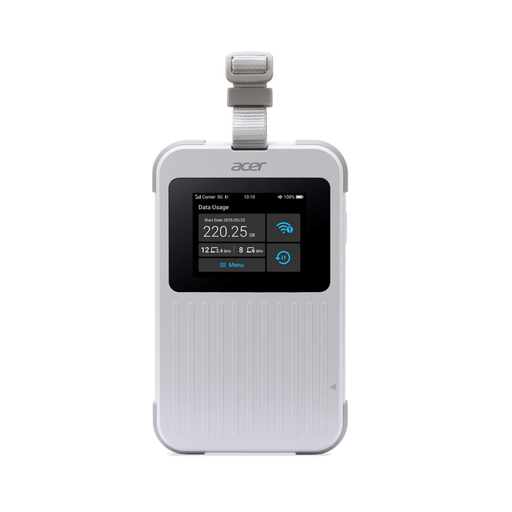 No image available
This is a portable mobile hotspot, not an obvious replacement for a router with a fixed NAS connection. Consider it only if a mobile internet connection suits your needs.
The product name lists support for up to 32 devices and 1 GB; check the terms and conditions for this included allowance.
 No image available
A router to consider if you want to connect a media server by cable and may need to extend your Wi-Fi coverage. Check that the LAN connections are suitable for your server and other devices.
The product name lists Gigabit Ethernet, dual-band and AiMesh compatibility; the frequencies are 2.4 and 5 GHz.
 No image available
A mesh system to consider if Wi-Fi coverage is poor where you make calls or watch content in other rooms. Before you buy, check where the points will go and whether you can connect them by cable.
The product name lists dual-band 2.4/5 GHz, Wi-Fi 6 and a pack containing three units.
 No image available
A mesh router to consider if you need Wi-Fi in several places around your home. Check that its features and connections suit your existing network and the connection you want between the points.
The product name lists dual-band Wi-Fi 7.
 No image available
A mesh router to consider if you want to extend Wi-Fi to several places. Check that the connection to your current network and the placement of the points suit your home.
The product name lists dual-band Wi-Fi 6.
No, you can connect a standalone NAS to your home network with a network cable. FRITZ! also describes using a NAS on a home network; USB storage connected to a router is a separate feature that the specific model must support.
It may help when other network traffic is using up the available capacity and the model you’ve chosen supports traffic prioritisation. First, check the connection where you make calls: prioritisation won’t increase your broadband speed or fix a weak Wi-Fi signal.
It depends on the connection mode and cabling supported by the system you choose. Check whether access point mode is available and follow the instructions for your chosen mode; TP-Link describes different connection rules for router and access point modes on Deco.
Yes. According to the Dutch Authority for Digital Infrastructure, you can use Wi-Fi without a licence when you use the designated frequencies and comply with the applicable conditions of use. This does not mean that every setting or version is automatically suitable.
Check the specific version you’re actually buying. The Dutch Authority for Digital Infrastructure states that radio equipment must meet the applicable requirements and carry a CE marking to be placed on the market in the European Union; the model name alone does not confirm this.