
A team on simultaneous video calls
You share a compact workspace and want several active connections to remain usable. Also consider whether you can connect a fixed workstation by cable.


For a compact home office, one router is enough if it provides good coverage where you work. Only choose mesh or an additional access point if you identify a coverage problem. Also check that you have enough wired connections, how the router connects to your provider’s equipment and how updates are managed. A product listing alone does not confirm that the exact version meets all applicable product requirements.
You share a compact workspace and want several active connections to remain usable. Also consider whether you can connect a fixed workstation by cable.
You want to find out first whether Wi-Fi reaches your desk properly. Check this before choosing an additional access point or mesh system.
You manage the router yourself and want to take updates, the connection to your provider and the needs of different users into account.
| Concern | What to look for when buying | Who is this important for? |
|---|---|---|
| Simultaneous use | Check what your devices support and whether you can connect a fixed workstation by cable. | When I’m on a video call with others at the same time, I want our active connections to remain usable; around 33% of consumers give simultaneous-use capacity top priority. |
| Coverage at your desk | Test the connection where you work; also check whether you can run a cable to an additional access point. | When Wi-Fi is weak at my desk, I want to find out whether it’s a coverage issue before choosing extra equipment. Around 25% of consumers prioritise coverage where they work. |
| Security and management | Find out how updates for the exact model are made available and who installs them. | If I manage the network myself, I want to know how to keep the router up to date; around 25% of consumers care most about security and management. |
| Connection and setup size | Check how the router connects to your provider’s equipment and how many LAN ports you use. | I want a setup that suits my connection, without choosing more equipment than my workspaces need; around 17% of consumers prioritise connectivity and the scale of the purchase. |
The stated speed for each frequency band is not a measure of your internet connection or the connection at your desk. So, on its own, that figure doesn’t tell you whether a video call will run smoothly there.
Assess simultaneous use, your devices’ capabilities and the connection where you work separately.
A slow connection may be caused by coverage, but it could also be a speed issue. Extra Wi-Fi points mainly address coverage problems and aren’t automatically needed in a compact, well-covered office.
Test the connection at your desk, then choose between one router, an additional access point or mesh.
A different model variant or pack size may have different ports, power supplies or numbers of units. For example, Deco X50-PoE is not the same model as Deco X50.
Before buying, compare the full model name, number of units, ports and power options.
The Archer AX55 is a standalone router; the Deco X50 is a mesh product range for situations where you need extra coverage.
The FRITZ!Box 4060 is a router that connects to a modem and offers additional networking and telephony features.
The RT-AX58U is a Wi-Fi 6 router to consider if you’re interested in AiMesh compatibility and the listed management features.
The RAX10 is an AX1800 Wi-Fi 6 router with a Dutch-language support page for documentation and firmware.
These product picks include standalone routers and mesh systems for a compact home office. First decide whether you need extra coverage, then check whether each exact version meets the applicable product requirements; a product listing does not confirm this.
 No image available
A mesh system to consider if your workspace needs extra coverage; check that two units are right for the space and can be positioned as needed.
 No image available
A standalone router to consider if one well-positioned router can reach your workspaces and you need wired connections.
 No image available
A mesh system with three units to consider if several workspaces need extra coverage; check that you can position and use all the units.
Dual-band: 2.4 GHz and 5 GHz.
 No image available
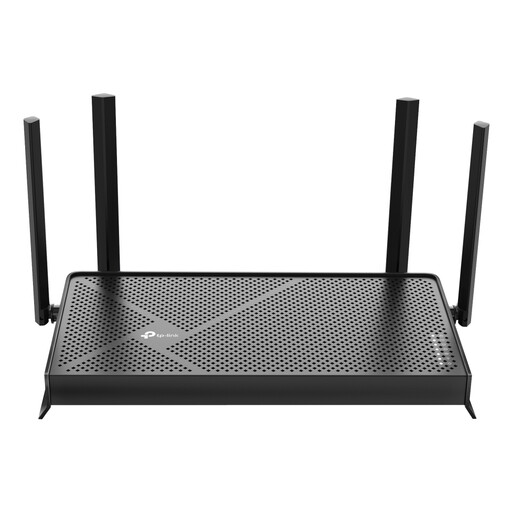
A standalone router to consider if one router can reach your workspaces and you’re looking at a dual-band Wi-Fi 7 model.
Dual-band Wi-Fi 7.
 No image available
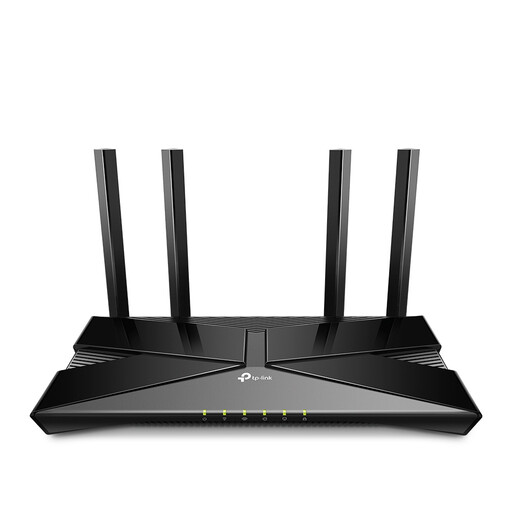
A standalone router to consider if your workspace is within range of one router and you want the option of a wired connection.
Dual-band: 2.4 GHz and 5 GHz; gigabit Ethernet is stated in the product name.
Yes. According to ACM ConsuWijzer, your provider cannot require you to use a particular brand or model. Ask your provider which settings you need to use the router with your connection.
Not necessarily: you can connect a standalone router to a modem, as the manufacturer describes for the FRITZ!Box 4060. The right setup and settings depend on your internet connection and your provider’s equipment.
First test the connection where you work and establish whether the issue is coverage or speed. If coverage is the problem, you could consider an additional access point or mesh; if you can run a cable, a wired access point may also be an option.
Check how you receive firmware updates for the exact model and install any that are available. VeiligInternetten notes that a provider router is usually updated by the provider; if you have your own router, it’s a good idea to find out how the update process works.
The Dutch Authority for Digital Infrastructure states that stricter European requirements for wireless equipment, including cybersecurity requirements, have applied since 1 August 2025. When the requirements are met, the manufacturer applies the CE marking; check whether the exact version meets the applicable requirements.