If you’re working with a group in one room, choose between a compact standalone router and a model with enough LAN ports for the devices you want to connect by cable. If people are working in different rooms, you could also consider mesh or wall mounting, but check the space, connections and positioning needed for your setup. Before you buy, also make sure the exact product has the required CE marking.
Who is this choice relevant to?
A group working in one room
You want to connect laptops and phones while working on the same project, and need to choose between wireless connections and enough ports for cables. ASUS and TP-Link list different numbers of LAN ports for their router models.
A small workspace
You have limited shelf space and are comparing a compact casing with a device that can be mounted on a wall or ceiling. ASUS lists the dimensions of the RT-AX57 Go, while TP-Link gives several positioning options for the Deco X50-PoE.
A host with personal devices
You let project partners use your internet connection, but want to be able to limit their access to devices on your local network. ASUS describes this option for the RT-AX57 Go’s guest network.
What should you consider when choosing?
Compact standalone router
Best for: one workspace where shelf space is at a premium; ASUS lists the RT-AX57 Go as measuring 120 × 120 × 21,5 mm and having a guest network that limits access to the local network.
Bear in mind: this model has one 1GbE LAN port. Check whether that’s enough for the devices you want to connect by cable.
Standalone router with more LAN ports
Best for: several wired workstations, if you have room for a router with external aerials; ASUS lists three gigabit LAN ports for the RT-AX52 Pro, while TP-Link lists four for the Archer AX23.
Bear in mind: allow for the full setup, including aerials, cables and power supply.
Mesh or wall-mounted access point
Best for: workspaces in different rooms, or if you want to keep the shelf clear; TP-Link lists wall, ceiling and tabletop placement for the Deco X50-PoE.
Bear in mind: each unit needs a suitable position and connection. Check that PoE or DC power suits your setup.
Your existing internet provider’s router
Best for: a project room that already has enough Wi-Fi coverage and doesn’t need extra ports or separate features.
Bear in mind: check the guest network and positioning. VeiligInternetten recommends using your provider’s router if you want them to install the updates.
| Buying concern |
What should you check? |
Who should consider this? |
| Connecting several people |
Count how many devices will be active at the same time and how many need a cable; check the LAN port count for the exact model. |
When several laptops are online at once, I want to know how many devices I can connect by cable and how the rest will connect wirelessly. Around 33% of consumers prioritise connecting a group at the same time. |
| Limited shelf space |
Measure the available space and check the casing, mounting method, power supply and room for cables. |
I want to keep my shelf clear and check whether the router, cables and power supply will all fit. Around 27% of consumers have limited space as their main constraint. |
| Separating guest access |
Check whether the exact model has a guest network that can limit access to local devices. |
If project partners use my internet, I want to be able to restrict their access to my local devices. Around 20% of consumers are most concerned about guest access. |
| Coverage in workspaces |
Work out which rooms the group will use and assess the connection there before relying on theoretical speed or range claims. |
When we work in different rooms, I want to assess the connection in those locations before choosing extra units. Around 20% of consumers prioritise coverage in their workspaces. |
Things to watch out for when buying
-
Focusing only on the combined Wi-Fi speed
A stated radio speed doesn’t tell you how many LAN ports are available or how well the connection will work in your workspace.
Count the wired workstations and assess positioning and coverage separately.
-
Assuming a small casing saves space across the whole setup
The casing dimensions don’t tell the whole story: the power supply and cables also take up space, and a compact model may have fewer LAN ports.
Measure the space available and check how many ports you need before choosing a model.
-
Connecting an extra router without planning your existing network
Connections and management can differ between your own router and your provider’s device.
First decide whether to keep your existing router, add an access point or connect your own device directly. If you choose the latter, check your provider’s settings and security requirements.
Brands to compare
ASUS
The RT-AX57 Go and RT-AX52 Pro are worth comparing if compact positioning and wired connections are different priorities for you.
- According to ASUS, the RT-AX57 Go measures 120 × 120 × 21,5 mm and has a guest network that limits access to the local network.
- The RT-AX57 Go has one 1GbE LAN port; the RT-AX52 Pro has three gigabit LAN ports and external aerials, according to ASUS. Be sure to distinguish between the specifications of these two models.
TP-Link
The Archer AX23 is a standalone router to compare with the Deco X50-PoE, which offers different positioning options.
- According to TP-Link, the Archer AX23 has four gigabit LAN ports. TP-Link lists wall, ceiling and tabletop placement, plus PoE or DC power, for the Deco X50-PoE.
- Mesh coverage depends on the pack size and conditions of use; the available positioning options alone don’t indicate what coverage you’ll get.
FRITZ!
The FRITZ!Box 4050 is worth comparing if you’re looking for telephony or home network features as well as router functions.
- FRITZ! lists gigabit WAN, Wi-Fi 6, a DECT base station and a five-year manufacturer’s warranty for this model.
- These extra features don’t prove that the model takes up less shelf space or performs better during a group project.
NETGEAR
The RAX10 is a model worth comparing if wired workstations are important to you.
- NETGEAR’s product specifications list four gigabit LAN ports and dual-band Wi-Fi 6.
- These specifications alone don’t show how compact the setup is or how well the connection will perform in your workspace.
Joybuy product picks
These Joybuy picks range from a mesh kit and standalone routers to mobile routers and hotspots. Compare them based on the connection your project needs, and check before buying that the exact product has the required CE marking.
 Image unavailable
TP-Link Deco BE68 2-Pack
A mesh kit of two for a setup with workspaces in more than one location; check that you can position the units and connect them throughout your space.
Joybuy
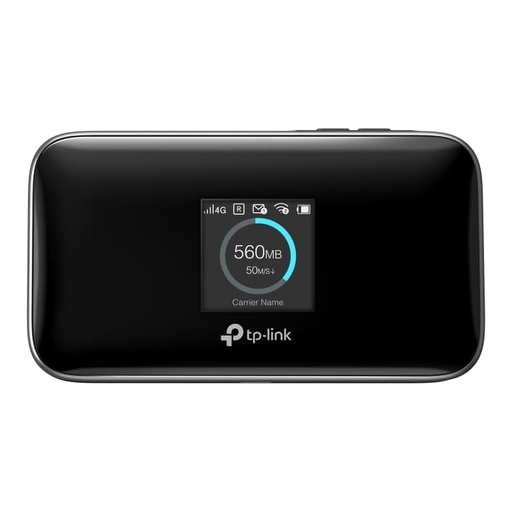 Image unavailable
TP-Link M7750 mobile router
A mobile router for a project that needs mobile network access. Check in advance which network and data plan will suit your setup.
Joybuy
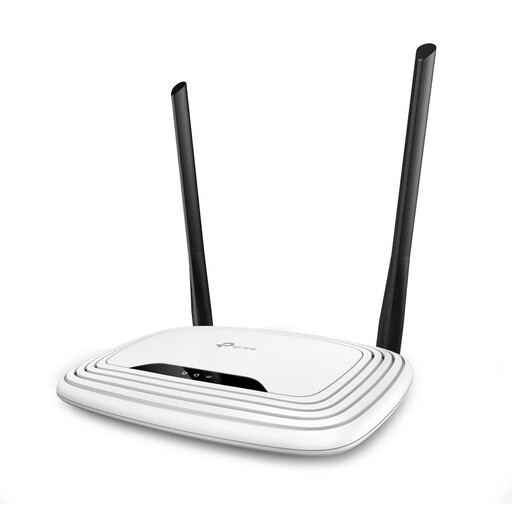 Image unavailable
TP-Link TL-WR841N router
The product name specifies Fast Ethernet and single-band 2.4 GHz. Check that the port type and wireless connection suit the devices you’ll use for your project.
Joybuy
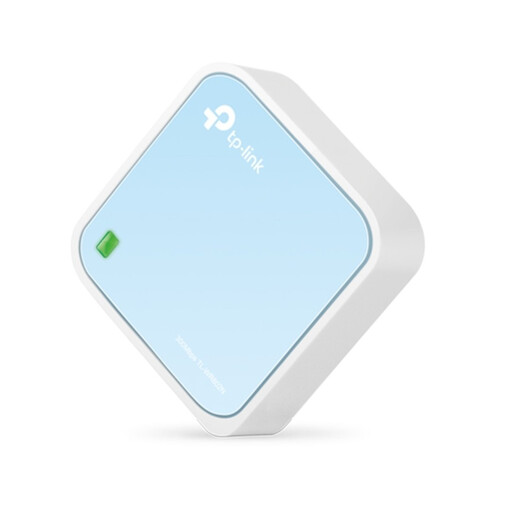 Image unavailable
TP-Link TL-WR802N V4 router
A compact router for a small setup. Check the available space and power supply, and make sure the network connection is suitable for your needs.
Joybuy
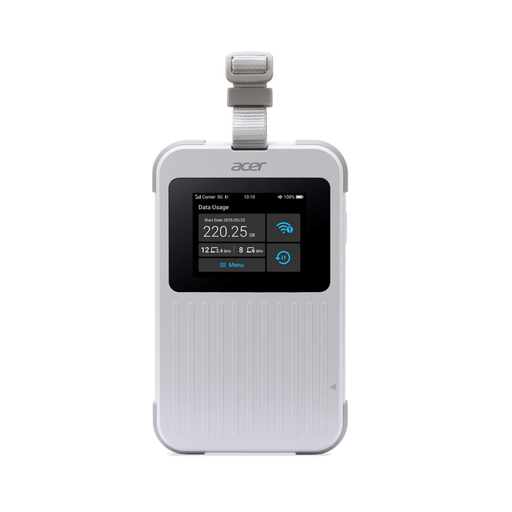 Image unavailable
Acer Connect M6E portable MiFi router 5G Wi-Fi 6E
A portable mobile hotspot for anyone who wants to move the connection around during a project. The product name specifies dual-band, support for up to 32 devices and 1 GB included; check the data plan terms and what your devices need.
Joybuy
Frequently asked questions
Can I choose my own router in the Netherlands instead of using my internet provider’s?
Yes. According to ACM ConsuWijzer, your provider can’t make you use a particular brand or model. Your own device must still meet the applicable requirements, and a provider may refuse an unsafe device. Ask your provider which settings you need to connect it.
Where should I put the router if my shelf is small?
Measure the space available, including room for the power supply and cables. If the group works in other rooms, assess the connection at those workstations before choosing extra units. The Dutch Authority for Digital Infrastructure notes that 5 GHz has a shorter range than 2.4 GHz. Wall mounting is another positioning option, but it doesn’t automatically guarantee better coverage.
How do I keep my own router secure after setting it up?
Check for and install router updates using the manufacturer’s management app or website. VeiligInternetten warns that outdated router software can make it easier to access other devices in your home.
Is the legal guarantee for a router in the Netherlands always exactly two years?
No. ACM ConsuWijzer explains that the legal guarantee doesn’t have a fixed duration of two years: you can expect a product to last a reasonable amount of time under normal use. A manufacturer’s warranty is separate.
Which marking should I check on a Wi-Fi router sold in the Netherlands?
The Dutch Authority for Digital Infrastructure says that radio equipment must carry a CE marking. Check the marking on the exact product; the general requirement alone doesn’t confirm that a specific item complies.


