First, check your internet speed using an Ethernet cable and compare it with the Wi-Fi connection where you watch: a new router won’t fix a problem with your internet connection. If weak Wi-Fi coverage in your home office is the main issue, a standalone router may be enough if one well-positioned access point reaches the room. Consider mesh if coverage is still inadequate after moving the router. Where possible, connect your viewing device by cable, and check before buying that the connection and the specific model are right for your setup.
Which approach is right for you?
For viewers who don’t want interruptions
First, check whether buffering is caused by your internet connection or by the Wi-Fi signal where you’re watching. The Consumers’ Association (Consumentenbond) recommends running a speed test on a computer connected by Ethernet cable.
For viewers with a hard-to-reach home office
If you’re behind walls or a long way from your access point, you’ll want to work out whether moving it, adding another Wi-Fi access point or using a cable is the best option. The Consumers’ Association and TP-Link identify coverage and placement as important considerations.
For households with several people online at once
Your concert stream shares the network with other devices. Focus on the features and connections your devices can actually use. TP-Link and FRITZ! product information describes specific model features, not real-world performance where you watch.
Which buying priorities matter most?
When choosing a router for a live concert in your home office, start by identifying the cause of any buffering. Then consider coverage, simultaneous use, management and avoiding unnecessary upgrades.
| What to consider |
What to look for when buying |
Who should give this extra thought? |
| A stable stream |
Compare a wired speed test with the connection where you watch. Also check whether you can connect your viewing device by cable. |
I don’t want interruptions during the concert, and I want to know where the problem is. Around 29% of consumers put a stable stream first. |
| Coverage in your home office |
First, try moving the router. Then see whether one access point is enough or you need several. |
I watch in a room where distance or walls may weaken the Wi-Fi signal, and I want good coverage there. Around 23% of consumers give coverage top priority. |
| Several devices online at once |
Check which network features your devices support and how many wired connections you need. |
I want to watch the stream while other people at home are online too. Around 18% of consumers prioritise simultaneous use. |
| Connection and management |
Check how the router works with your provider’s equipment, how updates are delivered and whether the specific model has the correct CE marking. |
I want a router that works with my connection and that I can keep up to date. Around 18% of consumers give connection and management top priority. |
| Avoiding unnecessary upgrades |
Compare only features your connection, viewing location and devices can make use of. Try changing the router’s position or watching over a wired connection first. |
I don’t want to buy a router or extra features that won’t solve the problem I’ve identified. Around 12% of consumers prioritise avoiding an unnecessary upgrade. |
Wi-Fi buying pitfalls for livestreams
-
Buying a new router without testing a wired connection first
A weak internet connection and weak Wi-Fi need different solutions. A router can’t fix a problem with your internet connection.
First, test your connection using an Ethernet cable, then compare it with the connection where you watch.
-
Assuming the highest Mbps figure means good coverage
A stated Wi-Fi speed doesn’t tell you how the connection performs behind walls or in a particular viewing location.
First, work out whether moving the router, using one router or adding several Wi-Fi access points is the right solution for your coverage problem.
-
Choosing mesh without planning the connection between access points
The position of the access points and the connection between them matter when setting up a mesh system. Some systems support a wired connection between access points, if you can run the cables.
Before you buy, check where the access points could go and whether a wired connection is feasible.
A wired connection between access points may mean extra cabling work.
-
Assuming a different hardware version is identical
A model suffix or hardware version may affect the specifications and the documentation that comes with it.
Compare the full model name and hardware version, and check the marking on the specific device.
Router brands to compare
TP-Link
The Archer AX55 is a standalone router, while the Deco X50 is a mesh system. This makes the difference between one access point and several clear.
- TP-Link says the Archer AX55 supports dual-band Wi-Fi 6. For the Deco X50, TP-Link lists optional Ethernet backhaul between compatible Deco units.
- These features don’t tell you how stable a stream will be in your home office. Check that the setup and cabling you have in mind will work for you.
FRITZ!
FRITZ! says the FRITZ!Box 4050 is designed to work behind an existing modem and can be expanded with mesh.
- FRITZ! lists three Gigabit LAN ports and automatic updates for the 4050.
- Check that the router will work with your provider’s equipment and setup. Its listed features don’t tell you how good the coverage will be where you watch.
ASUS
According to ASUS, the RT-BE58U is a Wi-Fi 7 router with a 2.5G port and AiMesh support.
- These features may be useful if you have compatible equipment or plans to expand your network.
- The Wi-Fi version alone doesn’t determine performance where you watch. If a model has a suffix, check that it’s the version you’re looking for.
NETGEAR
The manufacturer’s specification sheet describes the RAX10 as a dual-band Wi-Fi 6 router with wired connections.
- NETGEAR lists four LAN ports and one WAN port for the RAX10.
- Check the features of the specific model and that it will work with your home setup. Manufacturer specifications don’t tell you how it performs where you watch.
Joybuy products for coverage and home networking
This selection includes standalone Wi-Fi routers and mesh systems for home offices where coverage, connectivity or use by several devices is a consideration.
 No image available
TP-Link Deco X50 (3-pack), Wi-Fi 6
A three-unit mesh system to consider if one well-positioned Wi-Fi access point doesn’t reach your home office.
Dual-band Wi-Fi 6; three mesh units and Gigabit ports on each unit, according to the product information.
View at Joybuy
 No image available
Huawei eKit OptiX FG630 AX3000 Wi-Fi 6 mesh router
An option to compare if you’re considering a mesh setup for your home office.
The product name lists AX3000, dual-band and Wi-Fi 6; the product information mentions mesh.
View at Joybuy
 No image available
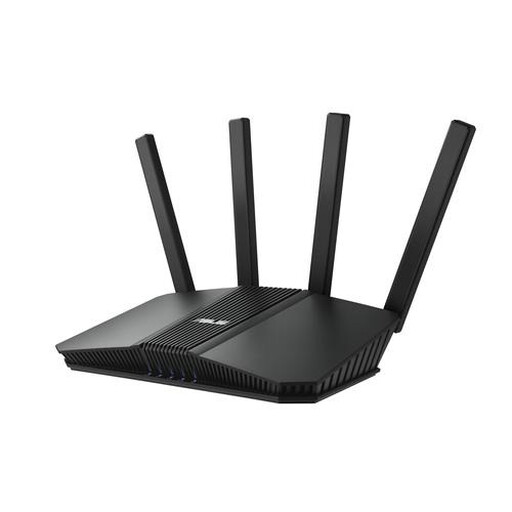
ASUS RT-BE82U BE6500 Wi-Fi 7 router
This standalone router may suit you if you’re specifically looking for a Wi-Fi 7 model with a 2.5 Gigabit Ethernet connection.
Dual-band; the product name lists Wi-Fi 7 and 2.5 Gigabit Ethernet.
View at Joybuy
 No image available
ASUS RT-AX52 Pro AX3000 Wi-Fi 6 router
A standalone router to compare if one access point seems sufficient and you may want to expand your setup later.
Dual-band Wi-Fi 6, Gigabit Ethernet and AiMesh support, according to the product information.
View at Joybuy
 No image available
TP-Link Deco X50-POE (2-pack), Wi-Fi 6
A mesh system to consider if you need several access points and a wired PoE setup would work in your home.
Dual-band Wi-Fi 6, PoE support and two Ethernet ports per unit, according to the product information.
View at Joybuy
Frequently asked questions
How can you tell whether a new router could help with a concert stream that keeps buffering?
First, test your connection using an Ethernet cable and compare it with the experience where you watch. If the wired connection is also too slow, look into your internet connection first. Netflix recommends 5 Mbps for Full HD and 15 Mbps for 4K for its own films and live events; these aren’t universal requirements for every concert platform.
Where’s the best place to put your router, and how do you keep it up to date?
Try placing it somewhere higher, more open and, if possible, more central rather than automatically putting it in a utility cupboard. Check the manual for country and channel settings, and install any available security updates.
Can you use your own router in the Netherlands?
Yes. According to ACM ConsuWijzer, you have the right to choose your router. If your own device connects directly to the provider’s network, it must meet the applicable requirements; ask for the connection settings if needed. The Dutch National Inspectorate for Digital Infrastructure says that using Wi-Fi at home is generally licence-free, provided the conditions of use are met.
What costs and warranty should you consider when buying a router or mesh system?
Factor in the cost of any extra mesh units and cabling, and check the warranty for the specific model. FRITZ! offers a five-year warranty for the FRITZ!Box 4050; this doesn’t automatically apply to other models or brands.
What marking should you check on a router?
Check that the specific device has the correct CE marking and that the model meets the applicable requirements. The Dutch National Inspectorate for Digital Infrastructure states that cybersecurity requirements under RED 3.3 have applied to relevant radio equipment since 1 August 2025; exactly which requirements apply depends on the type of device.


