What should you look for when buying?
When sharing family videos from a shared workspace, your route to the router, the number of rooms and file permissions all influence your choice.
Wireless repeater
Choose this when: you want to extend coverage to one workspace without running a cable, and there’s still a usable router signal at an intermediate location.
Bear in mind: the wireless connection to the router still depends on the signal at the repeater’s location.
Access point via Ethernet
Choose this when: there’s a network cable to the workspace, or one can be installed, and you need Wi-Fi there.
Bear in mind: planning is needed for the cable route and installation; check that the specific device supports access point mode.
Multiple mesh points
Choose this when: other rooms as well as the workspace need coverage.
Bear in mind: you’ll need multiple devices and should check which mesh features work with your router.
| Consideration |
What should you check? |
Who is this important for? |
| Coverage in the workspace |
Check that the repeater can still receive a signal from your router at the intended location, then test the connection in the workspace. |
If there’s no usable Wi-Fi signal in the workspace now, I want to get coverage there first. Around 40% of consumers put coverage at the top of their list when buying. |
| Transferring video files |
Check whether an Ethernet cable can be run to the workspace and whether your chosen device supports access point mode. |
For large files, I want to know whether the connection between the router and the Wi-Fi point can be wired. Around 30% of consumers prioritise file transfers. |
| Coverage in multiple rooms |
Map out the rooms with weak coverage and check which mesh features the device supports with your existing router. |
If several rooms need Wi-Fi, I want to know whether the points work with my router. Around 20% of consumers prioritise coverage in multiple rooms. |
| Access to family videos |
Check the permissions on shared folders or links, and keep your network equipment up to date. |
I want to make sure only the intended people can open the videos. Around 10% of consumers put access management at the top of their list when buying. |
Joybuy products for this situation
This selection includes wireless repeaters, wired access points and a mesh system for a workspace or multiple rooms. The Dutch Authority for Digital Infrastructure states that radio equipment placed on the EU market must meet the applicable requirements and carry a CE marking; check this for the specific version on offer.
 No image available
WiFi Repeater Pro Black
For a workspace without a network cable: the product description says it extends your existing wireless network.
The description lists 2.4 GHz, up to 300 Mbps and WPA-PSK/WPA2-PSK. It says setup is via the Mi app, with a signal indicator.
View at Joybuy
 No image available
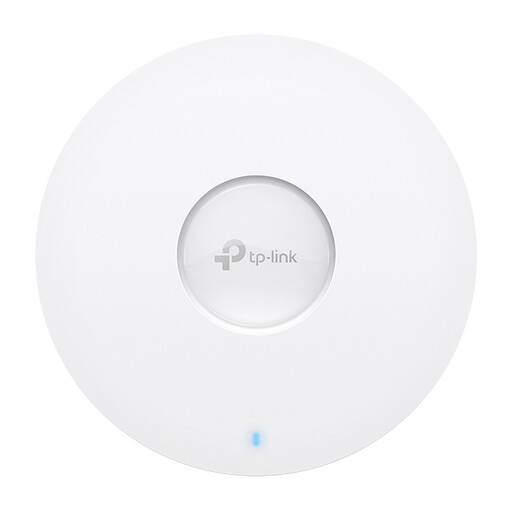
TP-Link Omada EAP653
For a workspace with Ethernet and PoE: according to the product description, this access point has a gigabit Ethernet port.
The description lists Wi-Fi 6 on 2.4 and 5 GHz, mesh and roaming support, and power via PoE, PoE+ or DC. It can be mounted on the ceiling or wall.
View at Joybuy
 No image available
TP-Link TL-WA801N
For a setup where you’re weighing up access point and extender functionality: the product description lists both modes.
The stated specifications are 2.4 GHz, up to 300 Mbps, 10/100-Mbit/s Ethernet and Passive PoE. The product name also mentions two antennas and WPS.
View at Joybuy
 No image available
TP-Link Deco XE75, 3 units
For coverage in several areas: the product description lists a mesh system with three units.
The description lists tri-band Wi-Fi 6E, three gigabit Ethernet ports per unit and WPA3.
View at Joybuy
 No image available
TP-Link Omada EAP613
For a workspace with a wired connection: this model is sold as a Wi-Fi access point.
The description lists 2.4 and 5 GHz, up to 1775 Mbps, mesh and roaming support, and power via 802.3at PoE, Passive PoE or DC. It can be mounted on the ceiling or wall.
View at Joybuy
Frequently asked questions
Will a Wi-Fi booster automatically make your shared video folder accessible?
No. A booster extends your network connection; you set file access separately on the shared storage or file link. Check those permissions before sharing family videos.
Where should you place a wireless repeater?
Place the repeater somewhere it can still receive a good signal from your router, rather than only where the connection has already dropped out. Then test the connection in the workspace.
When should you use access point mode?
Use this mode if there’s a network cable from the router to the workspace and your chosen model supports access point mode. The cable then provides the connection between the router and the Wi-Fi point.
What rules apply to a Wi-Fi booster sold in the Netherlands?
According to the Dutch Authority for Digital Infrastructure, radio equipment placed on the EU market must meet the applicable requirements and carry a CE marking. Check the specific version on offer; the model name alone doesn’t confirm this.
Can you share family videos featuring identifiable people?
It depends on who has access and whether the videos are being shared solely for personal or household use. The Dutch Data Protection Authority describes an exemption for this, but also notes that publishing personal data online usually requires consent under the GDPR. Consider the specific way you’re sharing the videos separately.


