A Wi-Fi repeater extends your coverage, but it doesn’t automatically provide shared storage for project files. If you don’t have an ethernet cable, choose a repeater that can still get a strong enough Wi-Fi signal where you plan to put it. If you do have a cable, access point mode could be an alternative. Also check separately where your files will be stored and whether your chosen network equipment works with your router.
Who is this choice relevant to?
Sharing files over a weak Wi-Fi connection
If the files are already stored on a network device, the main thing is to get a reliable connection at your workspace. Compare wireless coverage extension with a wired access point if there’s an ethernet cable there. FRITZ!, TP-Link and the Dutch Consumers’ Association all explain this distinction.
Need a central place to store files
If you don’t already have shared storage, first check which device will store your project files. Better Wi-Fi alone won’t create a central place for your files; FRITZ! and TP-Link describe storage sharing as a feature of compatible routers or storage devices.
Limited space at your workspace
A compact solution could suit a small workspace, but you’ll also need to consider the position of the socket and the signal strength there. Compare the shape of the model with the space available for your network device.
What should you consider when choosing?
Wireless repeater
Choose this when: there’s no ethernet cable at your workspace and you can place the repeater somewhere with a strong enough signal.
Bear in mind: the repeater still depends on its connection to the router.
Access point via ethernet
Choose this when: there’s already an ethernet cable running to your workspace and you want to add Wi-Fi there.
Bear in mind: you’ll need a cable and a model that supports access point mode.
Storage via a compatible router
Choose this when: you need a central place for project files and your router supports storage sharing.
Bear in mind: a repeater on its own doesn’t mean that storage or file sharing is supported.
| What to consider |
What should you check? |
Who is this important for? |
| Access to files |
Check the signal at your workspace. If you’re using a cable, also check that the model has access point mode and a suitable ethernet port. |
I want to access files on the network from my workspace without losing the connection. Around 36% of consumers prioritise reliable access from their workspace. |
| Shared storage |
Check whether local storage sharing is available on the exact router model and how users can access it. |
I’m looking for a central place for project files; a better Wi-Fi connection alone won’t solve that. Around 29% of consumers prioritise this storage need. |
| Space and placement |
Check the model’s shape, the available socket and the signal strength in that spot. |
I have limited space by my desk or shelf and need the device to fit without compromising network reception. Around 21% of consumers prioritise compact placement. |
| Router compatibility |
Check that both the router and the extender support mesh; standard repeater functionality doesn’t automatically mean they share mesh features. |
I want to extend my existing mesh setup and need to know whether my router and extender are compatible. Around 14% of consumers prioritise compatibility with their existing mesh setup. |
Common purchasing mistakes
-
Mistaking an ethernet port for file storage
A network connection doesn’t mean the device stores and shares project files.
Before choosing, work out which device will store the files and which devices need access to them.
If your router doesn’t support suitable storage sharing, you may need a separate storage solution.
-
Placing the repeater where the Wi-Fi signal is already almost gone
The repeater also needs a reliable connection to the router.
Check the signal where you plan to put it. If there’s an ethernet cable there, consider a model with access point mode.
-
Assuming mesh compatibility
FRITZ! Mesh and ASUS AiMesh are designed for specific compatible equipment. The word ‘mesh’ doesn’t guarantee that every router supports the same features.
Check your router model and its explicit mesh support. Assess standard repeater functionality separately.
-
Taking the stated Wi-Fi speed as the file transfer speed
A product specification isn’t a measurement of the entire connection between your workspace and the storage location.
Compare how the device connects and check the connection at your intended workspace, rather than relying only on the stated speed.
Brands to compare
FRITZ!
Worth considering if you use a FRITZ!Box setup or are comparing it with other routers.
- FRITZ! lists a gigabit LAN connection for the FRITZ!Repeater 1200 AX and says it can be used with a FRITZ!Box as part of FRITZ! Mesh.
- The NAS feature described applies to a FRITZ!Box router, not automatically to the repeater.
TP-Link
The RE705X is worth comparing if you’re interested in both wireless coverage extension and access point use.
- TP-Link lists access point mode and a gigabit ethernet port for the RE705X.
- Check mesh support for the exact hardware version and router; general router compatibility doesn’t prove that they support mesh together.
ASUS
The RP-AX58 is worth considering with a compatible AiMesh router or for a wired access point setup.
- ASUS lists AiMesh support with a compatible router and access point use via ethernet.
- The stated wireless performance is based on manufacturer figures and conditions, not a measured speed at a specific workspace.
devolo
The WiFi 6 Repeater 3000 is a plug-in model that devolo says can also be used as an access point.
- devolo lists a gigabit LAN connection and mesh compatibility with other devolo Wi-Fi products.
- This doesn’t mean it will work with every router from another brand as part of a mesh network.
NETGEAR
The EAX15 is worth comparing as a plug-in model with a port for a wired device.
- NETGEAR lists a gigabit ethernet port for the EAX15.
- The stated wireless speed is a manufacturer figure, not a measurement of file transfers in this setup.
Products for extending your Wi-Fi
Here you’ll find compact wireless Wi-Fi repeaters and wired access points for extending the network connection at your workspace. Check how each model connects and whether it suits your router and storage setup.
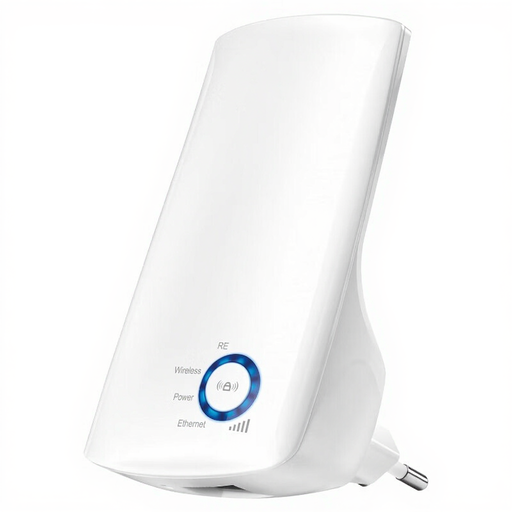 Image unavailable
TP-Link TL-WA850RE
Suitable if you’re looking for a compact way to extend your existing Wi-Fi coverage wirelessly.
Supports 802.11b/g/n and has an RJ-45 connection.
The product name states 300 Mbps.
Joybuy
 Image unavailable
Wifi Repeater Pro Black
Suitable if you want to extend your Wi-Fi coverage with a model that plugs straight into a socket.
The product description lists 2.4 GHz and a stated speed of up to 300 Mbps.
Dimensions: 80 × 54 × 70 mm.
Joybuy
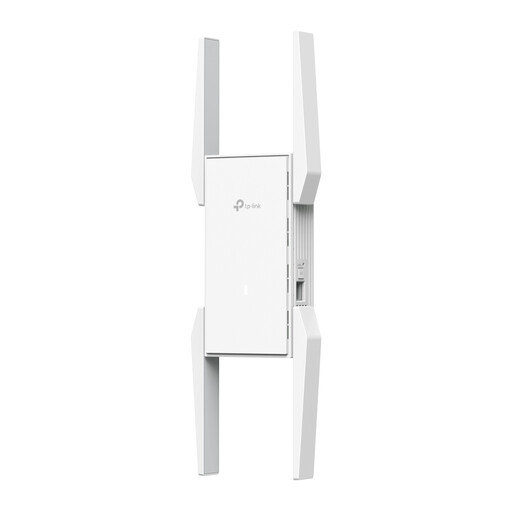 Image unavailable
TP-Link Omada EAP673
Suitable if you want to compare network extension options that use a wired ethernet connection.
Dual-band 2.4/5 GHz and one Ethernet LAN port.
Dimensions: 160 × 80 × 37,8 mm. For use as a repeater, the device needs to be within range of the existing network, according to the product description.
Joybuy
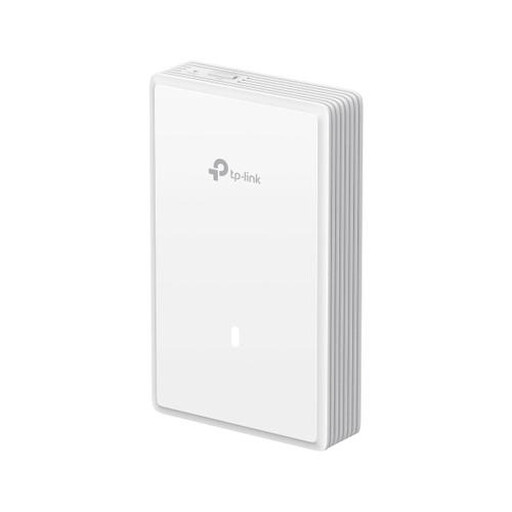 Image unavailable
TP-Link EAP725-Wall
Suitable if you want to add Wi-Fi via a wired access point and are considering a wall-mounted model.
The product information lists Wi-Fi 7, three ethernet ports and Power over Ethernet (PoE).
The product name states 5012 Mbit/s.
Joybuy
 Image unavailable
TP-Link TL-WA801N
Suitable if you want to compare access point use and wireless coverage extension with a wired installation.
The product information lists 2.4 GHz, up to 300 Mbit/s and Passive PoE.
The description says it can be used as an access point and range extender; according to the description, a single ethernet cable can carry both data and power.
Joybuy
Frequently asked questions
Can you connect a USB drive to any Wi-Fi repeater to share project files?
No, don’t assume you can. For example, the storage-sharing feature described is for USB storage connected to the FRITZ!Box 5690. Check separately whether the device you plan to use to store your files supports this feature.
Where should you place a wireless repeater?
Place the repeater somewhere it can still get a good signal from the existing router. Use any signal indicator to help you find the right spot, and check the support information for the exact model and hardware version for firmware details.
Do you need a licence or registration for normal Wi-Fi use in the Netherlands?
According to the Dutch Authority for Digital Infrastructure, you don’t need a licence to use Wi-Fi at home or in a commercial building, provided you use the designated frequencies and comply with the conditions of use. The Authority also states that unlicensed frequency use does not require notification or registration.
What checks should you make when buying and ensuring compliance?
Check that the radio equipment on offer carries the CE marking. For online consumer purchases, ACM ConsuWijzer states that you have up to 14 days after delivery to change your mind; check which terms and conditions apply to your specific purchase.


