
People sharing files behind thick walls
If you work with shared project files in different rooms, don’t look at the Wi-Fi specification alone. The connection between network points, along with the ports on your computer and storage, matters too.


If you can run network cables to your work areas, choose wired access points or mesh points with Ethernet backhaul. This means the connection between those points won’t need to pass wirelessly through the walls. If running cables isn’t an option, wireless mesh or a suitable powerline mesh system are alternatives, but the connection between the points needs to work well where you plan to place them. For large local files, consider the entire route too, from your computer to the network point and any storage.
If you work with shared project files in different rooms, don’t look at the Wi-Fi specification alone. The connection between network points, along with the ports on your computer and storage, matters too.
If you want to improve coverage beyond internal walls without running cables, compare wireless mesh with powerline mesh. The Consumers’ Association advises keeping obstacles between wireless points to a minimum.
If you want to keep your current modem or router, check the operating mode, access settings and updates. FRITZ! explains how to connect the Mesh Set 1700 to an existing router; TP-Link says that certain Deco features aren’t available in access point mode.
First decide how the network points will connect to each other. Then check that the entire route to your computer and storage is suitable for sharing large files.
Choose this if: you already have network cables in place, or can run cables to your work areas.
The trade-off: installation and positioning take work; a fast connection won’t make up for a slower link elsewhere in the network.
Choose this if: running cables isn’t an option and you can place the points where they have a reliable connection to each other.
The trade-off: thick walls and poor positioning can also weaken the wireless connection between mesh points.
Choose this if: Ethernet isn’t practical and your electrical wiring can provide a reliable connection between the points.
The trade-off: a quoted powerline speed doesn’t predict the file transfer speeds you’ll get at home.
Choose this if: your current router meets your needs and you mainly want to extend Wi-Fi to other rooms.
The trade-off: the operating mode you choose can change which features are available. Check where DHCP and network management will be handled.
| What to consider | What should you check? | Who is this important for? |
|---|---|---|
| File transfers | Check Ethernet backhaul and the ports on the network points, computer and storage; test the transfer in your work area. | If I share large project files between rooms, I want to know whether the entire local network route can handle it. Around 33% of consumers say file transfers are their top priority. |
| Coverage without cables | Consider where the points can go and check their connection to each other; compare a suitable powerline mesh system if needed. | If I can’t run network cables, I want coverage in rooms behind thick walls without having to guess how well the points will connect. Around 27% of consumers prioritise coverage without installing new cables. |
| Keeping your existing network | Check the operating mode and decide where DHCP and the network management features you need will remain active. | If I need to keep my modem or router, I want to extend the network without losing features I rely on. Around 20% of consumers mainly value being able to connect to their existing network. |
| Securing access | Check for updates and guest network features; manage file access separately too. | If I share sensitive documents, I want to be able to check who has access and how the network is updated. Around 20% of consumers prioritise secure collaboration. |
The extra point needs a reliable connection to the network itself. Walls and positioning can affect that connection.
First, assess where you could place the points. Compare Ethernet backhaul if you can run a cable, or suitable powerline mesh if you can’t.
A quoted Wi-Fi speed on its own doesn’t tell you how quickly files will transfer between your devices. The connection between points and the ports on your computer and storage matter too.
Check the entire local network route and test the transfer in the places where you work.
TP-Link says that certain Deco features, including port forwarding and address reservation in the app, aren’t available in access point mode.
Decide in advance which device will handle DHCP and which management features you need.
The features mentioned apply to the specific product ranges and models below. Choosing a brand alone says nothing about how well the signal will pass through the walls in your home.
The Deco X50 supports Wi-Fi 6 mesh with optional Ethernet backhaul; the Deco PX50 combines Wi-Fi with G.hn powerline. The Deco X50-PoE is a separate model designed for installation with a compatible PoE power supply.
The FRITZ!Mesh Set 1700 is designed to extend an existing network with three repeaters.
The ZenWiFi BD4 is a dual-band Wi-Fi 7 mesh system with an option for wired backhaul.
The UniFi U6+ is a wired access point for a network where you already have a router and can run a network cable to your work area.
The Orbi 770 is a tri-band mesh system worth comparing if you also want to consider a wired backhaul option.
This selection includes wired mesh systems or access points, as well as wireless mesh for extending Wi-Fi between rooms. Check that the connections and ports on each model suit your network setup.
 Image unavailable
A mesh system with wired or wireless backhaul to compare if you want to connect network points to each other.
The product information lists 10, 2.5 and 1 GbE ports on each point.
 Image unavailable
Worth comparing if you want to connect several rooms and can use Ethernet backhaul.
The product information lists optional Ethernet backhaul and three gigabit ports per point.
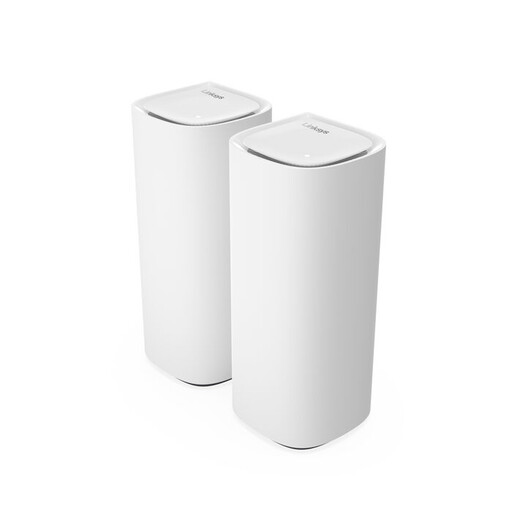 Image unavailable
A mesh system with two points included, worth comparing if you want to extend Wi-Fi without running new cables.
The product information lists a 2.5 GbE port and gigabit ports.
 Image unavailable
A mesh system with three points to compare if you want to extend Wi-Fi across several rooms.
The product information lists three Ethernet ports per point.
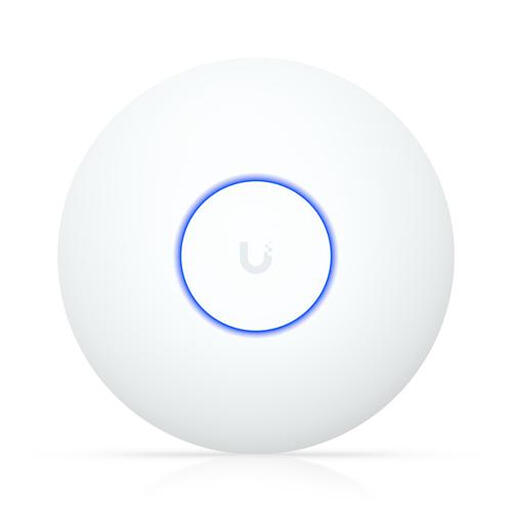 Image unavailable
An access point worth comparing if you can run a network cable to where you want to place it.
The product information lists a 1000/2500 Mbit/s Ethernet port and PoE power; make sure you have a suitable PoE power supply.
Not necessarily: a compatible mesh system can extend your existing network. TP-Link describes an access point mode for Deco, but says some features aren’t available in the Deco app in this mode. Check which mode is compatible with the exact model.
Don’t place the point somewhere the connection has already dropped out. The Consumers’ Association advises keeping obstacles between points to a minimum. A more central spot in the home may help improve coverage further away.
Only if you want to power this model using PoE: TP-Link specifies IEEE 802.3at or IEEE 802.3bt, and rules out IEEE 802.3af. TP-Link also says a DC adapter is included; if using PoE, check that the switch and its total power budget are suitable.
Before buying, check which management and security features come with the exact product and how firmware updates are provided. VeiligInternetten advises keeping your router secure with the latest update; don’t assume anything about the terms for additional services without checking.
No: Wi-Fi speed doesn’t control who can access your files. The Dutch Data Protection Authority also highlights the importance of a secure working environment and protecting sensitive documents when working from home. Manage access rights separately from your choice of Wi-Fi equipment.