Who is this relevant to?

Presenter behind thick walls

You want to share a presentation from a room with weak Wi-Fi. First, check whether there’s a suitable spot in between where the router still has a strong enough signal. TP-Link recommends this as the starting point for positioning a repeater.

User with a network cable

You can run a cable to the presentation room and don’t want the connection between network points to rely on Wi-Fi passing through the walls. Wired mesh backhaul depends on the model and setup, as TP-Link explains for EasyMesh.

Presenter using a cast-enabled screen

You want your laptop and screen to find each other. Microsoft Support explains the Miracast requirements for wireless projection, while Google Cast Help notes that extender settings can affect the connection.

What should you consider when choosing?

Wireless Wi-Fi repeater

Choose this when: there’s a spot between the router and presentation room where the router’s signal is still usable.

Trade-off: the connection between the router and repeater remains wireless and depends on the signal at that spot.

Wired access point or mesh

Choose this when: there’s a network cable in or near the presentation room and you want a wired connection between network points.

Trade-off: running a cable takes work. For Ethernet backhaul, the router, node and setup must be compatible.

Powerline with Wi-Fi

Choose this when: running a network cable isn’t practical and there’s no suitable spot for a wireless repeater.

Trade-off: the connection runs through your electrical wiring. Test the kit in the room where you plan to use it before relying on it during a presentation.

Check the screen connection first

Choose this when: you only want to project wirelessly and haven’t yet checked whether your laptop and screen use Miracast or Google Cast.

Trade-off: extra Wi-Fi range won’t add Miracast support. With Google Cast, network isolation settings can prevent devices from communicating.

What to consider What should you check? Who is this important for?
Signal at the spot in between Check whether there’s a plug socket between the router and the room where the router still has a strong enough signal. If not, look into a wired connection or test powerline. If I’m presenting behind thick walls, I want to know whether the repeater itself can still receive a usable signal. Around 30% of consumers say getting the signal through the walls is their main concern.
Reliability during a presentation Check whether you can use a cable, and test sharing from the spot you plan to present from, including when other devices are using the network. If a presentation can’t afford to glitch, I want to try the connection in the actual setup rather than rely on a maximum Wi-Fi speed. Around 30% of consumers put reliability first.
Screen and network compatibility Find out whether you’re using Miracast, Google Cast or a meeting app, and test whether the screen is detected on the network you plan to use. If I want to project from my laptop to a screen, I want to know first which technology the screen supports and whether devices can communicate on the same network. Around 20% of consumers prioritise successful screen detection.
Installation and use Check which devices and connections you’ll need and which parts are included with the kit you choose. Bear in mind that equipment left on for long periods uses electricity. If I want to keep installation simple and consider ongoing use too, I want to know in advance what I’ll need to connect and leave switched on. Around 20% of consumers say installation and running costs are their main concern.

Common pitfalls

  • Putting the repeater in a room with virtually no signal

    A wireless repeater also needs a usable connection to the router. Putting it in a dead zone won’t solve the problem.

    First, find a spot in between with a strong enough signal. If there isn’t one, look into a wired connection or test powerline in the room.

  • Assuming an Ethernet port means Ethernet backhaul

    An Ethernet port alone doesn’t prove that a device supports wired mesh backhaul with your router. TP-Link says that EasyMesh requires both the main router and satellite to support the feature and have the correct hardware and firmware versions.

    Check the exact models, hardware versions and supported network mode before choosing your setup.

  • Confusing extra Wi-Fi range with successful casting

    For wireless projection from a Windows PC, the screen must support Miracast. With Google Cast, AP or client isolation on the router or extender can prevent devices from communicating.

    Test with your own laptop, screen and planned network or guest settings before presenting.

  • Taking the stated speed as your presentation speed

    A maximum Wi-Fi specification doesn’t tell you how the connection will perform in your room or over your electrical wiring.

    Compare the connection options based on their requirements, then test the solution you choose where you’ll be presenting.

Brands to consider

TP-Link

The RE705X is an option for wireless range extension or, when connected by network cable, use as an access point.

  • TP-Link lists a gigabit Ethernet port and access point mode for the RE705X.
  • OneMesh requires a compatible OneMesh router. For EasyMesh Ethernet backhaul, both devices must support the feature and have the correct hardware and firmware versions.

FRITZ!

The FRITZ!Repeater 1200 AX is designed to extend a suitable FRITZ! setup and has a LAN connection.

  • According to FRITZ!, this model can connect to a FRITZ!Box via LAN and has one gigabit LAN connection.
  • The mesh features described apply to a compatible FRITZ! setup; they don’t show how the signal will travel through the walls in your home.

devolo

The Magic 2 WiFi 6 next Starter Kit is a powerline alternative if you can’t run a network cable and there’s no suitable spot for a wireless repeater.

  • According to devolo, the starter kit contains two adapters, which connect via the electrical wiring. The Wi-Fi adapter has two gigabit ports.
  • The stated maximum Wi-Fi speed isn’t a measure of how the connection will perform over the wiring in your home.

NETGEAR

The EAX17 is an option if you’re looking for a wireless Wi-Fi 6 extender with an Ethernet port.

  • NETGEAR specifies Wi-Fi 6 and one gigabit Ethernet port for the EAX17.
  • First, check that there’s a suitable spot for the wireless connection between the router and extender. Advertised coverage doesn’t show how the device will perform in your room.

Joybuy products

This selection includes mesh equipment, a powerline kit, a wireless repeater and a router for a compatible AiMesh setup. Choose based on the type of connection you can use in the presentation room, and check the requirements of your existing network.

TP-Link Deco E4 3-pack dual-band Wi-Fi 5

TP-Link Deco E4 (3-pack) Dual-band Wi-Fi 5 (802.11ac)

A good fit if you’re considering a mesh setup with multiple units. Check the connection in the presentation room before relying on it.

3-pack; dual-band (2.4 GHz/5 GHz); Wi-Fi 5 (802.11ac).

View at Joybuy

ASUS ZenWiFi BD4 dual-band Wi-Fi 7

ASUS ZenWiFi BD4 Dual-Band Wi-Fi 7 (802.11be)

A good fit if you want to connect mesh points by cable. Mesh expansion depends on having compatible ASUS equipment.

Dual-band (2.4 GHz / 5 GHz); Wi-Fi 7 (802.11be).

View at Joybuy

TP-Link TL-WPA7517 KIT powerline adapter starter kit

TP-Link TL-WPA7517 KIT Powerline Adapter Starter Kit

A good fit if you want to try connecting to the network through your existing electrical wiring instead of using a wireless connection between network points.

Starter kit. The connection runs through your electrical wiring, so you’ll need to test how it performs in your home.

View at Joybuy
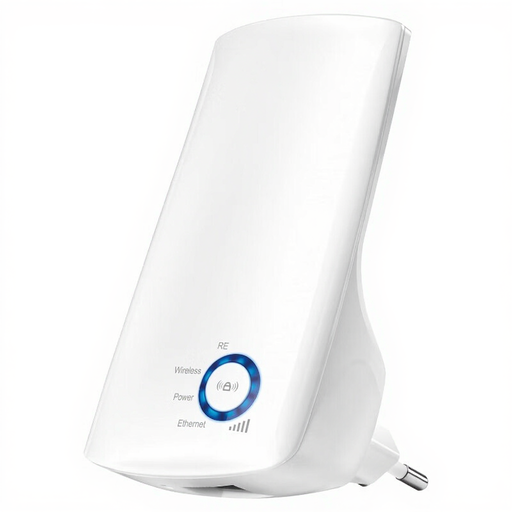
TP-Link TL-WA850RE 300 Mbps Wi-Fi range extender

TP-Link TL-WA850RE 300 Mbps Universal

Only suitable if there’s a spot between the router and presentation room where the repeater can still receive the router’s signal.

300 Mbps; Wi-Fi range extender.

View at Joybuy

ASUS RT-AX52 AX1800 AiMesh dual-band wireless router

ASUS RT-AX52 AX1800 AiMesh Wireless Router

This model is worth considering for extending your network if you already use compatible AiMesh equipment.

AX1800; dual-band (2.4 GHz / 5 GHz); Gigabit Ethernet.

The AiMesh expansion described requires a compatible AiMesh router.

View at Joybuy

Frequently asked questions

Where should you place a wireless repeater?

Place the repeater between the router and the room with poor coverage, somewhere it’s still within the router’s range. TP-Link suggests starting at about the halfway point. If the signal indicator shows the signal is too weak, the installation guide recommends moving the repeater closer to the router.

Can a Wi-Fi repeater fix every problem with wireless presentations?

No. A repeater won’t automatically fix screen compatibility or network communication problems. To project from a Windows PC, the screen must support Miracast. With Google Cast, AP or client isolation settings can prevent devices from communicating. First, find out which technology you’re using.

What should you consider when buying and using it?

Check whether you’re buying a standalone extender or a complete kit, and which adapters or cables your chosen setup needs. Equipment left on for long periods uses electricity; the annual cost depends on the model, how long it’s used and your electricity tariff.

Do you need a permit or registration for standard Wi-Fi in the Netherlands?

According to the Dutch Authority for Digital Infrastructure, Wi-Fi is exempt from licensing when used within the applicable frequency and usage conditions, and there’s no requirement to notify or register it. Suppliers must still meet the requirements for radio equipment, including the required CE marking.
