
Creative professional in a remote home office
You upload portfolio files from a room behind thick walls and want to know how to get a reliable network connection there.


First, measure your upload speed using a computer connected to your home network with an Ethernet cable. If that connection is slow too, a new router won’t fix the bottleneck. If the problem is mainly poor coverage in your workspace behind the walls, a wired access point is a sensible option if you can run a cable. If not, you can test powerline adapters in the sockets you plan to use. Wireless mesh only works if the additional nodes can maintain a strong enough connection to the network.
You upload portfolio files from a room behind thick walls and want to know how to get a reliable network connection there.
You want to find out whether the upload speed included in your broadband package or the Wi-Fi connection between your workspace and router is causing the delay. The Consumentenbond recommends a wired test to rule out Wi-Fi as a factor.
You can’t run a cable to your workspace and want to weigh up whether wireless mesh or a connection over your electrical wiring could work.
Choose this if: your wired upload speed is good and you can run an Ethernet cable through the walls.
Keep in mind: you’ll need to run a cable and select the right connection or access point mode.
Choose this if: running a cable isn’t practical and you can place an additional node somewhere with a strong enough signal.
Keep in mind: thick walls can also weaken the connection between mesh nodes.
Choose this if: you can’t run an Ethernet cable and wireless nodes struggle to reach one another.
Keep in mind: the sockets you use and nearby electrical equipment can affect the connection.
Choose this if: tests show that the problem lies with the range or capabilities of your current router.
Keep in mind: a higher Wi-Fi specification alone doesn’t prove that the connection will reach the furthest room reliably.
| What to consider | What should you check? | Who is this important for? |
|---|---|---|
| Coverage through thick walls | Check whether you can connect a second node by cable and where you can position it. | I want to upload files from my home office without the connection between network nodes dropping out through the walls. Around 29% of consumers prioritise coverage. |
| Actual upload speed | Compare a wired upload speed test by the router with one in your workspace and with the upload speed included in your broadband package. | When uploading large portfolio files, I want to know whether the delay is already in my internet connection before replacing my network equipment. Around 29% of consumers prioritise reducing upload delays. |
| Connection without an Ethernet cable | Check whether the system supports powerline and test it using the sockets where you plan to put the nodes. | I can’t run an Ethernet cable to my home office and want to try connecting the rooms using the existing electrical wiring. Around 24% of consumers can’t run a cable. |
| Connection and management | Check the access point mode, the ports you need, update support and instructions for connecting to your existing router. | I want to keep my existing home network and connect and manage the extra node without replacing equipment unnecessarily. Around 18% of consumers prioritise easy expansion. |
Your internet connection’s upload speed and a router’s Wi-Fi specifications are different parts of the journey a file takes. A router can’t fix a limitation in your internet connection.
Start with a wired test, then compare it with the connection in your workspace, as the Consumentenbond recommends.
The additional node needs to send data back to the network. A weak connection to the main node can therefore also limit the connection in your workspace.
Check the connection where you plan to place it. If you can run a cable, consider a wired backhaul; the Tweakers buying guide describes this as the more stable connection between nodes.
Powerline performance can vary depending on the socket and the electrical environment. Devolo recommends plugging powerline adapters directly into a wall socket rather than using a multi-socket extension or extension cable.
Test the connection using the sockets where you plan to use the equipment.
Deco mesh systems include models with wired backhaul and models with powerline.
The ZenWiFi BD4 is a mesh option worth comparing if you need wired backhaul and 2.5-gigabit ports.
The Mesh Set 4200 is a two-piece set for extending an existing home network.
Magic products use powerline for rooms where wireless connections or new Ethernet cables are difficult to set up.
These Joybuy picks include powerline adapters and mesh systems for extending a home network to a workspace with a poor connection.
 Image unavailable
For anyone comparing a mesh system that uses powerline to connect to a workspace. The connection runs over your home’s electrical wiring, so test performance where you plan to use it.
 Image unavailable
A powerline starter kit with a Wi-Fi adapter, giving you an extra connection point without running a new Ethernet cable. Check the connection using the sockets you plan to use.
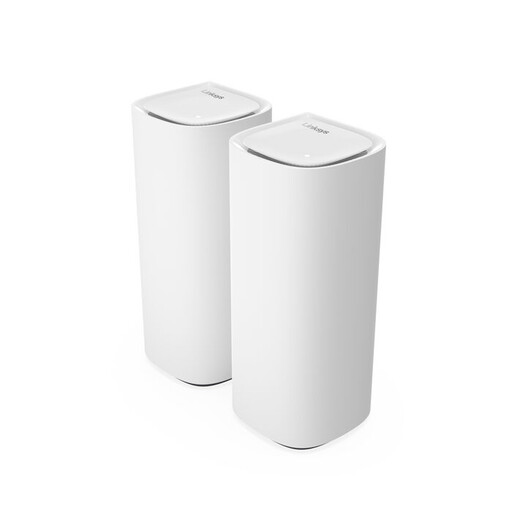 Image unavailable
For anyone looking to extend mesh coverage across several rooms; the product information lists two nodes. Check that an additional node can maintain a strong enough connection to the network where you plan to put it.
 Image unavailable
A three-unit mesh system for anyone looking to extend coverage across several rooms. The product information lists three gigabit Ethernet ports per unit for wired devices.
 Image unavailable
A three-unit mesh system for extending coverage to several rooms. The product information lists three gigabit Ethernet ports per unit; check whether wired connections suit your workspace.
Not before you’ve tested the connection. First, test the upload using a computer connected with an Ethernet cable, as the Consumentenbond recommends. If that’s slow too, investigate your internet connection or broadband package. If the problem is mainly in your workspace, look at your home Wi-Fi.
Don’t just put it where coverage is worst: the node also needs to maintain a usable connection to the main network. If you can run a cable, consider a wired connection between the nodes.
Powerline can connect network nodes using your electrical wiring, but performance depends on the sockets and electrical environment. Test the connection where you plan to use the adapters; devolo recommends plugging them directly into a wall socket.
ACM ConsuWijzer confirms that you can choose your own router, provided the device meets the applicable requirements. The Radiocommunications Agency Netherlands lists Wi-Fi as licence-exempt frequency use, with no notification or registration required. Use the equipment according to the Dutch settings and product instructions.
Alongside any manufacturer’s warranty, you’re entitled to a legal guarantee that the product is of satisfactory quality. According to the Dutch government, there’s no fixed statutory guarantee period in the Netherlands; if a product is faulty, contact the retailer.