
Teacher with several streams in one room
You want to use several screens at once. First, check your internet connection using a cable, then test the Wi-Fi in the room where lessons take place.


First, check your internet speed using a wired connection, then test the Wi-Fi where the devices used for lessons will be. A new router won’t fix a problem with your internet connection. If your connection is fast enough, one router may be sufficient when all the screens are in a well-covered area. If reception is weak in several rooms, extra Wi-Fi access points or a mesh system may be worth considering. Before buying, check that the specific model and connection type are suitable, and that the router carries the required CE marking.
You want to use several screens at once. First, check your internet connection using a cable, then test the Wi-Fi in the room where lessons take place.
You need Wi-Fi wherever the screens are. Compare the coverage from one router with that from extra Wi-Fi access points, and consider whether you can connect them with a cable.
You want to keep using your existing equipment. Check the connection method, management options, updates and which features remain available in access point mode.
Choose this if: you haven’t yet checked your internet speed or the position of your current router.
Trade-off: a new router can’t make up for a slow connection from your provider.
Choose this if: your connection is fast enough and the devices used for lessons are mainly in one well-covered room.
Trade-off: one device is simpler, but won’t necessarily fix weak reception behind walls or on other floors.
Choose this if: your tests show that participants in different rooms have a weak Wi-Fi signal.
Trade-off: extra access points need careful positioning and may require cabling and installation.
| What to consider | What should you check? | Who is this important for? |
|---|---|---|
| Several streams at once | Test your connection using a cable and work out how many streams will run simultaneously. Netflix recommends 5 Mbps for one Full HD stream on its own service; this isn’t a general requirement for other lesson services. | If I use several screens at once, I want to know whether the connection and Wi-Fi can handle it. Around 36% of consumers are most concerned with streaming on multiple screens in the lesson room. |
| Coverage in different rooms | Test the Wi-Fi in every room you use and see whether moving the router, adding an access point or using mesh could help. | When participants are in different rooms, I need reception everywhere lessons take place. Around 29% of consumers make coverage in multiple rooms their top priority. |
| Internet connection or Wi-Fi | Compare a wired speed test with the speed of your broadband package, then test the Wi-Fi on the devices used for lessons. | If the connection feels slow, I want to find out whether the problem is with the internet connection or the Wi-Fi. For around 21% of consumers, checking the internet connection comes first. |
| Connecting and managing devices | Check the router or access point mode, available features, updates and Wi-Fi security settings. | I want to keep using my provider’s existing equipment and manage the extension securely. Around 14% of consumers particularly value connection and management options alongside their provider’s router. |
Your internet connection speed and Wi-Fi reception are two different potential bottlenecks. A router can’t increase the speed your provider delivers to your home.
First, run several tests using a network cable, then test the Wi-Fi on the screens you use during lessons.
Distance, walls and ceilings can all affect reception. Make sure extra Wi-Fi access points are positioned in useful places around your home.
Test your existing Wi-Fi in every room you use and check in advance whether you can connect the access points to each other with a cable.
Allow time to position and set up the extra units. Wired connections require suitable cables and connection points.
TP-Link says some advanced Deco features aren’t available when the system is in access point mode.
Decide in advance which device will manage your network, and check that the features you need will still be available in the mode you choose.
The Dutch Authority for Digital Infrastructure (RDI) states that radio equipment sold in the Netherlands must carry CE marking.
Before buying, check that the specific model you intend to purchase carries the required marking.
The models mentioned include a standalone router for one lesson room and Deco mesh units for lesson areas spread around the home.
The RT-BE58U is a configurable standalone router that can be expanded using AiMesh.
The FRITZ!Box 4060 is worth considering if you need its documented phone and networking features as well as Wi-Fi.
This selection includes mesh systems for lesson areas spread around the home and standalone routers for use in one well-covered area. Compare the connections and listed networking features with your own test results and equipment.
 No image available
This set of three mesh units is an option for providing Wi-Fi in several areas of your home.
Dual-band Wi-Fi 5 (2.4 GHz and 5 GHz); the Ethernet ports are rated for up to 100 Mbps.
 No image available
This mesh system is an option for extending Wi-Fi to other rooms using Powerline backhaul.
The product description lists WPA3, three gigabit ports per unit, and router and access point modes.
 No image available
This mesh system is an option for providing Wi-Fi in areas spread around the home; the description mentions wired backhaul as an option.
Dual-band Wi-Fi 7 with MLO and two 2.5-gigabit Ethernet ports.
 No image available
This standalone router is an option for screens in one well-covered room; the description mentions expansion with AiMesh-compatible routers.
Dual-band Wi-Fi 6, three gigabit Ethernet ports, MU-MIMO and OFDMA.
 No image available
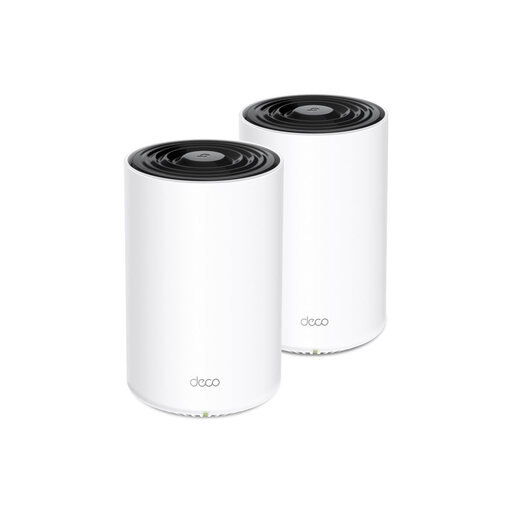
This set of three mesh units is an option when devices used for lessons are in different rooms.
Dual-band Wi-Fi 6; according to the product description, each unit has three gigabit ports.
First, run several tests using a network cable and compare the results with the speed of your broadband package. Then test the Wi-Fi where lessons take place. This will help you work out whether the problem is with your internet connection or your Wi-Fi.
Yes. TP-Link describes both router and access point modes. If your provider’s router will continue to manage the network, you could consider access point mode; check in advance which Deco features are available in that mode. According to TP-Link, you should connect the main Deco to a modem or router with a cable to access the internet.
Check for and install firmware updates, and change the default login details. Also make sure your Wi-Fi is set up with suitable encryption, such as WPA2 or WPA3.
ACM ConsuWijzer explains that, with normal use, you’re entitled to a product that lasts as long as you can reasonably expect it to. Your statutory rights aren’t automatically limited to the period covered by a manufacturer’s or seller’s warranty. Report any fault to the seller.
ACM ConsuWijzer confirms that you can choose your own equipment, provided it meets the relevant safety and network requirements. According to the RDI, you can use Wi-Fi at home without a licence if you follow the rules for the designated frequencies and their use. A Wi-Fi router sold in the Netherlands must carry the required CE marking.