Don’t automatically replace your router if the Wi-Fi is weak upstairs. First, check the position and settings of your current modem or router, and measure where the connection starts to deteriorate. If coverage across multiple floors is still inadequate, choose additional Wi-Fi access points based on your cabling and existing equipment. Wired access points avoid a wireless connection between units, while wireless mesh can be more flexible to position. Results also depend on walls, floors and placement.
Who is this buying guide for?
People with poor signal upstairs
Your Wi-Fi works downstairs, but not properly in bedrooms, a home office or the loft. You want to find out whether moving your equipment could help, then work out how many Wi-Fi access points you need. The Consumers’ Association (Consumentenbond) notes that walls and ceilings can weaken the signal.
Households with lots of people online at once
Several people use Wi-Fi at the same time, for example for video calls and streaming. So you’re looking for more than just coverage: you also need a connection that works well on the floors where your devices are being used.
People with network cables between floors
You can make use of existing Ethernet connections and want to compare wired access points with mesh systems using Ethernet backhaul, to see what suits your current network. TP-Link and ASUS describe Ethernet backhaul for certain mesh models; check what’s supported by the version you’re considering.
What should you look for when buying?
Move or adjust your existing router
Best if: your current router is poorly positioned and you want to see whether moving it or changing its settings improves coverage.
Consider: this could save you from making an extra purchase, but it won’t resolve every dead zone behind walls or floors.
Wired access points or mesh
Best if: there’s a usable cable route between the floors where you want Wi-Fi.
Consider: Ethernet backhaul can provide a wired connection between compatible units; check the ports you need and the cable route.
Wireless mesh system
Best if: you need extra coverage across several floors and running cables between units isn’t practical.
Consider: the connection between units still depends on their position and any obstacles; a stated range is no guarantee of coverage in your home.
Extend an existing FRITZ!Box
Best if: you already use a compatible FRITZ!Box and want to extend Wi-Fi to another floor.
Consider: check that your FRITZ!Box is compatible and can be configured for the FRITZ! mesh features you want.
First, measure the Wi-Fi in the places where you use it. Then compare the number of units, your cabling options and how the system connects to your existing modem or router.
| What to consider |
What to look for when buying |
Who is this important for? |
| Signal through floors and walls |
Measure Wi-Fi on the floors where you use it; check how many units come in the set and whether you can add more. |
I want a usable connection in the loft or bedrooms and need to know where extra units are required. Shoppers mainly looking for coverage on other floors account for around 40% of consumers in this decision breakdown. |
| Connection between Wi-Fi units |
Check whether there’s Ethernet between floors and whether the system supports Ethernet backhaul; otherwise, assess where you can position wireless units. |
If I need Wi-Fi on several floors, I want to know whether cables can connect the units or whether wireless placement is a better fit. Around 30% of consumers prioritise a stable connection between floors. |
| Several devices online at once |
Check which Wi-Fi standards your devices support and compare tests at different distances and on different floors, if available. |
When several people are video calling or streaming at the same time, I want the connection to remain usable on the floors in use. This is a priority for around 15% of consumers. |
| Connection to your existing network |
Check your modem-router model, the supported access point or mesh mode, and what’s included with the system. |
I want to find out first whether I can extend my working network rather than replace the router entirely. Around 15% of consumers prioritise extending their existing network. |
Common buying mistakes
-
Assuming a stated range guarantees coverage on every floor
Walls, ceilings and positioning all affect range. A manufacturer’s range claim for a particular set size doesn’t automatically predict coverage in your home.
Measure Wi-Fi where you need it and compare the number of units in the set, not just the stated maximum area.
-
Putting a wireless unit where there’s no usable signal
An extra unit still needs to connect to the rest of your network.
Test the connection where you plan to place it and move the unit if necessary. Use Ethernet backhaul if your chosen equipment supports it and there’s a suitable cable route.
-
Treating a repeater, access point and mesh router system as the same purchase
Extending an existing router and replacing its router function require different connections and operating modes.
Decide which functions your modem-router will continue to handle, then check the operating mode and compatibility of the equipment you choose.
Brands to compare
TP-Link
The Deco X50 is a Wi-Fi 6 mesh range available in one-, two- or three-unit sets, for those comparing wired and wireless placement.
- The Dutch product specifications state that the Deco X50 has three gigabit ports per unit and optional Ethernet backhaul.
- A stated range for a specific set size isn’t a measurement of coverage in your home.
ASUS
ZenWiFi XD5 is a Wi-Fi 6 mesh option with multiple units. Ethernet backhaul may be useful if you have network connections around your home.
- ASUS states that the XD5 supports Ethernet backhaul when Ethernet connections are available.
- The specifications consulted are from a UK product page; check the exact Dutch version before assuming that its features or packaging are the same.
FRITZ!
FRITZ!Repeaters are worth considering to extend an existing FRITZ!Box network, rather than as a straightforward replacement for the router.
- The Dutch product page lists three radio bands and two gigabit LAN connections for the FRITZ!Repeater 3000 AX.
- The FRITZ! mesh features described require a compatible FRITZ! network.
NETGEAR
The Orbi RBK763S is a three-unit tri-band Wi-Fi 6 system to consider if the connection between the router and satellites is an important factor.
- NETGEAR lists a dedicated router-to-satellite connection and gigabit ports.
- The manufacturer page consulted isn’t specific to the Netherlands; range and performance claims aren’t independent tests in Dutch terraced houses.
Wi-Fi solutions at Joybuy
These products are mesh systems with multiple units for Wi-Fi across different floors. Check the connection type, Wi-Fi standard and any cabling options for the specific version you’re considering.
 No image available
TP-Link Deco E4 (3-pack)
This set of three mesh units gives you several placement options if you want to extend Wi-Fi across different floors.
Dual-band Wi-Fi 5 (2.4 GHz/5 GHz); two Ethernet ports per unit. The stated maximum port speed is 100 Mbit/s.
Joybuy
 No image available
TP-Link Deco X50 (3-pack)
This three-unit mesh system is a good fit if you want Wi-Fi across several floors and the option to use Ethernet backhaul where cabling is available.
Wi-Fi 6 (2.4 GHz/5 GHz); three gigabit Ethernet ports per unit. TP-Link states that the Deco X50 supports optional Ethernet backhaul.
Joybuy
 No image available
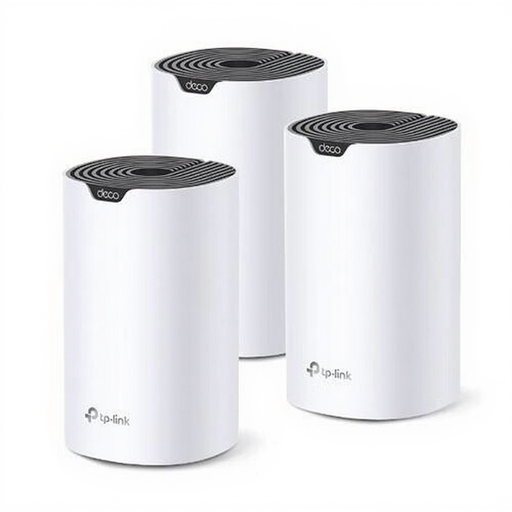
TP-Link Deco S7 (3-pack)
The three mesh units give you several placement options for extending Wi-Fi around your home.
Dual-band Wi-Fi 5 (2.4 GHz/5 GHz); three Ethernet ports per unit.
Joybuy
 No image available
TP-Link Deco XE75 Pro (3-pack)
The three mesh units give you several placement options. Check how the version you choose will work with your existing network and devices.
Tri-band Wi-Fi 6E (2.4 GHz/5 GHz/6 GHz).
Joybuy
 No image available
TP-Link Deco X50-PoE (3-pack)
This three-unit mesh system is worth comparing if you’re considering wired placement; check whether PoE suits your setup.
Wi-Fi 6; PoE support and two Ethernet ports per unit.
Joybuy
Frequently asked questions
Should I buy a new router if the Wi-Fi is poor in the loft?
Not straight away. First, check where your modem or router is positioned and measure the signal again; adjusting the settings or moving it may help. If coverage is still inadequate, look into adding a Wi-Fi access point.
Where should I place a wireless mesh unit?
Don’t put the unit only where there’s no signal: it also needs to connect to the rest of the network. Test the connection where you plan to place it and move the unit if necessary. With compatible models, you can use available Ethernet cabling for a wired connection.
Can I connect a FRITZ!Repeater 3000 AX using a network cable?
Yes. FRITZ! lists two gigabit LAN connections and the option to connect the repeater to a FRITZ!Box via LAN. Check your own equipment if you specifically want to use the FRITZ! mesh features together.
What should I check if I need extra Wi-Fi access points or cabling?
Compare the complete system you need, any additional Wi-Fi access points and the practical options for running a cable. Also check the warranty and update information for the exact version; don’t assume it’s the same as the specifications for another model.
Do I need a licence for home Wi-Fi in the Netherlands?
In the Netherlands, Wi-Fi on the designated frequencies doesn’t require notification or registration, according to the Dutch Authority for Digital Infrastructure (Rijksinspectie Digitale Infrastructuur). Radio equipment placed on the market there must also meet the applicable European requirements and carry the required CE marking; check this for the product version on offer.


