
Photo uploader with a weak signal
Your Wi-Fi signal drops mainly at the end of the hallway. You can place a repeater somewhere the router’s signal is still usable.


First, check whether it’s mainly the Wi-Fi signal that drops out at the end of the hallway: a booster won’t, on its own, improve a slow internet connection. A wireless repeater is suitable if you can place it somewhere the router’s signal is still strong; if there’s a network cable at the upload location, an access point or a repeater in access point mode is another option. Also check that your chosen device works with your router and that the specific model meets the applicable product requirements.
Your Wi-Fi signal drops mainly at the end of the hallway. You can place a repeater somewhere the router’s signal is still usable.
There’s a network socket where you upload your photos, and you don’t want the connection to the router to depend on a wireless signal travelling down the hallway.
You want to add another Wi-Fi point and need to check that it’s compatible with your router or existing mesh system.
Choose this option: if you have a socket partway along the hallway, somewhere the router still has good coverage.
Bear in mind: the repeater relies on a wireless connection to the router.
Choose this option: if there’s a network cable at the upload location and the device supports access point mode.
Bear in mind: this option requires a cable connection to the network.
First, compare the connection near the router with the one at the end of the hallway. This will help you work out whether the main issue is Wi-Fi coverage or the internet connection itself.
| What to consider | What should you check? | Who is this important for? |
|---|---|---|
| Coverage and positioning | Look for a socket partway along the hallway where the signal is still usable. A signal indicator or setup app can help you find a suitable spot. | If I want to upload photos at the end of the hallway, I need to be able to place the repeater before the signal drops out. Around 33% of consumers give coverage and positioning top priority. |
| Upload connection | Compare the connection near the router with the one at the upload location. A maximum advertised Wi-Fi speed isn’t the same as a measured upload speed in your home. | If uploads are still slow, I want to know whether the cause is the internet connection or the Wi-Fi coverage in the hallway. Around 27% of consumers prioritise a reliable upload connection. |
| Router compatibility | Check the exact router model and the conditions for its mesh features. These may only work with a specific product family or compatible router. | If I want to add a point to my existing network, I need to know that it will work with my router. Around 20% of consumers make compatibility their top buying priority. |
| Security and usage | Check the security and update options, the stated power consumption and the CE mark on the specific model. The Dutch Authority for Digital Infrastructure states that only products with a CE mark may be sold in Europe. | If the device will be switched on for long periods, I want to know how to manage the network and what product marking the specific model carries. Around 20% of consumers put security and running costs first. |
The repeater also needs a usable connection to the router. It may not be able to receive that connection properly in the spot with the weakest signal.
Before you buy, find a socket partway along the hallway and check the connection at the upload location after installation.
Your internet connection, obstacles, positioning and the device you’re using all play a part. A manufacturer’s maximum stated speed isn’t a measurement of upload speed in your hallway.
Compare the connection near the router with the one at the upload location. If there’s a network cable there, also check whether access point mode suits your setup.
Mesh features may depend on having a compatible router or a specific product family.
Before you buy, check the exact router model and the Wi-Fi point’s compatibility requirements.
The RE505X is a Wi-Fi 6 repeater with a placement indicator, gigabit port and access point mode.
According to FRITZ!, the FRITZ!Repeater 1200 AX can work with a compatible FRITZ!Box and is also described as suitable for use with other routers.
According to devolo, the WiFi 6 Repeater 3000 offers wireless coverage extension and access point mode for an existing wired network.
The EAX15 is a Wi-Fi 6 plug-in repeater for extending existing Wi-Fi coverage.
This selection includes a wireless repeater, wired access points and a router for extending a network with a compatible AiMesh setup. Check which connection option suits your hallway and router.
 No image available
A wireless repeater for extending existing Wi-Fi coverage; place it somewhere the router’s signal is still usable.
The description lists 2.4 GHz, up to 300 Mbps and WPA-PSK/WPA2-PSK security. The maximum data rate isn’t a measured upload speed for your hallway.
 No image available
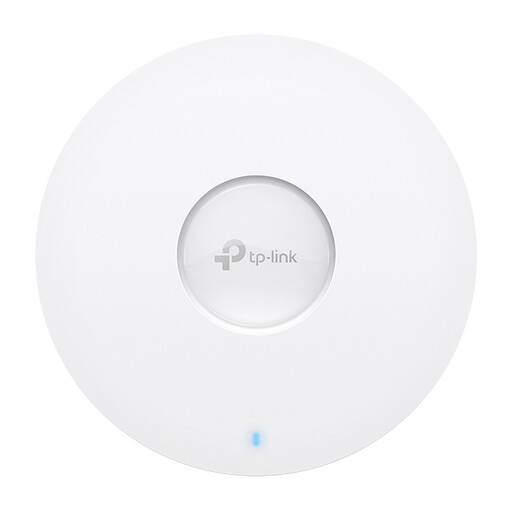
A wired access point for a location with a network socket; this option requires a cable connection to the network.
The product information lists Wi-Fi 6, gigabit Ethernet and Power over Ethernet (PoE).
 No image available
The description lists both range extender mode and access point mode; the wired option requires a network cable.
The product information lists 2.4 GHz, up to 300 Mbit/s and a 10/100 Mbit/s Ethernet port. These aren’t measured upload speeds in your home.
 No image available
A wired access point for a location with a network socket; a cable is required to connect it to the network.
The product information lists Wi-Fi 6, a gigabit Ethernet port and PoE support. The stated combined speed isn’t a measured upload speed.
 No image available
This router is relevant if you want to extend an AiMesh network and already have a compatible ASUS router; the product description doesn’t mention a repeater or access point.
The product information lists Wi-Fi 6 and dual-band 2.4 GHz and 5 GHz. The described AiMesh extension requires another AiMesh-compatible ASUS router.
First, compare the internet connection near the router with the one at the end of the hallway. If it’s slow near the router too, look into the internet connection first. If the signal is weak mainly in the more distant spot, consider Wi-Fi coverage and positioning.
Place it somewhere partway along the hallway where it can still connect properly to the router, rather than automatically putting it in the room with the weakest signal. A signal indicator or setup app can help you find a suitable spot.
Yes. A device with access point mode can use that cable to connect to the router. Check that the device supports this mode and connect the cable; having an Ethernet port alone doesn’t automatically mean access point mode is available.
According to the Dutch Authority for Digital Infrastructure, Wi-Fi can be used without a permit, notification or registration, subject to the applicable conditions. This doesn’t remove the requirements for frequency use and products.
Keep your router and Wi-Fi point up to date, and use appropriate network security. An additional point uses electricity, so check the stated power consumption of your chosen model.