Start by finding out whether the problem lies with your internet connection, Wi-Fi coverage or connection to the screen. One well-positioned router may be enough if coverage is good where you present, while multiple Wi-Fi points are worth considering if distance or obstacles weaken the signal. Also check that your laptop and screen support your chosen presentation method. With Google Cast, AP isolation can prevent devices from communicating with each other. Before buying, check the connection you need and confirm that the exact router model carries the required CE marking, as stipulated by the Dutch Authority for Digital Infrastructure.
Who should consider this choice?
Presenting at the other end of the loft
You present in a spot where distance or obstacles could weaken the Wi-Fi signal, and want to know whether repositioning your router will be enough or if you need multiple points. The Consumers’ Association notes that walls and ceilings can interfere with the signal.
Presenting on a wireless screen
You want to check first that your laptop, screen and network support your chosen presentation method. For Cast, Google recommends connecting both devices to Wi-Fi and turning off AP isolation. Microsoft describes Miracast as an option for compatible screens.
Hosting guests
You want to give visitors internet access while checking that the network access needed for your presentation remains available. Google warns that AP isolation can interfere with Cast, while TP-Link describes separate access settings for guest networks.
What should you look for?
One Wi-Fi router
Choose this when: tests show that one well-positioned router reaches the presentation area.
Bear in mind: walls and distance can weaken the signal, so one access point does not guarantee coverage throughout the loft.
Multiple mesh Wi-Fi points
Choose this when: tests show weak coverage in different areas. If network cables are available, ASUS ZenWiFi XD4 Plus supports Ethernet backhaul.
Bear in mind: multiple points need to be positioned and powered, and a wireless extra point still needs to receive a usable signal itself.
The Consumers’ Association notes that walls, ceilings and other obstacles can interfere with Wi-Fi. Use the table to weigh up coverage, screen connection, guest access and installation before choosing your equipment.
| What to consider |
What to look for when buying |
Who is this important for? |
| Coverage where you present |
Test the Wi-Fi there and compare a central router position with possible locations for extra mesh points. |
If I present at the other end of the loft, I want to know the signal reaches there before adding extra equipment. Around 36% of consumers give coverage top priority. |
| Connection to the presentation screen |
Check that your laptop and screen support your chosen technology. For Google Cast, also check AP isolation. |
If my laptop and screen don’t support the same presentation method, a different router won’t solve the problem. Around 29% of consumers put the screen connection first. |
| Guest access |
Check the guest network and isolation settings available, and test them with the screen. |
If visitors need Wi-Fi, I want to know in advance whether they can connect at the same time as the screen. Around 21% of consumers prioritise guest access. |
| Installation and purchase |
Test your internet connection using a cable and check your provider’s connection settings before choosing extra equipment. |
If I don’t want to set up more equipment than necessary, I check the connection and router position first. Around 14% of consumers put simplicity and cost first. |
Avoiding common buying mistakes
-
Assuming the fastest Wi-Fi guarantees the best range
A stated speed doesn’t tell you how strong the signal will be where you present. Walls, distance and other obstacles can all affect coverage.
Test the signal where you present, then decide whether repositioning the router or adding multiple points is right for you.
-
Setting up a guest network without testing Cast
Google says AP isolation can prevent devices from communicating with each other for Google Cast, even when they’re using Wi-Fi.
Test the guest settings with the screen and the devices you plan to present from beforehand.
-
Confusing the Deco X50-PoE with the standard Deco X50
The Joybuy product listing for the X50-PoE mentions Power over Ethernet and two Ethernet ports per point. TP-Link lists three gigabit ports for the standard Deco X50, so the models are not the same.
Compare the full model name, pack size, connections and power supply. Also check which components are included with the version you choose.
The power supply and installation components can vary by version, so check what’s included in the pack.
Brands worth comparing
TP-Link
TP-Link offers models for both single-router and mesh setups, including the Archer AX55 and Deco X50.
- TP-Link lists Wi-Fi 6 for the Archer AX55 and three gigabit ports per point for the Deco X50.
- These specifications don’t predict how Wi-Fi will perform in a particular loft. For the Archer AX55, also check the hardware version of the model on offer.
ASUS
The ZenWiFi XD4 Plus is a mesh option to consider if you want to set up multiple points.
- According to ASUS, the XD4 Plus can use Ethernet backhaul if network cables are available in the walls.
- This benefit applies to a wired connection between the points, so check that your chosen set and installation are suitable.
FRITZ!
The FRITZ!Box 4060 is a standalone router to consider if network and telephone features matter alongside Wi-Fi.
- FRITZ! lists Wi-Fi 6, a 2.5-gigabit WAN connection, mesh functionality and a five-year manufacturer’s warranty for this model.
- These are specifications from FRITZ!, not proof of better coverage where you present. Check that the connections suit your network.
Joybuy product picks
This selection from Joybuy includes standalone routers and mesh Wi-Fi systems for situations where you want to use one point or need coverage in several areas. Before buying, check that the exact model carries the required CE marking. The Dutch Authority for Digital Infrastructure requires this for radio equipment placed on the market in the Netherlands.
 No image available
TP-Link Deco BE68 (2-pack)
A mesh set with two units, so you can place Wi-Fi points in different areas.
The description lists Wi-Fi 7 and wired or wireless backhaul.
According to the description, each unit has three Ethernet ports, including 10 Gbps and 2.5 Gbps ports.
View at Joybuy
 No image available
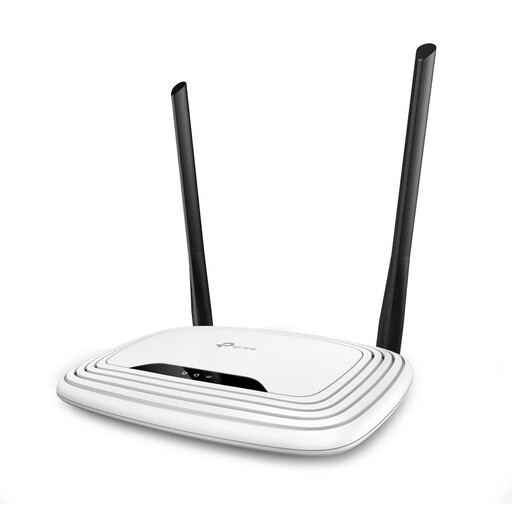
TP-Link TL-WR841N
A standalone router to consider if one point provides enough coverage where you present.
The description lists Wi-Fi 4 on 2.4 GHz and a maximum wireless speed of 300 Mbit/s.
According to the description, the router has an Ethernet WAN connection and four Fast Ethernet LAN ports.
View at Joybuy
 No image available
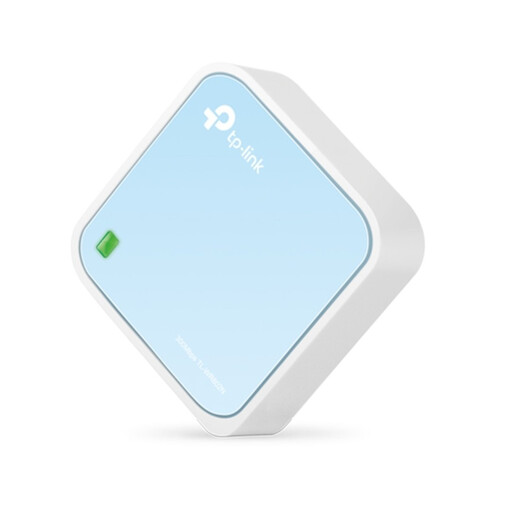
TP-Link TL-WR802N V4
A standalone router to consider if one network point is enough where you present.
The description lists Wi-Fi 4 on 2.4 GHz, up to 300 Mbit/s wireless speed and one network port.
The stated wired speed is up to 100 Mbps.
View at Joybuy
 No image available
ASUS ZenWiFi BD4 Dual-Band
A mesh option to consider if you want to set up multiple points or need a wired connection.
The description lists Wi-Fi 7 and one included mesh node.
According to the product specifications, it has two 2.5 Gbps Ethernet ports and supports wired backhaul.
The description also mentions guest network access.
View at Joybuy
 No image available
TP-Link AX1800 mesh Wi-Fi system, Wi-Fi 6 (2-pack)
A set with two units, so you can place Wi-Fi points in different areas.
The description lists Wi-Fi 6 and a maximum wireless speed of 1800 Mbps.
According to the description, the units support mesh roaming and Ethernet backhaul.
A guest network is also listed.
View at Joybuy
Frequently asked questions
Should you buy a new router straight away if your presentation keeps stalling?
No. First check whether the cause is your internet connection or Wi-Fi coverage where you present. Test your internet connection using a cable and try Wi-Fi where you’ll be presenting. Distance, obstacles and router position can all have an effect.
When are multiple mesh Wi-Fi points worth considering?
Multiple points are worth considering if tests show weak coverage in different areas. Position them so that a wireless extra point still receives a usable signal itself. If network cables are available, your system may support Ethernet backhaul.
Can you cast to a screen over a guest network?
Not without testing your settings and devices. For Cast, Google recommends that both devices are on the same Wi-Fi network and that AP isolation is turned off. This isn’t a general rule for every presentation technology.
Will wireless presentations work automatically after installing a faster router?
Not necessarily. Your laptop and screen must also support the technology you’ve chosen. Microsoft says Miracast requires a screen or adapter that supports Miracast, so check that your devices are compatible first.
Which marking should you check on a router sold in the Netherlands?
Check that the exact model carries the required CE marking. The Dutch Authority for Digital Infrastructure requires this for radio equipment placed on the market in the Netherlands. A declaration for a different hardware version doesn’t confirm that the model you’re buying complies.


