
Working from home in the loft
You want to find out why your connection keeps dropping in the loft and see whether you can install a wired access point.


Start by testing the connection over a cable at the main router, then check the Wi-Fi in your loft and shared workspace. A new router in the same poor location won’t automatically solve problems caused by distance or floors. If you can run a cable to the spot you need, consider a wired access point or mesh node. Without a cable, wireless mesh depends on finding an intermediate spot where the existing signal is still usable. If the network is shared, also check that guest access and network isolation work in the mode you’ve chosen.
You want to find out why your connection keeps dropping in the loft and see whether you can install a wired access point.
You connect several workstations or visitors and want to check that guest access in your chosen mode keeps your private network separate.
You need Wi-Fi on more than one floor, but must place a wireless node somewhere the existing signal is still usable.
Choose this when: you’re not yet sure what’s causing the connection to drop.
Consider: a wired test helps you tell Wi-Fi problems apart from issues with your internet connection; moving the router may require cabling.
Choose this when: you can run a network cable to a suitable spot where you need Wi-Fi.
Consider: you’ll need to sort out the cabling and operating mode. TP-Link explains that, in access point mode, the main router manages connected devices and some Deco router features are unavailable.
Choose this when: running cables isn’t practical, you need Wi-Fi in several places and an intermediate node can still connect to the main network.
Consider: placement and obstacles still matter. The Consumentenbond points out that walls and ceilings, among other things, can interfere with the signal.
Choose this when: you need coverage in one extra spot and can place the repeater where the existing Wi-Fi signal is still strong.
Consider: a repeater won’t automatically restore the connection to the main router if reception is already barely usable where you place it.
Choose this when: the router itself needs replacing and you can put it in a suitable central location.
Consider: distance or obstacles between floors may still mean you need an extra access point; if connecting directly, ask which settings you’ll need.
| What to consider | What to check before buying | Who is this most important to? |
|---|---|---|
| Reliable connection | Compare a wired test at the main router with tests in both workspaces; check whether you can run a cable to a suitable access point. | I want to work reliably in both the loft and shared workspace; around 36% of consumers in this situation put a dependable connection first. |
| Coverage without a cable | Find an intermediate spot with a power socket and test reception there before deciding how many access points you need. | I can’t run a cable to the spot I need and want wireless coverage across several floors; around 29% of consumers give cable-free coverage top priority. |
| Guest access and privacy | Check whether the exact model supports guest access in your chosen mode and whether local access can be disabled. | I want to give visitors Wi-Fi without access to my private devices; around 21% of consumers put isolated guest access at the top of their list. |
| Compatibility with your network | Note your current router model and check the operating mode you want, the connections required and update support. | I want to keep my existing router and know what installation involves beforehand; around 14% of consumers prioritise network compatibility and a complete solution. |
Distance, floors and other obstacles will still affect the connection. A new router in the same spot won’t automatically solve the problem.
First, test over a cable at the main router, then test in both workspaces. Next, see whether moving the router or adding an access point is a better fit for the problem.
The extra node needs a usable connection to the main network itself to extend Wi-Fi further.
Test reception at an intermediate spot before deciding on its final position.
Settings can vary by model, software version and router or access point mode. TP-Link describes separate guest access settings for Deco.
Check the local access setting in your chosen mode and test it with a guest device.
Your actual connection also depends on placement and obstacles; a stated maximum isn’t a measurement from your workspace.
Compare the connection options and the complete set, then test the connection where you plan to use Wi-Fi.
Deco could be a good option if you want to add mesh nodes to an existing router.
The ZenWiFi XD5 is a Wi-Fi 6 mesh system with an option for wired connections between nodes.
FRITZ!Mesh products and repeaters are worth considering if you already use FRITZ! equipment.
The Orbi RBE373 is a three-node Wi-Fi 7 mesh option to consider if you need to cover several areas.
This selection includes wireless mesh sets and wired access points for Wi-Fi in several workspaces. See which option suits your cabling and guest access requirements.
 No image available
Suited to a setup with several Wi-Fi access points and a need for guest access.
The product information lists two mesh units, tri-band Wi-Fi 7 (2.4 GHz, 5 GHz and 6 GHz), a guest network and AiMesh.
 No image available
Worth considering if you can connect a mesh node by cable and need guest access.
The product information lists Wi-Fi 7, a wired backhaul option and a guest network. Check which cables and connections you’ll need at your chosen location.
 No image available
Suited to a permanent access point installation if Ethernet and PoE are available and you manage the network.
The product information lists Wi-Fi 6, Ethernet, PoE, WPA3, VLAN support and web management. Check beforehand that the installation location has the required connection and power supply.
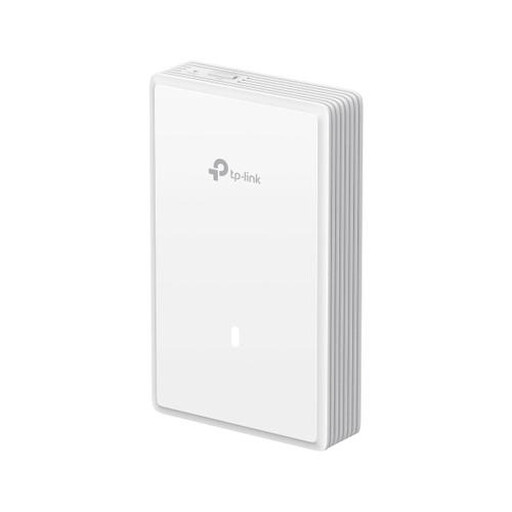 No image available
A wall-mounted access point to consider for a fixed workstation with a wired connection.
The product information lists Wi-Fi 7, PoE, three Ethernet ports, VLAN, ACL and MAC address filtering. Check that the required Ethernet and PoE connection is available.
 No image available
Suited to a wireless mesh setup for several areas where guest access is also useful.
The product information lists three mesh units, tri-band Wi-Fi 6E, Ethernet ports on each unit, WPA3 and guest access. The connection in your loft will still depend on placement and reception between the nodes.
First, connect a laptop to the main router using a network cable and test the connection. Then compare it with the connection in your loft and workspace. If the wired connection repeatedly performs poorly, look into the connection itself or contact your provider. If it’s mainly Wi-Fi that gets worse over distance, consider the router’s position or adding an access point. The Consumentenbond points out that walls, ceilings and other obstacles can interfere with the signal.
It can if the system supports access point mode. TP-Link explains that, with Deco in this mode, the main router manages connected devices and Ethernet backhaul remains available; some advanced Deco router features are unavailable. Check that your exact model supports the features you want.
Use a guest network that lets you disable local access, and check this setting in your chosen operating mode. TP-Link notes that Deco features can vary by model and software version; test the setting with a guest device.
ACM ConsuWijzer says that an internet provider can’t require you to use a particular brand or model and must provide the necessary connection settings. However, a device may be refused under the applicable conditions, so check which settings and connection requirements apply to your service.
Use strong passwords and install software updates. This is the Dutch government’s advice; it doesn’t guarantee that a specific model will receive updates for a particular period.