What should you consider when choosing?
First, try moving your existing router to a different spot. Then see whether running a cable to the loft is feasible. If not, check whether a wireless intermediate point can get a signal from a practical location, or whether powerline is worth investigating.
| What to consider |
What to look for when buying |
Who is this important for? |
| Connection at the desk |
Check how the additional point connects to the router: by Ethernet cable, wirelessly or via powerline. |
When I’m working at my loft desk, I want a usable connection there. Around 33% of consumers say a connection at their workspace is their top priority. |
| Space on the landing |
Find a spot that doesn’t obstruct the passage and test the signal received by the intermediate point there. |
I don’t want a point somewhere it gets in the way or can barely receive a signal. Around 27% of consumers prioritise practical placement on the landing. |
| Cable to the loft |
Check whether there’s already an Ethernet socket or whether a cable can be installed. For mesh, check that both points support Ethernet backhaul. |
If installing a cable is feasible, I want to connect the Wi-Fi point to the router by cable. Around 20% of consumers’ main preference is a wired setup. |
| No new Ethernet cable |
For wireless mesh, check the signal at the intermediate location. For powerline, check whether the points can communicate through your electrical wiring. |
I’d rather not run a new Ethernet cable, so I’m weighing up wireless coverage or powerline. Around 20% of consumers prioritise avoiding cable installation. |
Products at Joybuy
This selection includes mesh kits and access points for adding a Wi-Fi point in the loft, including wired options. Check how each model can connect the points and whether it’s suitable for your existing network.
 No image available
TP-Link Deco BE68 2-pack
A mesh kit with wired and wireless options for connecting the points; check which setup suits your loft.
The product description lists tri-band Wi-Fi and one 10 Gbps, one 2.5 Gbps and one 1 Gbps port per unit.
View at Joybuy
 No image available
ASUS ZenWiFi BT8 2-pack
The product description lists AiMesh integration with compatible ASUS routers; check this if you want to add the system to an existing ASUS network.
The name specifies tri-band Wi-Fi 7 on 2.4 GHz, 5 GHz and 6 GHz. The kit contains two units.
View at Joybuy
 No image available
TP-Link Omada EAP653 access point
This access point suits a wired connection to your loft desk; it doesn’t replace the router and needs an Ethernet cable for this setup.
The product information lists an Ethernet port, PoE and wall or ceiling mounting.
View at Joybuy
 No image available
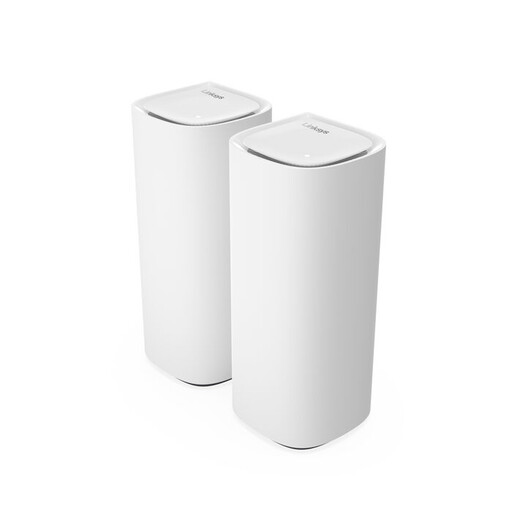
Linksys Velop Pro 7, 2 nodes
The product description says you can expand the system with Velop Pro 7 nodes or compatible Linksys Cognitive Mesh devices; check compatibility before adding more nodes.
The product name specifies tri-band Wi-Fi 7 on 2.4 GHz, 5 GHz and 6 GHz. The kit contains two mesh nodes.
View at Joybuy
 No image available
TP-Link Deco X50-PoE, 2-pack
The product information lists PoE support for a wired connection to a mesh point; check whether the cable route and power supply suit your chosen location.
The kit contains two units. The product information lists Wi-Fi 6 and two Ethernet ports per unit.
View at Joybuy
Frequently asked questions
Does the additional Wi-Fi point have to go right on the landing?
No, not necessarily. For a wireless connection, the point still needs to receive a usable signal from your existing network. With a cable, you can position the additional point closer to your loft desk.
How do I connect an additional point if there’s already an Ethernet cable to the loft?
You can connect an access point to the router using that cable. If you choose mesh with Ethernet backhaul, check that both devices support the feature; TP-Link says not every EasyMesh device does.
Can I plug a powerline mesh point into an extension lead?
TP-Link recommends plugging Powerline Deco directly into a wall socket, as some extension leads or converters may interfere with the signal. Also check that the units you choose can communicate with each other through your home’s electrical wiring.
What do the manufacturer’s warranty and statutory guarantee mean if a product develops a fault?
In the Netherlands, the retailer is responsible for the statutory guarantee if a product doesn’t meet what you could reasonably expect with normal use. As ACM ConsuWijzer explains, the statutory guarantee isn’t simply limited to the stated manufacturer’s warranty period.
Do you need a permit or registration to use Wi-Fi at home in the Netherlands?
According to the Rijksinspectie Digitale Infrastructuur, no permit or registration is needed for normal Wi-Fi use under the applicable conditions. Choose the correct country settings and check that the radio equipment has the CE marking when you buy it.


