
Designer uploading large files
You send large design files and want to find out first whether your internet connection or Wi-Fi is slowing you down.


First, test your upload speed using an Ethernet cable and compare it with the connection at your workspace: a router won’t increase the upload speed included in your broadband plan, as the Consumentenbond explains. If your wired upload speed is sufficient but Wi-Fi performance is poor, compare a standalone router with wired connections and traffic management against a mesh system for weak coverage across several rooms. Also check how your own router connects to your provider’s device and who manages updates.
You send large design files and want to find out first whether your internet connection or Wi-Fi is slowing you down.
You share your connection with housemates and want a reliable workspace when several people are online at once, possibly using a wired connection or adjustable traffic management.
You upload files from a room where the Wi-Fi signal is weak and want to weigh up whether a different router position, a cable or several Wi-Fi points would work best.
Choose this if: your wired upload speed is poor, or only the Wi-Fi at your workspace is causing problems.
Bear in mind: this won’t automatically solve poor coverage or a lack of router features.
Choose this if: your connection provides sufficient upload speed and a suitable router position can reach your workspace.
Bear in mind: a standalone router won’t necessarily reach every room; you’ll manage the settings and updates yourself.
Choose this if: your workspace is in a room with a weak signal and you can position several points suitably.
Bear in mind: the units need space, power and configuration; mesh won’t increase your plan’s upload limit.
Test your upload speed using a wired connection and at your workspace before choosing a router. This will help you work out whether you need to focus on your internet connection, Wi-Fi coverage or shared network use.
| Concern | What to look for when buying | Who is this more important to? |
|---|---|---|
| Uploading large files | Compare your wired upload speed with the speed at your workspace; check the Ethernet ports and connection. | I want to know whether my large design file is being slowed down by my internet connection or Wi-Fi. Around 36% of consumers say upload speed is their main concern. |
| Several people online at once | Check whether the exact model offers traffic management and has enough Ethernet ports; QoS doesn’t add capacity to your provider’s network. | When my housemates are online at the same time, I want my work connection to remain usable. Around 29% of consumers prioritise shared network traffic. |
| Weak Wi-Fi coverage | Test at your workspace and compare router placement, a cable and several Wi-Fi points; for mesh, check where the units can be positioned. | My home office has a weak signal, so I want to know whether a cable or extra Wi-Fi points would work. Around 21% of consumers say coverage in their workspace is their main concern. |
| Management and security | Find out who manages the settings and updates; check guest access and make sure any bridge-mode setting is compatible with your provider’s device. | I want to be able to manage clearly who has access and who installs updates. Around 14% of consumers prioritise management and security. |
Your internet connection has its own upload speed; a local Wi-Fi specification won’t change it.
Compare a wired upload test with one at your workspace before you buy.
Where you position the units and how they connect to each other affect how well the mesh system works. A multi-unit pack is also different from a standalone router.
Decide where the points can go and whether an Ethernet connection between them is possible.
Several units need suitable positions and power; cabling may be required if you want to use Ethernet backhaul.
In the bridge mode described by Ziggo, features including Wi-Fi, DHCP, NAT, the modem firewall and support for SmartWifi pods on the modem are disabled.
Check your provider’s instructions for your modem connection and configure your own router’s firewall carefully.
The Archer AX55 is a standalone Wi-Fi 6 router, while the Deco X50 is a mesh range designed for use with several Wi-Fi points. The right choice depends in part on whether you have one central router position or need coverage across different rooms.
The RT-AX58U is a standalone Wi-Fi 6 router to consider if you’re looking for adjustable traffic management and a wired workspace.
The FRITZ!Box 4060 is a tri-band Wi-Fi 6 router that connects behind a modem. It also offers mesh and telephony features for those who need them.
These Joybuy products include standalone routers and mesh systems for a design workspace where uploads, simultaneous use or Wi-Fi coverage need attention.
 No image available
A standalone router to consider if you want to support a wired workspace alongside simultaneous Wi-Fi use.
The product details list gigabit Ethernet ports, QoS, OFDMA and MU-MIMO. A central position is recommended for coverage.
 No image available
A mesh option to consider if you want to spread Wi-Fi coverage across several rooms.
The product details list three units, three gigabit ports per unit and optional Ethernet backhaul. The units need to be positioned suitably.
 No image available
A mesh router to consider if you want to spread Wi-Fi coverage across rooms.
The product title lists dual-band Wi-Fi 7. The product description mentions app management and the option to use several units together on one network.
 No image available
A mesh router to consider if you want to extend coverage throughout your home.
The product description mentions a unified SSID and control through the Huawei AI Life app.
 No image available
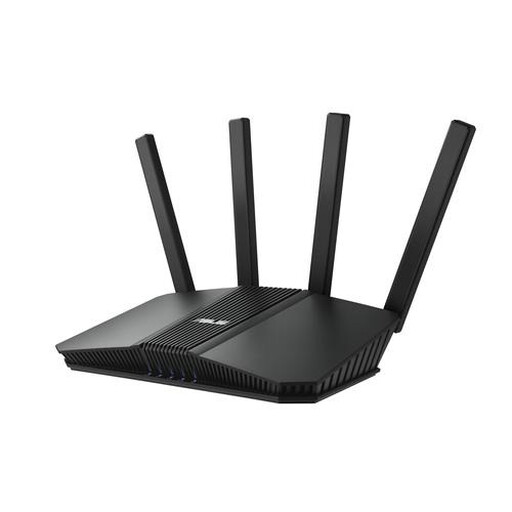
A standalone router to consider if wired connections and simultaneous Wi-Fi use are important to you.
The product title lists 2.5-gigabit Ethernet; the product description mentions OFDMA.
No, a router won’t increase the upload speed of your internet connection. First, test it using a wired connection, then test again at your workspace. This will help you tell whether the problem lies with your connection or your local Wi-Fi.
Not necessarily. You can connect your own router behind your provider’s device, but the settings you need vary by provider and connection. Ziggo describes bridge mode for compatible modems and states that you can’t switch this mode on or off yourself with a fibre-optic modem. Check which settings apply to your connection.
Agree on who will install firmware updates. VeiligInternetten recommends keeping routers up to date and notes that providers generally update their own routers automatically. For your statutory guarantee rights if a product is faulty, contact the seller, according to the Rijksoverheid. Consider any additional paid guarantee alongside those rights.
Yes. According to ACM ConsuWijzer, you have the freedom to choose your router. A provider may refuse to allow your own device under certain conditions if it is unsafe or doesn’t meet the same requirements. Ask your provider which connection settings you need.