
A group working in one room
You’re making video calls and working at the same time on several laptops and phones. Focus on the connection in that room, and check your wired internet speed too.


If you’ll mainly be working in one room, first check your internet connection and existing Wi-Fi before choosing a single Wi-Fi 6 router. For workspaces spread across rooms or floors, a mesh system with multiple Wi-Fi points could be an option, but coverage also depends on their placement and your home. Check that your devices support Wi-Fi 6, how the router connects to your provider’s equipment, and whether the model offers guest access.
You’re making video calls and working at the same time on several laptops and phones. Focus on the connection in that room, and check your wired internet speed too.
Participants are in different rooms or on different floors. Check Wi-Fi coverage at each workspace; the fastest speed next to the router won’t tell you how good the connection is elsewhere.
You’re temporarily giving other people’s devices internet access and want to keep it separate from your home network. Check the guest network feature on the exact model.
A good fit when: participants work close to the router and the main requirement is handling several simultaneous connections.
Bear in mind: a single router won’t necessarily solve weak coverage behind walls or on other floors.
A good fit when: participants work in different places and measurements show weak Wi-Fi coverage there.
Bear in mind: the points need to be positioned appropriately and connected to power; work out how many you’ll need in advance.
A good fit when: your wired connection and coverage at the workspaces are already good enough, or you want to keep using your existing equipment.
Bear in mind: the features and connection method depend on your provider’s equipment and your internet connection.
| Consideration | What should you look for? | Who is this important for? |
|---|---|---|
| Working at the same time | Check your internet speed using a cable, the number of active devices and whether the laptops support Wi-Fi 6. | When several of us are on video calls and working together at the same time, I want to know whether the connection can handle it at our workspace. Around 33% of consumers give simultaneous capacity their highest priority. |
| Coverage at workspaces | Measure Wi-Fi where participants will be working; for mesh, consider how many points you need and whether they can be connected by Ethernet. | When we’re working in different rooms or on other floors, I want a connection in every location. Around 27% of consumers prioritise coverage across multiple workspaces. |
| Guest access | Check whether the exact model has a separate guest network and how access to your home network is kept separate. | If project members bring their own devices, I want to manage their internet access without giving them access to my home devices. Around 20% of consumers put guest access first. |
| Set-up and management | Find out how the router connects to your provider’s equipment, who installs updates and whether a subscription is required for any features you want. | If I want to keep set-up, maintenance and ongoing costs simple, I compare the settings required and the features included. Around 20% of consumers make this their main purchasing concern. |
Your workspace, connected devices and provider’s internet speed all play a part too. A stated top wireless speed doesn’t guarantee the same result for your group.
First, test the connection using a computer connected by a network cable, then measure it at the workspaces. Treat product speeds as specifications, not a prediction of the speed you’ll get during the project.
Distance and obstacles can affect Wi-Fi on another floor; a more powerful router in the same location might not solve the problem.
Measure the connection at each workspace and compare moving the router with a suitable mesh set-up.
Included features can vary by model. Some additional features require a subscription.
Before buying, check the features and subscription terms for the exact model.
The models discussed include a standalone Archer AX55 router and the Deco X50 mesh series.
According to FRITZ!, the FRITZ!Box 4060 is a Wi-Fi 6 router that can be used behind an existing modem and can form a mesh network with compatible FRITZ! devices.
NETGEAR Support confirms that the Nighthawk RAX50 is a Wi-Fi 6 router and provides documentation and firmware for this model.
This selection includes mesh systems for workspaces in different parts of the home and standalone routers for use in one room. Check that each model’s features are compatible with your devices and internet connection.
 No image available
A mesh system with two units for workspaces in different parts of the home.
Wi-Fi 7, tri-band and Multi-Link Operation (MLO). The product information lists WAN/LAN ports of 10 Gbps, 2.5 Gbps and 1 Gbps per unit. These specifications aren’t a measured group performance result.
 No image available
A standalone Wi-Fi 6 router for multiple devices in one workspace.
Dual-band (2.4 GHz and 5 GHz), OFDMA and MU-MIMO. The product information lists expansion with compatible ASUS routers via AiMesh.
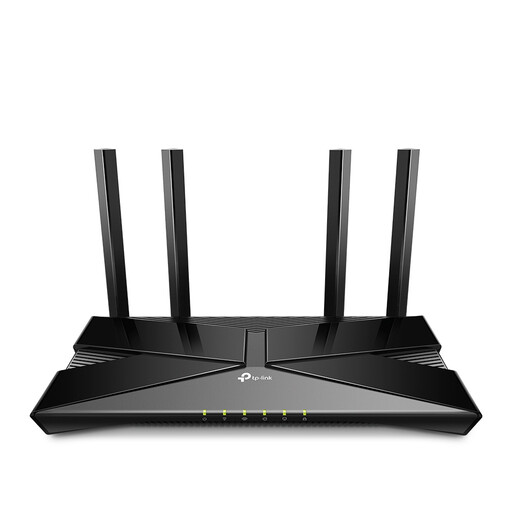 No image available
A standalone Wi-Fi 6 router for multiple devices and fixed workspaces.
The product information lists OFDMA, beamforming and gigabit Ethernet ports. Expansion with compatible mesh Wi-Fi points is also mentioned.
 No image available
A mesh system with three units for a home network with workspaces in different locations.
Tri-band Wi-Fi 6E. The product information lists three Ethernet ports per unit, including a 2.5-gigabit port.
 No image available
A mesh set with two units for workspaces in multiple rooms.
Dual-band Wi-Fi 6 with OFDMA and MU-MIMO. The product information lists three gigabit Ethernet ports per unit; coverage also depends on placement and your home.
No. First, test the connection using a computer connected by a network cable, then compare Wi-Fi coverage at the workspaces. If the wired connection itself is slow, investigate your internet connection first; if the problem is limited to Wi-Fi in certain areas, changing the router’s position may help.
According to ACM ConsuWijzer, you’re generally allowed to choose your own router. Check which settings and connection method you need for your particular service; your provider must make the necessary connection settings available. Using a router behind your existing modem is different from replacing the modem.
Check the guest network feature on the exact model and set a separate access code. FRITZ! describes the FRITZ!Box 4060 as keeping the guest and home networks separate; as a result, guests may not be able to use a printer on your private network.
If you have your own router, check how updates are installed and make sure you keep applying them; your provider may manage updates for a provider-supplied router. In the Netherlands, according to ACM ConsuWijzer, the seller must offer an appropriate free solution if a product breaks sooner than you could reasonably expect under normal use.
No, this varies by model and feature. TP-Link lists subscription options for additional HomeShield features; check what’s available without a subscription for your chosen model and what terms apply.