What should you look for when choosing?
First, work out whether you can connect your main gaming spot by cable. If that isn’t practical, consider where to place your Wi-Fi points and how they connect to each other. Choose a separate router only if it’s compatible with your existing connection and has the features you need.
Network cable or wired access point
Best if: you can run a cable to your gaming spot and your PC or console needs a wired connection.
Bear in mind: the installation and route for the cable; you may also need an access point for Wi-Fi in several rooms upstairs.
Mesh with multiple Wi-Fi points
Best if: you need coverage in several rooms upstairs and can’t run a cable everywhere.
Bear in mind: where you place the points and how they connect to each other; a wireless point still needs a usable signal of its own.
Separate gaming router
Best if: you need extra ports or network settings, and your gaming spot already has a wired connection or usable Wi-Fi.
Bear in mind: gaming features or priority settings won’t automatically strengthen a weak signal passing through floors.
| What to consider |
What should you check? |
Who should consider this? |
| Coverage upstairs |
Compare a cable or wired access point with the placement and connection between mesh points. |
If your gaming spot is behind a floor, you’ll want to know whether the signal reaches it. Around 33% of consumers say coverage upstairs is their top purchasing priority. |
| Stable connection at your gaming spot |
Check whether your PC or console can be connected by cable and whether there’s a spare Ethernet port. |
For a fixed gaming spot, the main consideration is whether you can avoid the final wireless connection. Around 27% of consumers give a stable connection at their gaming spot top priority. |
| Busy evening use |
Test your internet connection using a cable, then test again at your usual busy time. Don’t rely on QoS as a guarantee against lag. |
If other people in your household are online at the same time, you’ll want to find out where the lag starts before choosing settings or equipment. Around 27% of consumers put simultaneous use top of their list. |
| Connection and management |
Check that it connects to your existing device, the mode you need, how updates are handled and how many devices will be switched on. |
If you want to expand your existing network, it’s important that the new equipment is compatible with it. Around 13% of consumers name connection and management as their top purchasing priority. |
Joybuy products for Wi-Fi upstairs and gaming
This selection includes mesh systems for extending Wi-Fi and a standalone router for a fixed gaming spot or network features. Check each model’s connection options, coverage requirements and compatible operating mode.
 No image available
TP-Link Deco BE68, 2-pack
An option if you want to spread Wi-Fi across several areas; check whether the two points can be positioned to cover the rooms you need.
View at Joybuy
 No image available
TP-Link AX1800 Whole Home Mesh Wi-Fi 6 System, 2-Pack
A mesh option for Wi-Fi in several areas; the product name lists Wi-Fi 6 and a set with two points.
View at Joybuy
 No image available
TP-Link Deco X50, 3-pack
A mesh system for spreading Wi-Fi across several areas; the product name lists Wi-Fi 6, dual-band and three points.
The product name lists the 2.4 GHz and 5 GHz frequencies.
View at Joybuy
 No image available
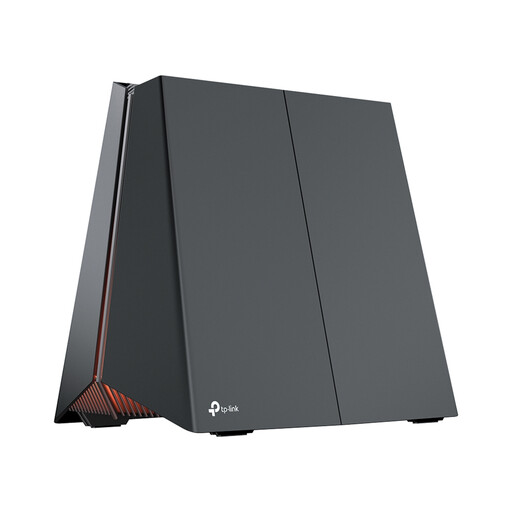
TP-Link Archer GE550 wireless router
An option if you’re looking for a standalone router for a fixed gaming spot; check whether the coverage you need upstairs is already available or needs to be arranged separately.
The product name lists tri-band, 2.5-gigabit Ethernet and the 2.4 GHz, 5 GHz and 6 GHz frequencies.
View at Joybuy
 No image available
TP-Link Deco X50-PoE, 3-pack
A mesh option if you want to extend Wi-Fi to several areas; check in advance that the connection options and placement suit your home.
The product name lists Wi-Fi 6, dual-band, PoE and two Ethernet ports.
View at Joybuy
Frequently asked questions
Should you replace your internet plan or router first?
First, test the connection to your router using a cable and compare the result with the speed included in your internet plan. Then test at your gaming spot upstairs to tell the difference between an internet connection problem and poor Wi-Fi coverage at home.
Where should you place an extra Wi-Fi point for the upstairs floor?
Test the connection in different places. A point that connects to the network wirelessly still needs a usable signal of its own. If you can run a cable, compare this with a point connected by cable upstairs. The best location depends on your home’s layout.
Can you use your own router in the Netherlands?
According to ACM ConsuWijzer, you have the freedom to choose your own router. Additional connection requirements may apply if you use your own modem, so ask your provider what’s needed for your connection before replacing your modem.
How do you maintain your own router?
Keep the device up to date and check how your chosen model receives updates before buying. ACM ConsuWijzer highlights the importance of updates for the security of your network and personal data.
What ongoing costs can extra Wi-Fi points involve?
Extra router and Wi-Fi equipment uses electricity while it’s switched on. Compare the power use of the specific set; the actual cost depends on its power consumption, how you use it and your electricity tariff.


