A Wi-Fi repeater can help if the Wi-Fi signal is weak mainly where you take your calls, but it won’t solve a limited internet connection or network congestion by itself. If you can run a cable to your workspace or install an access point, consider a wired connection instead. For mesh features, the extender must be compatible with your router. Place a wireless repeater where it still receives a good signal, and check the CE marking on the device you receive.
Who is Wi-Fi extension suitable for?
Video caller with a weak signal in the room
If your calls mainly freeze in a workspace that’s further from the router, check whether there’s a spot in between where a repeater can still receive a good signal. The Consumers’ Association recommends placing it in the middle of the home when the signal is weak at the far end.
Housemate who can use a cable
If you can run ethernet to your workspace or an additional Wi-Fi access point, consider a wired connection instead of relying on a wireless link between the router and access point.
Resident with an existing mesh network
If you want to extend your Wi-Fi while keeping your existing mesh features, check that your exact router and the additional access point support the system you want to use together.
What should you look for when choosing?
Wireless Wi-Fi repeater
Choose this option: if the signal where you take calls is weak, but there’s a spot between the router and your workspace with good reception, and you can’t run a cable.
Trade-off: the repeater needs to maintain a usable wireless connection to the router; it won’t increase the speed of your internet connection.
Wired connection or access point
Choose this option: if running ethernet to your laptop or an access point is practical and you want to avoid a wireless connection between the router and the additional Wi-Fi access point.
Trade-off: an access point needs a suitable cable route and a model with the right mode and connection. Running a cable directly to your laptop is another option.
Extending an existing mesh network
Choose this option: if you want to add an access point to an existing mesh system and have confirmed that the router and extender are compatible.
Trade-off: compatibility depends on the specific combination. A wireless mesh connection still relies on signal reception and shared network capacity.
For video calls in a shared home, first work out whether the problem is with the signal at your workspace, caused by several people using the network at once, or best solved with a wired connection.
| What to consider |
What to look for when buying |
Who is this important for? |
| Signal at your workspace |
Test the connection where you take calls and look for a spot in between with good reception and few obstructions. |
If my workspace is further from the router, I want to know whether a repeater will still receive a good signal somewhere in between. Around 36% of consumers prioritise usable coverage where they take calls. |
| Call quality when others are online |
Compare the connection in the same spot when housemates are and aren’t using the internet heavily. Also assess your internet connection. |
When housemates are online at the same time, I want to know whether that makes my calls freeze or whether the problem is the Wi-Fi signal at my workspace. Around 29% of consumers prioritise call quality when the network is in use by others. |
| Cable to your workspace or access point |
Check whether you can run a cable and whether the model has an access point mode. An ethernet port for your laptop doesn’t automatically mean the repeater itself is wired to the router. |
If I can use ethernet, I want to avoid a wireless connection between the router and the additional Wi-Fi access point. Around 21% of consumers prioritise the option of a wired connection. |
| Mesh compatibility and management |
Make a note of your router model and check whether the access point supports the mesh feature you want. On a shared network, also agree who will manage settings and updates. |
If I want to extend an existing mesh network, I want to know in advance whether my router and the new access point will work together. Around 14% of consumers prioritise compatibility and management. |
Pitfalls to avoid
-
Buying a repeater without first identifying the cause
A stronger Wi-Fi signal in the room won’t automatically fix a limited internet connection or congestion on shared wireless frequencies.
Compare the connection in different locations and while other people are online before choosing an access point.
-
Placing the repeater right next to your laptop
A wireless repeater needs a good connection to the existing network itself. If it’s somewhere without a usable signal from the router, it won’t be able to pass that signal on effectively.
Choose a spot in between with as few obstructions as possible. If available, use the signal indicator or setup app.
-
Assuming every mesh device works with your router
AiMesh, OneMesh and FRITZ! mesh each have their own compatibility requirements. A device working as a standard repeater doesn’t necessarily mean it supports the mesh features of another router.
Make a note of your exact router model and check which combinations and features are supported before buying.
Brands to compare
TP-Link
The RE705X is worth comparing if you’re choosing between wireless repeater operation and a wired access point setup.
- TP-Link lists a gigabit ethernet port and access point mode for the RE705X.
- OneMesh requires a OneMesh router. The stated wireless speeds are specifications, not measured video-calling performance.
ASUS
The RP-AX58 is worth comparing if you have a compatible AiMesh router or are considering a wired access point.
- ASUS lists AiMesh and access point mode with ethernet backhaul for this model.
- AiMesh requires a compatible ASUS router. The stated Wi-Fi 6 benefits require compatible devices.
FRITZ!
The FRITZ!Repeater 1200 AX is particularly worth considering if your home already uses a FRITZ!Box.
- FRITZ! lists FRITZ! mesh and a gigabit LAN connection for this model.
- The model can also work with other routers, but that doesn’t automatically mean FRITZ! mesh will be available with those routers.
NETGEAR
The EAX15 is a Wi-Fi 6 repeater with an ethernet port that’s worth comparing when extending an existing network.
- NETGEAR lists a single Wi-Fi name and roaming as features of the EAX15.
- Claims of uninterrupted video calls aren’t an independent guarantee of performance in a busy shared home.
devolo
The WiFi 6 Repeater 5400 is worth comparing if you’re looking for a repeater you can place wherever you need it, or an extender that works with compatible devolo Wi-Fi products.
- devolo lists a signal indicator and mesh compatibility with other devolo Wi-Fi products.
- A stated maximum data rate is a product specification, not a prediction of your internet speed during a video call.
Wi-Fi extenders at Joybuy
These Joybuy products range from a mesh system and wired access points to wireless repeaters. Choose based on your cable options, the network setup you want and the frequency band you need.
 No image available
TP-Link Deco X50 (3-pack)
A mesh system for extending Wi-Fi coverage across several rooms.
3-pack; dual-band (2.4 GHz/5 GHz); Wi-Fi 6; three gigabit ports per unit. Ethernet backhaul is listed as an option.
Joybuy
 No image available
TP-Link Omada EAP653
An access point to consider if you can run a wired connection to the additional Wi-Fi access point.
Dual-band Wi-Fi 6, a gigabit ethernet port, PoE and QoS are listed. The product description states support for up to 250 concurrent users; this doesn’t guarantee video-call quality.
Joybuy
 No image available
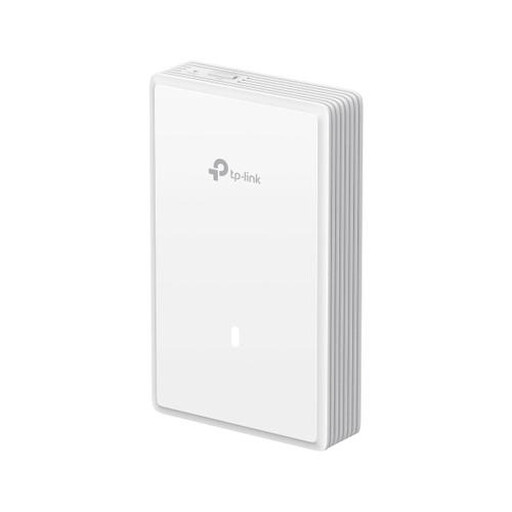
TP-Link EAP725-Wall
An access point for anyone considering a wired setup with wall or ceiling mounting.
Wi-Fi 7, dual-band, PoE and three ethernet ports, including 2.5G support. The product description states support for up to 250 concurrent users; this alone says nothing about call quality.
Joybuy
 No image available
WiFi Repeater Pro (Black)
A repeater to consider if the Wi-Fi signal is weak mainly at your workspace and you can’t run a cable to an additional access point.
According to the product description, this model works only on the 2.4 GHz band and supports connections with up to 24 devices. The description also mentions an indicator light and the option to move the model to another socket.
Joybuy
 No image available
TP-Link TL-WA801N
A model worth comparing if you’re choosing between repeater use and a wired access point setup.
According to the product description, this model operates on 2.4 GHz and supports repeater and access point modes, as well as ethernet and passive PoE.
Joybuy
Frequently asked questions
How can you tell whether a repeater could help with your video calls?
First check whether the Wi-Fi signal is weak mainly where you take calls. Compare the connection there with one closer to the router, including while housemates are online. A repeater extends coverage, but it won’t fix a limited internet connection or every type of wireless congestion.
Where should you place a wireless Wi-Fi extender?
Don’t automatically put it next to your laptop. Instead, place the extender somewhere it can still receive a good signal from the existing network, with as few obstructions as possible. If available, use the device’s placement guide.
Does a stated speed in Mbit/s prove that video calls will work well?
No. A stated Wi-Fi speed doesn’t measure the internet speed available or the stability of the connection at your workspace. For a 720p group call, Zoom recommends an upload speed of 2.6 Mbit/s and a download speed of 1.8 Mbit/s. These figures apply to that Zoom scenario and aren’t a general buying threshold for all meeting services.
Do you need a permit or registration to use Wi-Fi at home in the Netherlands?
According to the Radiocommunications Agency Netherlands, Wi-Fi on designated frequencies doesn’t need to be reported or registered when use complies with the applicable requirements. Those requirements still apply.
Which product marking should you check on a Wi-Fi extender?
The Radiocommunications Agency Netherlands states that the correct CE marking must appear on the equipment. So check the device you receive: a statement on a product page doesn’t confirm which marking is on your particular unit.


