
Workshop attendee with poor signal in the room
Your connection is better near the router than at your workshop location, and you’re looking for coverage in one room.


Choose a wireless repeater if your main issue is poor Wi-Fi coverage at your workshop location and there’s still a spot between the router and that location where the signal is usable. If you can run an Ethernet cable, an access point could be an alternative. Mesh may suit multiple rooms, but its features depend on how it works with your router. If the workshop connection also stutters near the router when other people in the house are online, investigate the shared internet connection first: extending Wi-Fi coverage won’t fix a lack of capacity on that connection.
Your connection is better near the router than at your workshop location, and you’re looking for coverage in one room.
You share the connection with people who stream or make video calls at the same time, and want to find out whether dropouts are caused by poor coverage or simultaneous use.
You can connect a cable at your workspace and want to know whether an access point is right for your situation.
Compare the connection near the router with the one at your workshop location, ideally while others in the house are using the network as they normally would. This will help you work out whether you mainly need better coverage, a wired connection or a solution for congestion on the shared connection.
| Purchase concern | What should you check? | Who is this important to? |
|---|---|---|
| Coverage at the workshop location | Check whether the repeater can still receive a signal from the router from a spot in between; try a signal indicator or setup app if available. | If I mainly have poor coverage in one room, I want to know whether a repeater can still connect to the router from there. Around 36% of consumers prioritise coverage in a particular room. |
| Simultaneous use | Compare the connection near the router and in the room while others in the house are using the network as they normally would; don’t confuse maximum Wi-Fi speed with internet speed. | I want to know whether the connection also stutters when I’m near the router and others in the house are online. Around 29% of consumers prioritise the impact of simultaneous network use. |
| Wired access point | Check that there’s a suitable cable route and a free router port, and that the device you choose has an access point mode. | With a cable running to my workspace, I can compare whether a wired access point is a better fit for my connection than wireless repeating. Around 21% of consumers prioritise having a cable connection available. |
| Compatibility and network management | Make a note of your router model and check the mesh features you want separately from standard repeater compatibility; agree any changes with the network administrator. | In a shared house, I want to know who manages the router and whether the device I choose works with that model. Around 14% of consumers prioritise management and compatibility. |
Consumentenbond recommends placing Wi-Fi access points no more than two rooms apart, where possible, and positioning them so they can connect to one another. A repeater still needs to receive a usable signal from the router.
Extending Wi-Fi coverage doesn’t add capacity to your internet connection. If the workshop also stutters near the router, a repeater won’t fix the cause.
Compare the connection in your room with the one near the router during busy periods, and talk to others in the house about simultaneous use before choosing a device.
A wireless Wi-Fi access point needs a usable connection to the router itself in order to extend the network.
Choose a spot in between and check the signal there with an indicator or setup app, if available.
A device may work as a repeater with a router without offering the brand-specific mesh features. TP-Link says OneMesh on the RE605X requires a compatible OneMesh router; FRITZ! describes mesh networking with a FRITZ!Box.
Make a note of your router model and check before buying that it supports the mesh feature you want.
If your router doesn’t support that feature, you may need additional compatible network equipment.
TP-Link’s RE605X product information describes a Wi-Fi 6 repeater with a Gigabit port, signal indicator and access point mode.
The product information for the FRITZ!Repeater 1200 AX lists Wi-Fi 6, a Gigabit LAN port and a LAN connection to a FRITZ!Box.
The WiFi 6 Repeater 3000 is described as having Gigabit LAN and an access point mode.
The product information for the RP-AX58 describes a Wi-Fi 6 range extender with AiMesh support.
The options below include mesh kits with multiple Wi-Fi access points, a wired access point and standalone repeaters. For each device, check that the connection method, router compatibility and coverage you need are right for your workshop location.
 No image available
Suited to a household looking to set up mesh with multiple Wi-Fi access points. This is a mesh router kit that connects to a modem, not a standalone repeater to add to an existing network without further consideration.
Kit with 2 units.
 No image available
Suited to anyone looking to extend coverage across several rooms with a mesh network. The kit contains three units, so it requires more equipment than a single standalone repeater.
Dual-band Wi-Fi 5 (2.4 GHz/5 GHz).
 No image available
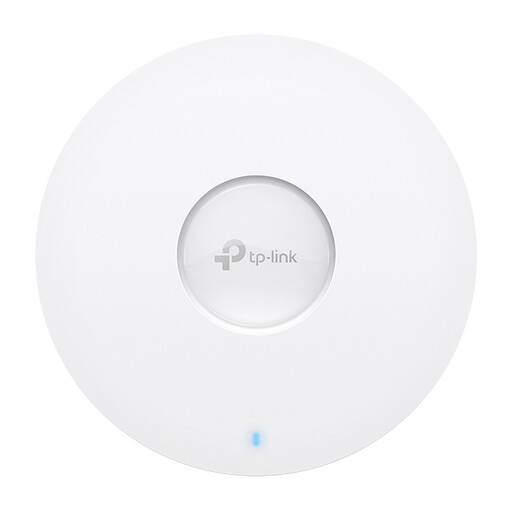
Suited to locations with a cable connection for the access point. Check that the wired connection and the way you intend to power the device are suitable for your setup.
Designed as a wireless access point; the described installation is on a ceiling or wall.
 No image available
Suited to poor coverage in one room, provided the repeater can still receive a signal from the router from a spot in between. The description mentions setup via the Mi app and an indicator light to help you find a suitable location.
The repeater described uses the 2.4GHz band only; bear this in mind if the shared Wi-Fi network is busy.
 No image available
Could be suitable if you’re looking for a device with both access point and extender modes; check which connection method is right for your network.
The product name lists a maximum wireless speed of 300 Mbps and 2 antennas. The version described uses the 2.4GHz band only.
Compare the connection in your room with the one near the router, ideally while others in the house are using the network as they normally would. If the main problem is poor coverage in the room, look into where to place a repeater. If the connection also stutters near the router, investigate the shared connection first. Zoom sets out bandwidth requirements for specific meeting features; it doesn’t guarantee a particular speed for every workshop.
Place the repeater where it can still receive a usable signal from the router, with as few obstacles as possible. Consumentenbond recommends placing Wi-Fi access points no more than two rooms apart, where possible. Use a signal indicator or app if available, then test the connection at your workshop location.
Keep your router and Wi-Fi devices up to date, and use a strong password. Agree any changes to a shared network with the person who manages the router.
When choosing, also allow for any additional network equipment or cable you may need. For a standard online consumer purchase, ACM ConsuWijzer says you will generally have 14 days from delivery to change your mind, subject to applicable exceptions. Your statutory guarantee is separate from any manufacturer’s warranty.
According to the Dutch Authority for Digital Infrastructure, using Wi-Fi at home does not require a licence as long as the equipment follows the designated frequencies and conditions of use. Radio equipment sold in the Netherlands must carry the applicable CE marking; check this for the specific product version.