
Designer with a slow upload
You upload a design file from a fixed workspace and want to establish first whether the internet connection or your local Wi-Fi is the bottleneck.


First, use a network cable at the router to take a measurement, then compare that upload with Wi-Fi at your workspace: a Wi-Fi extender won’t fix a limitation with the internet connection itself. If there’s one weak spot and you can’t run a cable, a wireless repeater may suit you; if you can run a cable, consider an access point, while weak coverage in several rooms is more likely to call for a suitable mesh system. The connection between Wi-Fi points and compatibility with your router are still important.
You upload a design file from a fixed workspace and want to establish first whether the internet connection or your local Wi-Fi is the bottleneck.
You want to keep phones, laptops and other devices connected during an upload, so you’re considering network capacity and the connection between Wi-Fi points.
You have other areas with poor reception besides your workspace, and need to weigh up whether one extra point will be enough or whether you need to extend coverage in several places.
Choose this when: Wi-Fi is weak mainly in one workspace, you can’t use a cable and there’s an intermediate spot with a usable signal.
Trade-off: the wireless connection back to the router will still determine your upload performance.
Choose this when: you can run an Ethernet cable to a suitable spot near your workspace.
Trade-off: you’ll need a cable route and a device with the right access point or LAN bridge mode.
Choose this when: other rooms also have weak coverage or you need Wi-Fi in several places.
Trade-off: several points need space and power sockets, and must have a good connection to one another.
| Concern | What to look for when buying | Who is this most relevant to? |
|---|---|---|
| Reliable upload connection | Compare a wired measurement at the router with Wi-Fi at your workspace; check whether Ethernet can be used as the backhaul. | When I send a design file from a fixed workspace, I want to know whether Wi-Fi, rather than the internet connection, is slowing down the upload. Around 36% of consumers put the upload connection first when deciding what to buy. |
| Several devices in use at once | Check the Wi-Fi versions supported by your router and key devices, and compare the connection while the household is online. | I want to keep phones and laptops connected while uploading, without treating a quoted speed as a guarantee. Around 29% of consumers prioritise using several devices at the same time. |
| Coverage in the right places | Map out rooms with weak coverage and decide where an extra point or cable could be placed effectively. | If other rooms as well as my workspace have poor coverage, I want to know how many points my setup needs. Around 21% of consumers prioritise coverage in several places. |
| Compatibility and maintenance | Note your router model and check the mesh features you want, supported modes and firmware updates. | I want to keep using my existing router and find out in advance which features work with it and how to maintain the Wi-Fi point. Around 14% of consumers prioritise compatibility and maintenance. |
An extra Wi-Fi point won’t increase the speed provided by your internet connection itself.
First, take a measurement with a cable at the router, then compare it with the Wi-Fi at your workspace.
The extra point needs a usable connection to the router itself to extend Wi-Fi further.
Choose an intermediate spot with as few obstacles as possible and check reception there.
An Ethernet port doesn’t automatically provide the feature you want, and mesh features may depend on how the device works with your router.
Check the mode supported by the exact Wi-Fi point and your router model.
Running a cable may involve extra installation work; equipment that isn’t compatible may also mean you need to adjust your setup.
Upload performance at your workspace also depends on placement, the connection between points, your device and your internet connection.
Compare the connection in your own setup, and don’t treat quoted wireless speeds as guaranteed upload speeds.
The RE705X is a standalone dual-band Wi-Fi 6 extender with access point mode; the Deco X50 is a mesh system with multiple Wi-Fi points.
The FRITZ!Repeater 1200 AX is a standalone Wi-Fi 6 repeater that can be used with various routers.
The E15 is a Wi-Fi 6 extender for anyone looking for a standalone extra Wi-Fi point.
The WiFi 6 Repeater 5400 is a standalone repeater with a placement indicator.
This selection includes wireless repeaters, a wired access point and mesh systems for several areas. The right setup depends on whether you can run cables, where coverage is weak and how the device connects to your existing network.
 No image available
Suitable for a setup with several Wi-Fi points and the option of a wired or wireless connection between them.
Tri-band Wi-Fi 7 and MLO. The product description lists WAN/LAN ports of 10 Gbps, 2,5 Gbps and 1 Gbps per unit.
Position the units so they have a usable connection to one another; two units don’t guarantee coverage in every home.
 No image available
Suitable for a setup that needs to bring Wi-Fi to several rooms using three mesh units.
Dual-band Wi-Fi 6; the product description lists three gigabit Ethernet ports per unit.
The units need to be placed in suitable spots and maintain a usable connection to one another.
 No image available
Suitable for a single weak spot where you can place an extra wireless point.
The product description lists 2,4 GHz up to 300 Mbps and support for up to 24 devices.
Place the repeater where it still has a usable connection to the router, not in the dead zone itself.
 No image available
Suitable for a workspace where you can run an Ethernet cable to an access point.
Dual-band Wi-Fi 6, PoE support and QoS.
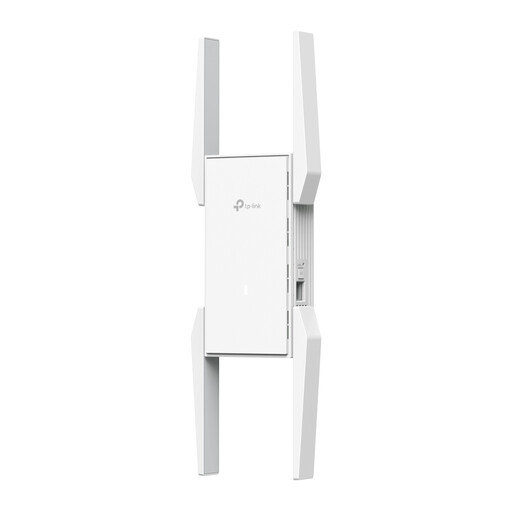 No image available
Suitable for wireless extension when the existing network still has coverage where you want to place the extender.
Dual-band Wi-Fi 6 with beamforming and QoS.
The product description says the extender needs to remain within range of the existing network.
First, use a network cable to connect a laptop to the router and take a measurement, then compare it with Wi-Fi at your workspace. Consumentenbond recommends using this approach to distinguish between the internet connection and your Wi-Fi setup; extra Wi-Fi coverage won’t fix a limitation with the internet connection itself.
Choose an intermediate spot where the repeater still gets a usable signal from the router, rather than placing it where the signal has almost disappeared. Avoid obstacles where possible, then test the connection at your workspace.
Older Wi-Fi devices can still connect, but according to Consumentenbond they won’t automatically get the benefits of Wi-Fi 6. Also check which Wi-Fi versions your router and chosen Wi-Fi point support.
Radio equipment placed on the market in the Netherlands must meet the applicable European requirements and carry the CE marking. The Netherlands’ Digital Infrastructure Inspectorate also states that RED 3.3 cybersecurity requirements have applied since 1 August 2025 to the designated categories; which requirements apply depends on the device’s features. A product listing on its own does not prove that a specific version meets every requirement.
Contact the seller about your statutory guarantee rights. According to ACM ConsuWijzer, the period depends on what you could reasonably expect from the product; a manufacturer’s guarantee does not automatically limit your statutory rights.