
Making a video call while taking a language lesson
You want to hear calls clearly while a lesson video is streaming elsewhere at home. Check the connection where you’ll be doing both activities.


Start by testing your connection to the router with an Ethernet cable, then check the Wi-Fi where you take your lessons. A Wi-Fi extender won’t improve a slow internet connection from your provider. If the problem is mainly in one spot, a well-placed repeater could be suitable. If you can run an Ethernet cable, an access point is worth considering. If coverage is weak in several rooms, you could compare mesh systems, but also check the connection between the Wi-Fi points and the router.
You want to hear calls clearly while a lesson video is streaming elsewhere at home. Check the connection where you’ll be doing both activities.
Does Wi-Fi work well near the router but keep dropping out where you usually take your lessons? In that case, both the repeater’s location and the signal it receives there matter. The Consumentenbond recommends placing a Wi-Fi point where it can still receive a strong enough signal.
If you take lessons and make calls in different places, you can compare a standalone repeater, a wired access point and a system with several mesh points.
First, choose the type of connection that suits the location and the number of rooms. Then check whether the Wi-Fi point can get a usable connection to the router from there.
Suitable if: your lesson space is just beyond the router’s good coverage, and there’s a spot in between with a usable signal.
Consider: with some designs, the wireless connection back to the router shares capacity with connected devices.
Suitable if: you can run Ethernet to, or near, your lesson space.
Consider: running a cable takes work. Check that your chosen model supports access point mode.
Suitable if: several rooms have weak coverage, or you move around the house during lessons and calls.
Consider: you’ll need more devices. Check whether the points connect to the main router by cable, wirelessly or through a shared wireless connection. A mesh system doesn’t guarantee faster speeds on its own.
Suitable if: a wired test near the router already gives poor results, or the router’s position could be causing the problem.
Consider: improving the router’s position won’t always solve the problem in a distant room with obstacles.
| What to consider | What to look for when buying | Who is this important to? |
|---|---|---|
| Streaming and video calls at the same time | Check whether you can run Ethernet to the additional Wi-Fi point. If you’re extending your network wirelessly, also assess the connection back to the router. | If I’m making a video call during a lesson, I want to know whether both activities can work well together in my lesson space. Around 33% of consumers give simultaneous use the highest priority. |
| Coverage in your lesson space | Compare the connection in your lesson space with the signal in a possible midway location. Check where the repeater itself can still receive a strong enough signal. | If Wi-Fi only works well near the router, I want to get a good connection in my usual lesson space without placing a Wi-Fi point somewhere with no usable signal. Around 27% of consumers prioritise coverage in that location. |
| Connection between the router and Wi-Fi point | Check whether you can run Ethernet to the location you need, and whether the exact model supports access point mode or your preferred connection type. | If I want to choose how the router and Wi-Fi point connect, I need to know whether cabling is practical and what a wireless connection involves. Around 20% of consumers give this choice of connection the highest priority. |
| Compatibility and management | Check that your router is compatible with the brand’s mesh system, and see which security settings and software updates are available. | If I mainly want a suitable system that I can manage easily, I check how it works with my own router and what maintenance options are available. Around 20% of consumers prioritise compatibility and management. |
An extra Wi-Fi point won’t increase the speed of your broadband connection from your provider.
First, test the connection to your router using an Ethernet cable. Then check Wi-Fi coverage in your lesson space.
If the wireless band is shared, the connection between the router and Wi-Fi point may compete for capacity with devices streaming lesson videos or making video calls.
Compare the backhaul – the connection between the router and Wi-Fi point – and use Ethernet if practical. Also check the connection where you need it.
According to TP-Link, the OneMesh feature on the TP-Link RE705X requires a OneMesh router. FRITZ! describes specific mesh integration with a FRITZ!Box.
Before buying, check that the mesh feature you want works with your exact router. Standard Wi-Fi extension and brand-specific mesh integration aren’t the same thing.
You may also need a compatible router or an additional Wi-Fi point to use the brand-specific feature you want.
The RE705X is a standalone Wi-Fi 6 extender for improving coverage in one area; the Deco X10 is a separate mesh option with several points.
The FRITZ!Repeater 1200 AX is a standalone repeater worth comparing, especially if you already use a FRITZ!Box.
The WiFi 6 Repeater 3000 is a plug-in model worth comparing for wireless extension or use as an access point.
The EAX15 is a Wi-Fi 6 mesh extender for expanding an existing network.
This selection includes mesh kits with several Wi-Fi points and a standalone repeater for extending an existing Wi-Fi connection.
 No image available
A mesh kit with two points to extend Wi-Fi to several areas.
The product listing mentions tri-band Wi-Fi 7 and MLO. Each point is listed with 10 Gbps, 2.5 Gbps and 1 Gbps ports.
 No image available
A ZenWiFi mesh system to consider if you can use a wired connection between the Wi-Fi point and router.
The product listing mentions dual-band support on 2.4 GHz and 5 GHz and a wired backhaul option. The listed mesh compatibility applies to other ASUS mesh systems, not automatically to every router.
 No image available
A mesh kit with three points to extend coverage to several areas of your home.
The product listing mentions Wi-Fi 6, OFDMA and MU-MIMO. Each point is listed with three gigabit Ethernet ports; these features don’t indicate how the system will perform in a home.
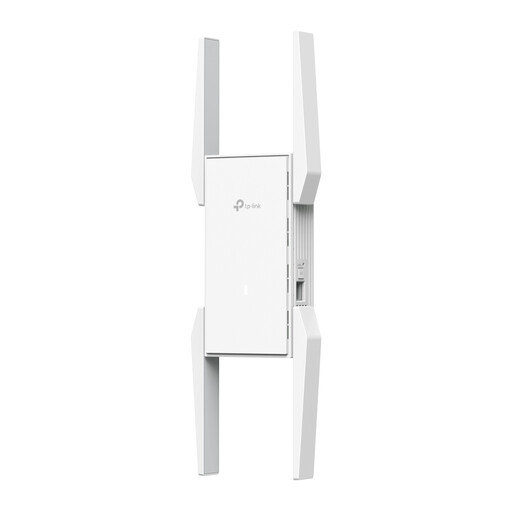 No image available
A repeater to consider if you want to extend an existing network to one specific area.
The product listing mentions dual-band Wi-Fi 6, a gigabit Ethernet port and QoS. These features don’t establish how it will perform in your lesson space.
 No image available
A mesh kit with two points to extend Wi-Fi to more than one area of your home.
The product listing mentions Wi-Fi 6, OFDMA and MU-MIMO. Each point is listed with two gigabit Ethernet ports; the features mentioned aren’t independent test results.
First, test the connection to your router with an Ethernet cable and compare it with the connection in your lesson space. If the wired test repeatedly gives poor results, investigate your provider’s connection before buying an extender. If the problem is local to your Wi-Fi, you could also check the router’s position and how congested the channels are.
Place the repeater between the router and your lesson space, somewhere it can still receive a usable signal. The Consumentenbond recommends choosing a spot with as few obstacles as possible. Lights or apps may also help you find a suitable location, if your chosen model has them.
No. An advertised Wi-Fi speed doesn’t measure the entire connection when several activities are happening at once. For example, Zoom lists a requirement of 1.2 Mbps upload and download for a one-to-one call in 720p. You should also consider the lesson stream, other devices and the video service you’re using.
Check the applicable CE marking on the product in question and keep its software up to date. The Dutch Authority for Digital Infrastructure states that cybersecurity requirements under the specified rules for radio equipment apply from 1 August 2025. According to the Netherlands Authority for Consumers and Markets, there’s no fixed period for the statutory guarantee in the Netherlands: what you can reasonably expect from the product with normal use is what matters. A manufacturer’s warranty is separate.