If Wi-Fi is weak in just one home office, consider a standalone repeater if there’s a spot between the router and the room where the router’s signal is still strong. If you can run an ethernet cable to the home office, consider an access point; if several rooms have poor coverage, compare mesh systems with multiple points. First check whether the problem is caused by Wi-Fi coverage: extra equipment won’t fix a slow internet connection from your provider.
Who is a Wi-Fi extender right for?
Language learner with one home office that has a weak signal
If your lesson keeps dropping out in one room while Wi-Fi works closer to the router, you’ll want to know whether a standalone repeater will do the job in a suitable location. Consumentenbond recommends placing the extender between the router and the area with poor reception.
Language learner with the option of a wired connection
If there’s an ethernet cable running to or near your home office, you can check whether a device with access point mode will suit your set-up. Make sure the model you choose supports this mode.
Household with several rooms that have a weak signal
If other rooms or floors also have poor Wi-Fi, it’s not just your lesson space that matters: you’ll also need to consider the number and position of your Wi-Fi points. Consumentenbond lists multiple points as an option for covering several rooms or floors.
What should you look for when choosing one?
Standalone wireless repeater
Best for: one home office with a weak signal and no usable ethernet cable, but with a spot where the router signal is strong enough.
Bear in mind: the wireless connection between the router and repeater still depends on the signal strength at the chosen location.
Wired access point
Best for: an ethernet cable running to a suitable spot near the home office, and a model that supports access point mode.
Bear in mind: running a cable and finding a suitable spot takes extra effort. An ethernet port doesn’t automatically mean the connection to the router is wired.
Mesh system with multiple points
Best for: poor coverage in several rooms or on multiple floors, as well as in your home office.
Bear in mind: you’ll need to check how many points you need and whether they’re compatible with your existing equipment.
| Concern |
What to look for when buying |
Who is this important for? |
| Range and placement in one home office |
Check the signal between the router and home office; look for a placement indicator and a spot with a power socket. |
If Wi-Fi works elsewhere but not where I take lessons, I want to find a spot where the repeater can still receive the router signal. Around 36% of consumers put range in one home office first. |
| Stable connection for lessons when others are online |
Compare the connection where you take lessons with the one closer to the router, including when others are using the internet; check the Wi-Fi standard supported by your laptop. |
When other people in the household are online at the same time, I want to find out whether the dropouts are caused by local Wi-Fi and which Wi-Fi standard my laptop supports. Around 29% of consumers prioritise a stable connection for lessons when others are online. |
| Wired connection and access point mode |
Check whether an ethernet cable is available and whether the exact model supports access point mode. |
If there’s already an ethernet cable running to the home office, I want to make use of it and check in advance whether the device has access point mode. Around 21% of consumers prioritise a wired connection to the home office. |
| Coverage in several rooms and compatibility |
Identify the rooms with poor reception; check how many points you need and whether they work with your router. |
If Wi-Fi is weak in several rooms, I want to know how many points my home needs and whether they work with the router. Around 14% of consumers prioritise coverage in several rooms. |
Common buying mistakes
-
Putting the repeater where the router signal has already dropped out
A wireless repeater needs a usable connection to the existing network to extend it further.
Before buying, check whether there’s a suitable spot with a power socket between the router and your home office. Consumentenbond recommends placing the extender between the router and the area with a weak signal.
-
Assuming the advertised maximum speed is the speed you’ll get for lessons
The actual connection where you take lessons also depends on the placement, connected devices and conditions in your home.
Compare the connection where you take lessons with the one closer to the router; don’t base your choice solely on the speed figures on the packaging.
-
Confusing router compatibility with full mesh compatibility
A device may work with a router without supporting features such as OneMesh, FRITZ! Mesh or AiMesh.
Make a note of your router model and check which mesh features are supported by that exact combination.
Brands and models to consider
TP-Link
TP-Link describes the RE605X as a Wi-Fi 6 repeater with a placement indicator, gigabit port and access point mode.
- OneMesh can be used with a compatible OneMesh router.
- The model specifications aren’t an independent assessment of connection stability during a language lesson.
FRITZ!
FRITZ! says the FRITZ!Repeater 1200 AX is a good option if you have a FRITZ!Box or are looking for a repeater with a gigabit port.
- According to FRITZ!, the model can also be used with other routers.
- The FRITZ! Mesh integration described is part of the FRITZ! system; check the exact version too.
devolo
devolo describes the WiFi 6 Repeater 3000 as suitable for use as a repeater or access point, with a gigabit LAN connection.
- The manufacturer mentions mesh integration with other devolo Wi-Fi products.
- The stated maximum wireless speed isn’t a guaranteed speed where you take lessons.
ASUS
ASUS says the RP-AX58 can extend an existing AiMesh router or add extra range on its own with another router.
- ASUS describes AiMesh integration and use with other routers as separate options.
- You’ll need compatible devices to benefit from Wi-Fi 6; 160MHz channels aren’t available in every country.
Joybuy products for these situations
This selection includes standalone wireless repeaters for areas with a weak signal and mesh systems for coverage across several rooms. Check which features and set-up suit your router and home for each model.
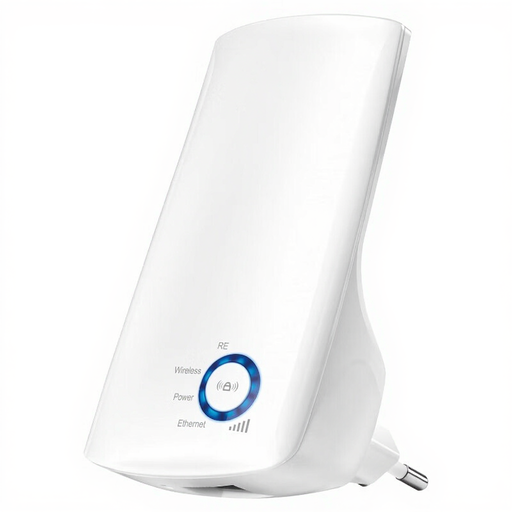 Image unavailable
TP-Link TL-WA850RE, 300 Mbps
A standalone repeater for extending your existing Wi-Fi coverage.
The product information lists Wi-Fi 802.11b/g/n and an ethernet port.
View at Joybuy
 Image unavailable
WiFi Repeater Pro, Black
A wireless repeater for extending your existing Wi-Fi to another room.
The product information lists 2.4 GHz, two external antennas, set-up via the Mi app and a placement indicator light.
View at Joybuy
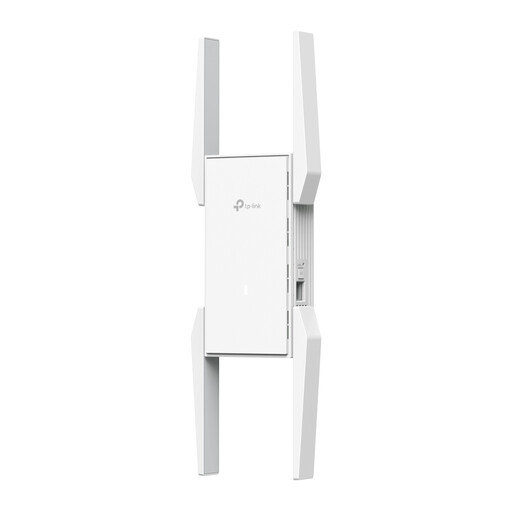 Image unavailable
TP-Link Omada EAP673-Extender Network Repeater, White
A network repeater for extending Wi-Fi coverage; check that the listed features suit your set-up.
The product information lists dual-band Wi-Fi 6 and QoS. The product name specifies 10, 100 and 1000 Mbit/s.
View at Joybuy
 Image unavailable
TP-Link Deco BE68 2-Pack
A mesh system with two points for reaching other rooms as well as your home office.
The product information lists tri-band Wi-Fi 7, multiple ethernet ports per point, and wired or wireless backhaul.
View at Joybuy
 Image unavailable
TP-Link Deco E4, 3-pack, Dual-band
A mesh system with three points for Wi-Fi coverage in several rooms.
The product information lists Wi-Fi 5 (802.11ac), 2.4 and 5 GHz bands, and ethernet ports.
View at Joybuy
Frequently asked questions
Where should you put a wireless extender for your home office?
Don’t automatically put it where the signal has already dropped out. Consumentenbond recommends placing it between the area with a weak signal and the other Wi-Fi points, with as few obstacles as possible; if you can, use the signal indicator or set-up app.
Will a repeater help if your lesson also keeps dropping out next to the router?
Not necessarily: dropouts next to the router don’t point to a range problem limited to your home office. Before buying extra equipment, check the router’s position, the Wi-Fi channel and your connection from your provider.
How should you maintain your home network?
Keep your router and Wi-Fi devices up to date, and check before buying whether the extender you choose supports security updates.
Can you use Wi-Fi at home in the Netherlands, and what legal requirements should you check when buying?
According to the Dutch Authority for Digital Infrastructure, you can use Wi-Fi at home without a licence as long as you follow the relevant frequency and usage conditions. Equipment sold in the Netherlands must meet the applicable radio equipment requirements and carry a CE marking; this marking isn’t an independent performance test.


