
Designer with a poor connection at their workstation
You upload files from a room beyond the hallway and want to know whether a well-placed wireless extender can reach your workstation.


A wireless Wi-Fi extender can help if you place it in the hallway where it can still receive a usable signal from your router; don’t put it where the connection has already dropped out. If you can run a network cable to the other end of the hallway, consider an access point or an extender with access point mode. Also compare an upload near the router with one at your workstation. As the Consumers’ Association points out, upload speed matters when sending files, and an extender won’t fix a limitation with your internet connection.
You upload files from a room beyond the hallway and want to know whether a well-placed wireless extender can reach your workstation.
Your connection drops out or is unstable through the hallway, and you can connect the router to an access point using Ethernet.
You want to reach other rooms as well as your design workstation, and want to check that an extension will work with your router and any mesh devices you have.
Best suited to: reaching one weak spot beyond the hallway, where there’s still a usable signal from the router halfway along.
Trade-off: you won’t need a cable, but the connection between the router and extender will still depend on distance, placement and obstacles.
Best suited to: situations where you can run an Ethernet cable to the other end of the hallway and the wireless connection there is unstable.
Trade-off: running the cable takes some installation work; also check that the device supports access point mode.
Best suited to: reaching several rooms as well as your workstation, or moving between access points.
Trade-off: a wireless mesh point also needs a good connection to the network; brand-specific features won’t necessarily work with every router.
The percentages below relate to consumers considering a Wi-Fi solution for uploading files from a room beyond a narrow hallway. Start by working out whether your choice depends mainly on reception at your workstation, your internet speed or the option to run a cable.
| What to consider | What to look for | Who is this important for? |
|---|---|---|
| Reception in the hallway | Choose a spot where the extender can still receive a usable signal from the router; check the signal indicator if needed. | If I mainly want to fix the dead zone near my workstation, the device also needs to maintain a good connection to the router where it’s placed. Around 38% of consumers prioritise coverage at their workstation. |
| Upload speed | Compare similar uploads near the router and at your workstation. | If slow design file uploads are my biggest problem, I want to know whether they’re also slow near the router. Around 25% of consumers prioritise upload speed. |
| Wired connection | If you can run a cable, check the Ethernet port and whether the model supports access point mode. | If I can run a cable through or along the hallway, an access point could be an alternative to an unstable wireless connection back to the router. Around 25% of consumers put wired stability first. |
| Several rooms and mesh | Check which mesh model and features work with your router. | If I want to reach other rooms too, I want to know whether the extension will work with my existing network equipment. Around 12% of consumers prioritise coverage in several rooms. |
A wireless extender needs to receive a strong enough signal from the router to extend the connection further.
Start somewhere between the router and your workstation, in a spot with usable reception. If necessary, move the device closer to the router, then test the connection at your workstation.
A product’s maximum wireless speed specification isn’t the same as the upload speed you’ll get at your workstation.
Compare the same type of upload near the router and at your workstation. If it’s still slow right next to the router, investigate your internet connection.
Mesh features may depend on using devices from the same brand or on explicit compatibility.
Before buying, check your router model and which mesh features are supported with that combination.
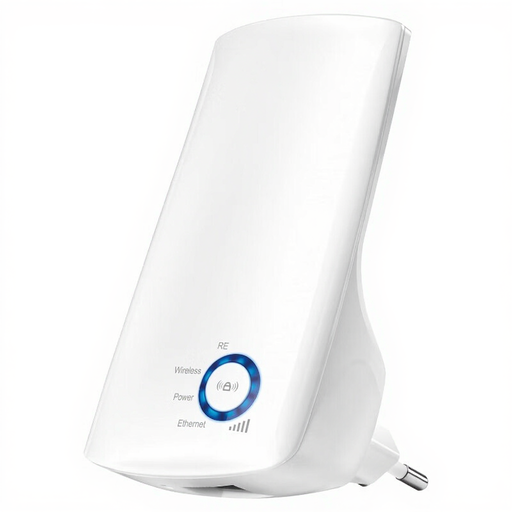
The RE305 V3 is an example of an extender with a signal indicator and OneMesh for use with a compatible TP-Link router.
According to FRITZ!, the FRITZ!Repeater 1200 AX has Wi-Fi 6 and a Gigabit LAN connection.
The EAX15 is a plug-in model with Wi-Fi 6 and a Gigabit Ethernet port.
The WiFi 6 Repeater 5400 is a free-standing model to consider as a repeater or, if you have network cabling, as an access point.
These product options cover wireless extension, wired access points and mesh for coverage in several rooms. Check the intended operating mode, connections and network compatibility for each model.
 No image available
A repeater for anyone looking to extend existing wireless coverage without running a network cable to the device.
2.4 GHz; two external aerials; stated speed of up to 300 Mbps. The description mentions setup via the Mi app.
 No image available
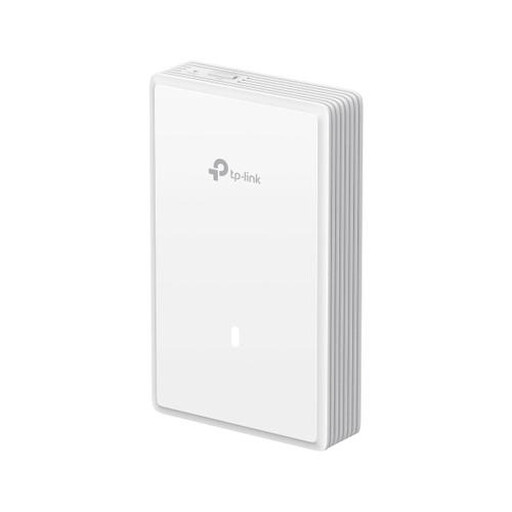
An access point to consider if you can run a wired connection to the hallway or workstation.
Wi-Fi 7; two frequency bands; PoE support; designed for wall or ceiling mounting.
 No image available
A model to consider if you want to use access point mode with a cable or extend your network wirelessly; check beforehand which mode suits your setup.
2.4 GHz; up to 300 Mbps; two aerials; Passive PoE. The description lists both access point and range extender modes.
 No image available
A mesh set to consider if you want to extend Wi-Fi coverage to several areas of your home.
Tri-band; Wi-Fi 6E; 2.4 GHz, 5 GHz and 6 GHz bands; Ethernet ports on each unit.
 No image available
A mesh set for anyone looking to extend coverage using several network points around the home.
Dual-band; Wi-Fi 6; 2.4 GHz and 5 GHz bands; three Gigabit Ethernet ports per unit.
Start somewhere between the router and your workstation, where the extender can still receive a usable signal from the router. Move it closer to the router if walls or other obstacles weaken the signal; check the signal indicator, then test the connection at your workstation.
No, an extender doesn’t guarantee faster upload speeds. Compare an upload near the router with one at your workstation. If it’s still slow near the router, investigate your internet connection.
If you can run a network cable, consider an access point or an extender that supports access point mode. Check this mode for each model, as an Ethernet port alone doesn’t confirm that the device will work as an access point in the way you need.
Radio equipment placed on the market in the Netherlands must meet the applicable European requirements and carry a CE mark. The Dutch Authority for Digital Infrastructure states that the mark must appear on the equipment; check the information for the specific device being offered, rather than assuming it complies based on the model name alone.
According to the Dutch Government, online purchases often come with a 14-day cooling-off period, subject to legal exceptions. Check the terms that apply to the specific purchase.