What should you consider when choosing?
The connection between your router and the extra Wi-Fi access point determines which option might work for your study. The Dutch Consumers’ Association highlights the importance of positioning, while product information from TP-Link and devolo also outlines the options and requirements for different connection types.
Wireless Wi-Fi extender
When to choose it: if you can still get a usable Wi-Fi signal somewhere between the router and the study, and mainly want to reach one distant room.
Consider: the connection to the router still depends on signal strength and positioning; mesh features may require a compatible router.
Wired access point
When to choose it: if you can run an Ethernet cable to your study and want to provide Wi-Fi there.
Consider: you’ll need a suitable cable route; also check whether the device has an access point mode.
Mesh system
When to choose it: if several rooms or floors need Wi-Fi, not just the study.
Consider: decide how many access points you need and check that any additions will work with your existing system.
Powerline kit with Wi-Fi
When to choose it: if it’s difficult to find a good midway position for a wireless connection and you want to try using your home’s electrical wiring.
Consider: compare complete kits; the stated maximum Wi-Fi speed isn’t a measurement of the connection in your home.
| What to consider |
What should you check? |
Who is this most important for? |
| Coverage in the study |
Test whether there’s still a usable router signal at a midway point; check the connection in your study after installation. |
If I mainly want to reach one distant study, I want the extra access point to maintain its connection to the router. Around 36% of consumers prioritise reaching one distant room. |
| Connection to the extra access point |
Check whether Ethernet is available and whether the device has an access point mode; for powerline, compare complete starter kits. |
For consumers looking for a suitable connection between the router and an extra access point, the available cable route or powerline setup makes all the difference. Around 29% of consumers prioritise this connection. |
| Coverage in several rooms |
Decide which rooms need Wi-Fi, how many access points the kit includes and whether it can be expanded to work with your existing setup. |
If I want to reach other rooms or floors too, I look beyond the study. Around 21% of consumers give coverage in several rooms top priority. |
| Suitable capacity |
Check which Wi-Fi version and connection options your laptop and network need; don’t treat stated speeds as guaranteed real-world speeds. |
For consumers who only want to use the equipment and capacity suited to their needs, it’s important to first establish the coverage and connections required. Around 14% of consumers prioritise suitable capacity. |
Wi-Fi solutions at Joybuy
This selection includes mesh kits for coverage in several areas, a wireless repeater and wired access points. Choose based on the connection you can use between your router and study.
 No image available
TP-Link Deco BE68 2-pack
A mesh kit with two units to consider if you want Wi-Fi in several areas of your home.
The product description lists Wi-Fi 7 and wired ports.
View at Joybuy
 No image available
TP-Link Deco M4 3-pack
A mesh kit with three units for anyone looking to set up mesh Wi-Fi in several areas of their home.
The product information lists dual-band (2.4 GHz/5 GHz) and Wi-Fi 5 (802.11ac). The Deco app is mentioned as a guide to positioning.
View at Joybuy
 No image available
WiFi Repeater Pro, black
A wireless repeater to consider if there’s still a usable router signal at a suitable midway position.
The product description lists 2.4 GHz and a stated maximum speed of 300 Mbps; this isn’t a measured speed in your study.
View at Joybuy
 No image available
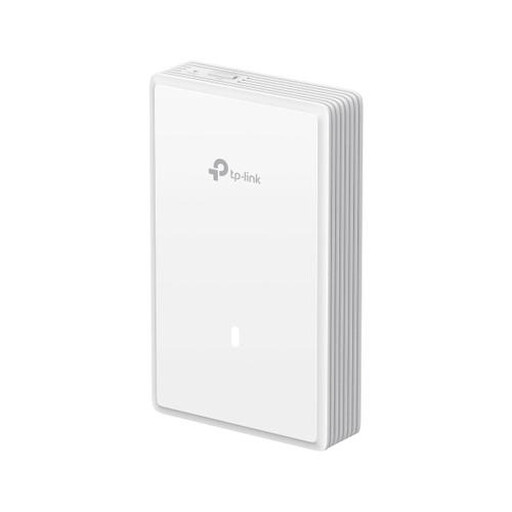
TP-Link EAP725-Wall, 5012 Mbit/s, PoE
A wired access point to consider if you can run a suitable connection to your study.
The product description lists Wi-Fi 7, dual-band, PoE and wall or ceiling mounting. A suitable PoE power setup is required for installation.
View at Joybuy
 No image available
TP-Link TL-WA801N
Consider this model if you can use the stated access point or repeater mode with the connection available at home.
The product name lists 2.4 GHz, up to 300 Mbps, two antennas, WPS and Passive PoE.
View at Joybuy
Frequently asked questions
Where should you position a wireless Wi-Fi extender for a distant study?
Don’t automatically put it in the study itself. First, find a midway spot where the access point can still maintain a usable connection to the router. If necessary, use the positioning guide, then test the connection in the room.
Will a Wi-Fi 6 extender automatically make my older laptop faster?
No, an older laptop won’t automatically benefit from the specific improvements offered by Wi-Fi 6. The Dutch Consumers’ Association notes that older Wi-Fi devices can still connect, but the Wi-Fi version alone doesn’t determine how well an access point performs.
What if the internet is also slow near the router?
First check whether the problem is with the internet connection itself; an extra Wi-Fi access point won’t automatically fix an issue with your broadband connection. ACM ConsuWijzer explains which speeds a provider must state for a fixed connection and how to measure your speed.
What are my rights if an extender bought online isn’t suitable or breaks too soon?
According to the Dutch government, online purchases from a business are often covered by a 14-day cooling-off period. You’re also entitled to a legal guarantee under ACM ConsuWijzer guidance if a product used normally doesn’t meet the expectations you were entitled to have; the seller must then offer a suitable solution. The applicable terms depend on your purchase.
Which Dutch product regulation is relevant to a Wi-Fi extender?
Wi-Fi equipment sold in the Netherlands must meet the applicable European requirements and carry the correct CE marking. The Dutch Authority for Digital Infrastructure advises against using a device without the correct marking. Rules for mobile network signal repeaters cover something different from the home Wi-Fi extenders discussed here.


