What should you look for when buying?
Test the connection where the presenter will be and at the screen before choosing extra equipment. Then compare moving your current Wi-Fi point with adding a wired access point or mesh.
| What to consider |
What to check before buying |
Who is this important for? |
| Coverage in both locations |
Test the connection where the presenter will be and at the screen; check whether you need to move the existing point or add another Wi-Fi point. |
If I’m presenting at the end of the corridor, I want usable Wi-Fi where I’m standing and at the screen—not just high speeds by the router. Around 36% of consumers say coverage in both locations is their main concern. |
| Connection during the presentation |
Check whether an additional point can be connected by cable; if not, test the wireless connection between the mesh points in their intended locations. |
During a presentation, I don’t want the connection between the additional point and the rest of the network to drop. Reliable, uninterrupted connectivity is the top priority for around 29% of consumers. |
| Finding the screen |
Check the cast protocol and network configuration. With Google Cast, AP or client isolation can prevent devices from being discovered. |
I want my presentation device to find the screen using the protocol in use. Around 21% of consumers prioritise this screen connection. |
| Installation and use |
Check that the cable, connections, power supply and mounting are suitable for your chosen setup. |
If I want to minimise extra cabling and devices that need to stay plugged in, I’ll first weigh up repositioning the existing point against adding new ones. Easy installation is the main consideration for around 14% of consumers. |
Joybuy products for this situation
Here you’ll find routers and mesh systems for improving Wi-Fi coverage around your presentation room. Test the connection and check your cabling options before choosing a solution.
 Image unavailable
TP-Link Deco BE68 (2-pack)
A mesh system with two points to provide Wi-Fi in multiple locations along the route.
Wi-Fi 7; three ports per unit; wired or wireless backhaul.
View at Joybuy
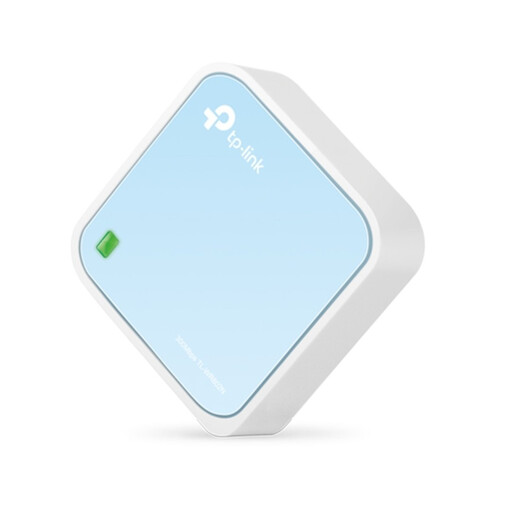 Image unavailable
TP-Link TL-WR802N V4
A standalone router to consider if a single Wi-Fi point in a suitable location will be enough.
Wi-Fi 4 on 2,4 GHz; up to 300 Mbit/s wireless; one network port up to 100 Mbps.
View at Joybuy
 Image unavailable
ASUS ZenWiFi BD4
A mesh option for anyone looking to spread Wi-Fi points along the route.
Wi-Fi 7; dual-band on 2,4 GHz and 5 GHz; wired backhaul option.
View at Joybuy
 Image unavailable
ASUS RT-AX52 AX1800
A standalone router to consider if your setup can work with a single Wi-Fi point.
Wi-Fi 6; dual-band on 2,4 GHz and 5 GHz; compatible with AiMesh routers.
View at Joybuy
 Image unavailable
TP-Link Deco X50 (3-pack)
A mesh system with three units to consider if you need several Wi-Fi points along the route.
Wi-Fi 6; three gigabit ports per unit; optional ethernet backhaul.
View at Joybuy
Frequently asked questions
Will a router with a higher stated speed automatically fix weak Wi-Fi at the end of the corridor?
No. Don’t judge by the speed quoted on the box alone. The Dutch Consumers’ Association (Consumentenbond) points out that distance and obstacles affect the signal. Test the connection where you’ll be presenting and, if necessary, try a different position or an additional Wi-Fi point.
Why doesn’t the screen appear when I’m sharing wirelessly, even though both devices have Wi-Fi?
First, check which cast protocol the screen uses. With Google Cast, AP or client isolation on the router or a guest network can prevent the screen from being found. Check your network settings before replacing your router.
Do I need to replace my broadband provider’s router to use an access point?
Not necessarily: an access point can add Wi-Fi through your existing network, closer to where it’s needed. Check the connections and power supply required for the device you’ve chosen, and make sure it will work with your setup.
Where should I place a mesh point in a narrow corridor?
Don’t place it somewhere the existing signal has already dropped out without testing first. Test the connection between the mesh points in their intended locations. If you can run a cable, check whether your chosen system supports ethernet backhaul.
Who can help if my router is faulty: the retailer or the manufacturer?
For a purchase made by a consumer in the Netherlands, the retailer is responsible if the product doesn’t perform as you could reasonably expect under normal use. ACM ConsuWijzer distinguishes between statutory guarantees and any manufacturer’s warranty; there isn’t automatically one fixed warranty period for every router.


