
Presenter with a single Wi-Fi dead spot
You mainly want coverage at the end of the corridor and can place a repeater where the existing signal is still usable. The Consumentenbond recommends positioning Wi-Fi access points to minimise obstacles.


Start by choosing how to connect: if you can run an Ethernet cable to the end of the corridor, an access point there is a sensible option. Without a cable, a repeater will only work if the existing Wi-Fi signal is still usable at that point. Also check that your presentation method allows devices on the same network to communicate with each other: extending coverage won’t solve network isolation.
You mainly want coverage at the end of the corridor and can place a repeater where the existing signal is still usable. The Consumentenbond recommends positioning Wi-Fi access points to minimise obstacles.
You can run a cable to the presentation room and are looking for a device with a dedicated access point mode. Check the function and connection method in the documentation for the specific version, for example from TP-Link or devolo.
You need more than Wi-Fi coverage: with Google Cast, the device and screen must be able to communicate over the network. Google explains the network requirements for Cast.
Start by asking whether you can run a cable to the room. Then decide whether you need to address one problem spot or several areas of the corridor, and check the network requirements of your presentation method.
| What to consider | What should you check? | Who is this most relevant to? |
|---|---|---|
| Usable signal and positioning | Test the signal at the intended intermediate point and then by the presentation screen; bear obstacles in mind. | If I want to fix a single dead spot at the end of the corridor, the repeater must still receive the source signal where it is placed. Around 36% of consumers prioritise coverage at the final location. |
| Wired connection | Check whether you can run a cable to the room and whether the device has a wired access point mode. An Ethernet port alone does not prove that it does. | If I can run a cable to the presentation room, I want to provide Wi-Fi there without relying on a weak wireless signal for the connection. Around 29% of consumers prioritise a wired connection. |
| Finding the screen | Check which presentation method you use. With Google Cast, devices must be able to communicate over the network; also check for AP or client isolation on the router and any extender. | If I’m presenting wirelessly, I want my laptop to be able to find the receiver, not just connect to Wi-Fi. Around 21% of consumers prioritise the connection to the screen. |
| Coverage in several areas | Map the problem areas and check which mesh function is compatible with your router and the hardware version of the equipment you choose. | If coverage is poor not only at the end of the corridor but in other areas too, I want to improve more than one zone. Around 14% of consumers prioritise coverage in several areas. |
A wireless repeater depends on the signal it receives where it is placed. Putting it next to the screen won’t help if the source signal is already weak there.
First, find an intermediate position where the existing signal is usable, then test the connection at the presentation location.
If a wired connection is essential, you may still need to replace a device that doesn’t support this function.
With Google Cast, AP or client isolation can prevent your laptop and receiver from communicating, even when both are connected to Wi-Fi.
Check the network requirements of your presentation method and test the full connection before your presentation.
TP-Link documentation lists different mesh functions for different RE705X hardware versions. FRITZ! describes compatibility with a FRITZ!Box within its own mesh network.
Check the hardware version and the mesh function of the router you want to use the device with.
You may need additional compatible Wi-Fi access points for a working mesh setup.
The RE705X is worth considering if you want to compare repeater mode with a wired access point mode.
The FRITZ!Repeater 1200 AX is worth looking into if you already use a FRITZ! network.
The EAX15 is worth considering if you’re looking for a Wi-Fi 6 extender with a port for a wired end device.
The WiFi 6 Repeater 3000 is worth comparing if you’re looking into using a repeater or access point.
These products are suited to mesh coverage in several areas, wireless extension or an access point with a wired connection.
 No image available
A mesh option for situations where you want to improve coverage in several areas.
 No image available
The 3-pack is suited to a setup with several Wi-Fi access points.
Dual-band: 2,4 GHz and 5 GHz; Wi-Fi 6 (802.11ax).
 No image available
A repeater option if you can’t run a cable to the final location and can still receive a usable Wi-Fi signal at an intermediate point.
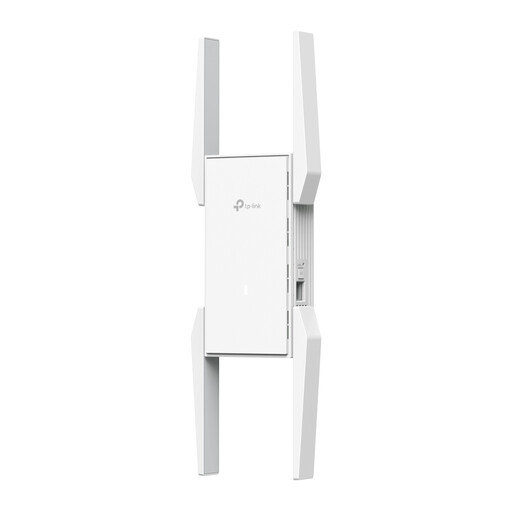 No image available
A repeater to consider if you want to extend your Wi-Fi wirelessly from a spot where the existing signal is usable.
The product name lists 10/100/1000 Mbit/s.
 No image available
An access point option to look into if you can run an Ethernet cable to the presentation room.
The product name lists up to 300 Mbps, 2 antennas, WPS and passive PoE.
Choose an intermediate spot where the existing Wi-Fi signal is still usable, rather than automatically placing it next to the screen. Minimise obstacles, then test the connection at the final location. The Consumentenbond offers positioning tips, but can’t guarantee a particular range for every corridor.
According to Google, with Google Cast the Android device and Cast screen must be connected to a Wi-Fi network with AP isolation turned off. Also check the settings of any extender. If you use a different presentation method, check its own network requirements.
No, an Ethernet port alone doesn’t confirm that access point mode is available. Check the documentation for the exact version to confirm that it explicitly supports a wired connection and access point use.
According to ACM ConsuWijzer, online purchases generally come with a statutory 14-day cooling-off period from delivery, subject to applicable exceptions. This is separate from your statutory guarantee: if a product used normally doesn’t do what you could reasonably expect, contact the seller. Neither of these means that Wi-Fi is guaranteed to work in every corridor.
Radio equipment placed on the market in the Netherlands must meet the applicable European requirements. The Rijksinspectie Digitale Infrastructuur states that equipment meeting all requirements receives a CE marking, and that only CE-marked equipment may be sold in Europe. Check the marking and product information for the specific version.