
Viewers with weak Wi-Fi by the TV
If your stream keeps buffering where you sit, first check whether distance or obstacles are weakening the signal. The Consumentenbond notes that walls and ceilings can interfere with Wi-Fi.


First, check the speed by the TV and near the router: a new router won’t fix a slow internet connection, and a stated Wi-Fi speed doesn’t tell you how much signal will get through walls or floors. One well-placed router may be enough if it gives you good coverage where you watch TV. Choose a cable or access point if that’s the main problem area, and consider mesh if several parts of the loft have weak coverage. Also check how the device connects to your provider’s equipment.
If your stream keeps buffering where you sit, first check whether distance or obstacles are weakening the signal. The Consumentenbond notes that walls and ceilings can interfere with Wi-Fi.
If you need coverage in different parts of the loft, compare a single router with multiple Wi-Fi access points. The Consumentenbond identifies obstacles as a possible cause of weaker coverage.
If you want to keep your provider’s router and add your own equipment, check how you want to connect it and which mode you need. ACM ConsuWijzer explains the options for using your own network equipment.
Choose this if: you can place the router centrally and it gives you good coverage where you watch TV.
Bear in mind: distance and obstacles can still weaken the signal; the stated Wi-Fi speed isn’t a measurement taken by the TV.
Choose this if: you can run a cable to the TV or to an access point in another location.
Bear in mind: you’ll need a suitable cable route; connecting the TV by cable avoids using a wireless connection there.
Choose this if: several parts of the loft have weak coverage and one central access point isn’t enough.
Bear in mind: you’ll need to place several devices; coverage claims for a package don’t prove it will provide enough coverage in your loft.
| What you need | What to check before buying | Who should consider this most? |
|---|---|---|
| A stable stream by the TV | Check the speed by the TV and near the router. Netflix recommends a stable connection of 15 Mbps or higher for UHD 4K; this isn’t a universal requirement for other streaming services. | If I mainly want to fix buffering by the TV, I want to know whether the cause is the internet connection or the Wi-Fi in that spot. Around 31% of consumers say fixing buffering where they watch is their main concern. |
| Coverage in several areas | Map out weak spots and compare a centrally placed router with multiple access points. Check whether you can run cables for Ethernet backhaul. The Consumentenbond highlights the impact of walls and other obstacles. | If I also need Wi-Fi in other parts of the loft, I want to know whether one central access point will provide coverage there. Around 25% of consumers give coverage in several areas their highest priority. |
| Connecting to existing equipment | Check the router or access point mode, as well as the available WAN and LAN ports. Ask your provider about settings if you want to connect your own equipment directly; ACM ConsuWijzer explains the conditions for using your own equipment. | If I want to keep my provider’s router or add my own equipment, I want to know which setup will work. Around 25% of consumers say connecting to their existing internet setup is their main concern. |
| Buying and maintenance | Don’t buy extra access points straight away if better positioning may be enough. Check how many units you need for the exact model and what information is available about updates and support. | If I want to avoid unnecessary purchases and extra maintenance, I want to know what my connection actually needs first. Around 19% of consumers prioritise finding a suitable solution and avoiding unnecessary purchases. |
A stated speed isn’t a measurement taken where you watch TV. Distance and obstacles can weaken the signal.
First, check the speed by the TV and near the router. Then decide whether you need to reposition your equipment, use a cable or add another Wi-Fi access point.
A package with several units isn’t automatically necessary if repositioning your existing equipment provides enough coverage.
Map out the weak spots, check how many access points you need and whether you can connect them by cable.
Connecting a router behind your provider’s equipment is a different setup from connecting your own equipment directly to the provider’s network.
Check which router and access point modes are available, and ask your provider about any connection settings you may need.
The Deco X50 is an example of a Wi-Fi 6 mesh system with multiple access points you can place around your home.
The RT-AX58U is an example of a standalone router with different operating modes.
The FRITZ!Box 4060 is a standalone router to consider if you also need telephony or FRITZ! mesh features.
These products are mesh systems with multiple access points, suited to situations where you need Wi-Fi coverage in several parts of your loft. Check the version and connection requirements before ordering.
 No image available
The two-unit set is suited to a setup where you want to place several Wi-Fi access points.
The product information lists tri-band Wi-Fi 7 and both wired and wireless backhaul.
 No image available
Three mesh units are designed to be placed in several areas where you need coverage.
Wi-Fi 6; three gigabit ports per unit. TP-Link lists optional Ethernet backhaul for this model.
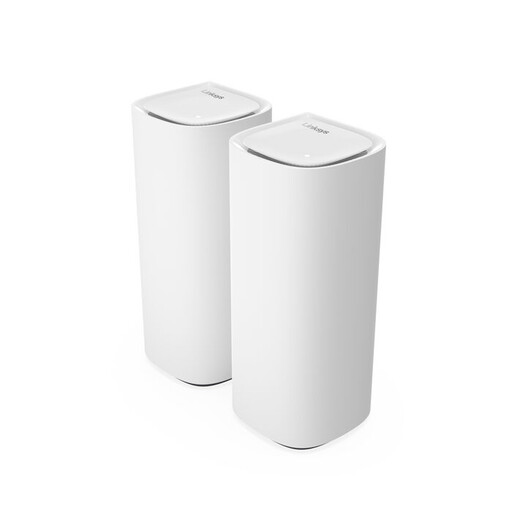 No image available
The product information lists two included nodes for placement in different areas.
Tri-band Wi-Fi 7; the product information says you can expand the system with Velop Pro 7 nodes or compatible Linksys mesh devices.
 No image available
The two-unit set is suited to anyone who wants to place several mesh access points and has a suitable cabling and power setup.
Wi-Fi 6; two Ethernet ports per unit and PoE support, according to the product information. PoE is useful if you want to power the units over Ethernet.
 No image available
The three-unit set is designed to be placed in different areas where you need mesh coverage.
Tri-band Wi-Fi 6E; three gigabit ports per unit, according to the product information.
Netflix recommends a stable connection of 15 Mbps or higher for UHD 4K. Check the speed on the device you use to watch; this isn’t a router rating or a guarantee for other streaming services.
Not necessarily: first try repositioning your equipment if needed, then check the speed again. ACM ConsuWijzer explains how you can use your own equipment. Check whether the device you choose needs router or access point mode, and ask your provider about any connection settings you may need.
For the Deco X50, TP-Link lists optional Ethernet backhaul. For another system, check the specifications for the exact model and plan the cable route before buying several access points.
Keep your network equipment up to date. ACM ConsuWijzer highlights the importance of updates for protecting your network and personal data.
Wi-Fi routers sold as radio equipment must meet the applicable European requirements and carry the required CE marking. The Dutch Authority for Digital Infrastructure states that additional cybersecurity requirements have applied since 1 August 2025. Check the marking and version of the specific product; a listing on a web shop isn’t a substitute for doing so.