First, measure your upload speed using a cable connected to the router, then compare it with your Wi-Fi speed in the loft. A new router won’t fix a limitation with your internet connection. If the Wi-Fi signal is particularly weak in the loft, a wired access point or mesh node is a sensible option if you can run a cable. If you can’t, wireless mesh may work, provided the extra node can still receive a usable signal.
Who is this relevant for?
Designer working in a loft with weak Wi-Fi
You upload files from a converted loft and want a reliable Wi-Fi connection there. Whether you can run a cable will influence your choice. Consumentenbond explains that walls and ceilings can interfere with the signal.
Designer with slow uploads
You want to check whether your internet connection or wireless network is slowing down uploads. Consumentenbond recommends connecting a computer to your home network with an Ethernet cable when running a speed test.
User of a provider-supplied modem
You want to improve Wi-Fi in the loft without unnecessarily replacing your existing modem connection or changing its settings. ACM ConsuWijzer explains your freedom to choose a router; the options for using your own modem may be different.
What should you look for when choosing?
Consumentenbond recommends testing your connection over Ethernet first, then comparing it with Wi-Fi where you work. This helps you work out whether changing your Wi-Fi setup could address the upload limitation.
| What to consider |
What to look for when buying |
Who is this most relevant for? |
| Wi-Fi coverage in the loft |
Test the connection where you work and check whether you can run an Ethernet cable to the loft or nearby. |
If I upload design files from the loft, I want a usable connection there, without the floors getting in the way. Around 36% of consumers give loft coverage top priority. |
| Upload speed |
Compare the wired test by the router with the Wi-Fi test in the loft; check the upload speed in Mbit/s. |
I want to know whether my internet connection provides enough upload speed before replacing my Wi-Fi equipment. Around 29% of consumers focus mainly on resolving an upload limitation. |
| Compatibility with existing equipment |
Check which devices are your modem and router, and whether the access point or mesh mode you want is compatible. |
If I want to keep my provider’s equipment, I’m looking for an extension that works with it. Around 21% of consumers prioritise compatibility with existing equipment. |
| Cost and maintenance |
Compare how many nodes and connections you’ll need, and whether you can update the firmware. |
I want to limit the number of devices and the maintenance involved to what my loft actually needs. Around 14% of consumers give purchase cost and maintenance top priority. |
Common buying mistakes
-
Assuming a high Wi-Fi speed means fast uploads
Your internet connection’s upload speed may be the limiting factor, even if your Wi-Fi is working well.
Compare a wired upload test by the router with a Wi-Fi test in the loft before changing your equipment or broadband package.
-
Buying a single new router for a distant loft
Distance, walls and ceilings can weaken the signal from a replacement router too.
Base your choice on tests where you work and on whether you can run a cable.
-
Putting a wireless mesh node in a dead zone
The extra node needs a usable connection to the network itself.
Try placing it somewhere in between. Consider a wired node if the connection between floors would benefit.
-
Confusing your own router with a replacement modem
Connecting a router is different from replacing your provider’s modem. The connection requirements may vary.
Decide which device you want to replace and check the connection details with your provider first.
Brands to consider
TP-Link
The Deco X50 range may be worth considering if you want to set up several Wi-Fi nodes or can run a cable between Deco units.
- TP-Link lists three gigabit ports on each Deco X50 unit and optional Ethernet backhaul.
- Check how many units are included, and bear in mind that the advertised Wi-Fi speed or coverage area doesn’t tell you what upload performance will be like in your loft.
ASUS
AiMesh may suit you if you want to connect compatible ASUS routers or nodes.
- ASUS describes Ethernet backhaul for supported AiMesh devices and configurations.
- How well it works and the performance you get depend on the devices and configuration you choose; this doesn’t automatically apply to every ASUS router.
FRITZ!
A FRITZ!Repeater 3000 AX may be an option for extending an existing FRITZ!Box setup. The manufacturer also describes using it over LAN behind a router from another brand.
- FRITZ! describes the repeater as an additional access point when it’s connected over LAN.
- For integration with shared FRITZ! mesh settings, FRITZ! specifies a compatible FRITZ!Box running FRITZ!OS 7 or later. This isn’t the same as using it behind any provider-supplied modem.
Joybuy products
These product picks focus on mesh Wi-Fi systems with multiple nodes to provide coverage in different parts of your home.
 Image unavailable
TP-Link Deco E4 (3-pack)
A set of three mesh units for anyone who wants Wi-Fi in several parts of the home.
Dual-band (2.4 GHz and 5 GHz); Wi-Fi 5 (802.11ac).
View at Joybuy
 Image unavailable
TP-Link Deco X50 (3-pack)
A set of three mesh units for anyone who wants to set up several Wi-Fi nodes. TP-Link lists optional Ethernet backhaul for Deco X50 units.
Dual-band (2.4 GHz and 5 GHz); Wi-Fi 6 (802.11ax). Check whether you can run a cable between the units if you want to use Ethernet backhaul.
View at Joybuy
 Image unavailable
TP-Link Deco X50-POE (2-pack)
A set of two mesh units for anyone who wants Wi-Fi in several places and would like to use PoE power.
Dual-band (2.4 GHz and 5 GHz); Wi-Fi 6 (802.11ax); PoE support.
View at Joybuy
 Image unavailable
TP-Link Deco XE75 Pro (3-pack)
A set of three mesh units for anyone who wants Wi-Fi in different parts of the home.
Tri-band (2.4 GHz, 5 GHz and 6 GHz); Wi-Fi 6E (802.11ax).
View at Joybuy
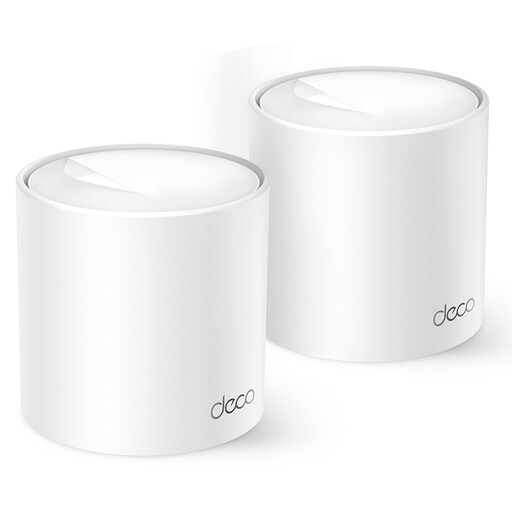 Image unavailable
TP-Link Deco X10 (2-pack)
A set of two mesh units for anyone who wants Wi-Fi in more than one place.
Dual-band (2.4 GHz and 5 GHz); Wi-Fi 6 (802.11ax).
View at Joybuy
Frequently asked questions
How can you tell whether your router or internet connection is slowing down uploads?
First, run a test on a computer connected to your home network with an Ethernet cable, then compare the result with a Wi-Fi test in the loft. Pay particular attention to upload speed. If the wired connection is also too slow, adding a Wi-Fi node won’t necessarily solve the problem.
How do you position an extra Wi-Fi node?
A wired node needs a cable run and a compatible connection mode. Don’t put a wireless mesh node somewhere it can barely connect to the network; try placing it somewhere in between if needed. Keep your own router up to date with security updates.
Do you need to take out a new broadband package straight away?
No. Test your connection first to find out where the limitation lies. Consumentenbond recommends checking your internet speed before switching to a more expensive package. Changing your Wi-Fi setup won’t necessarily help if the connection itself is limiting your upload speed.
What if a router develops a fault sooner than you’d expect?
If a product develops a fault sooner than you’d expect under normal use, you have statutory rights against the seller, in addition to any manufacturer’s warranty. ACM ConsuWijzer explains that your statutory rights are separate from a manufacturer’s warranty.
Can you use your own router in the Netherlands?
ACM ConsuWijzer explains your freedom to choose a router; additional connection requirements may apply if you want to use your own modem. Radio equipment sold in the Netherlands must meet the applicable European requirements. The manufacturer applies a CE marking to confirm conformity. Ask your provider for the settings you’ll need if you want to replace your equipment.


