Who is this guide for?

Designer who uploads large files

This user wants to send files from the loft and needs to find out whether the bottleneck is the internet upload speed or the Wi-Fi at their desk. The Consumers’ Association recommends a wired speed test to assess internet speed separately from Wi-Fi.

Loft-dweller behind thick walls

This user mainly struggles with a weak signal between the router and their desk and wants to find out whether there’s a suitable spot for an intermediate Wi-Fi point. The Consumers’ Association stresses that placement and the connection between Wi-Fi points matter.

Home worker with several rooms with weak Wi-Fi

This user wants Wi-Fi throughout the home, not just at their desk, so needs to assess where to place multiple points and how to connect them. The Consumers’ Association also points out that Wi-Fi points are left on all the time and use electricity.

What should you look for when choosing?

Standalone wireless repeater

Suitable when: one desk has poor coverage and there’s still usable Wi-Fi between the router and the loft.

Bear in mind: the wireless connection back to the router remains the deciding factor; a higher stated Wi-Fi speed doesn’t guarantee a faster upload.

Wired access point

Suitable when: you can run an Ethernet cable to the loft, for example if walls or ceilings weaken the wireless connection.

Bear in mind: you’ll need a cable; also check that the device actually has an access point mode.

Mesh with multiple Wi-Fi points

Suitable when: several rooms need coverage and the points can be positioned well or connected by cable.

Bear in mind: you’ll be using more equipment; mesh features on a standalone repeater aren’t necessarily compatible with every router.

Powerline with Wi-Fi

Suitable when: running an Ethernet cable isn’t practical and Wi-Fi doesn’t reach the loft reliably.

Bear in mind: the connection runs through your electrical wiring; the stated product speed doesn’t tell you what upload speed you’ll get on your setup. Also check that the adapters are compatible.

What to consider What should you check? Who is this important for?
Upload speed at your desk Compare a wired speed test at the router with the Wi-Fi upload speed in the loft. If the wired upload is already slow, investigate your internet connection first. If I’m sending large design files, I want to know whether the internet upload speed is what’s slowing down my work. Around 33% of consumers say upload speed at their desk is their main concern.
Signal through walls and between floors Check whether there’s an intermediate spot where a repeater can still receive a usable signal from the router. If not, consider a cable or test powerline using the sockets you intend to use. If you have a weak connection behind walls or between floors, you’ll want to know whether a Wi-Fi point can maintain a reliable connection there. Around 27% of consumers prioritise this coverage issue.
Coverage and compatibility Decide how many rooms need Wi-Fi and check your exact router model and the mesh technology it supports. If several rooms need coverage, I want to know whether the points will work with my router. Around 20% of consumers prioritise coverage across multiple rooms.
Installation and use Work out how many points you actually need and where they can be placed before choosing equipment or a more expensive broadband package. If you’d prefer a simple solution with no more equipment than necessary, consider installation and the use of extra points. Around 20% of consumers say simplicity and running costs are their main concern.

Common buying mistakes

  • Assuming the maximum Wi-Fi speed guarantees a particular upload speed

    Your internet upload and the Wi-Fi connection at your desk are two different links in the chain. A high stated Wi-Fi speed doesn’t prove that a design file will upload faster.

    Compare a wired upload speed test at the router with one in the loft. This will show whether the bottleneck is your internet connection or your local Wi-Fi.

  • Putting a repeater somewhere with no usable router signal

    A wireless repeater needs to maintain a connection to the router, so placing it directly in a dead zone may leave the problem unsolved.

    Test an intermediate spot with a usable signal. If there isn’t one, consider a cable or test powerline using the sockets you want to use.

  • Assuming mesh works across all brands

    The mesh features mentioned may depend on the router system. General use as an extender doesn’t automatically mean mesh features are available.

    Before buying, check that your exact router and the Wi-Fi point you’ve chosen support the mesh technology you intend to use.

Brands to compare

TP-Link

The RE705X is a Wi-Fi 6 extender with gigabit Ethernet and access point mode. It’s worth considering if you want to use a wireless placement or a cable connection.

  • The product specifications mention OneMesh and use as an extender with Wi-Fi routers.
  • Don’t assume OneMesh features will work with just any router. The stated radio speeds aren’t measured upload speeds in your loft.

FRITZ!

The FRITZ!Repeater 1200 AX is worth considering if you already use a FRITZ!Box and want Wi-Fi 6 with a gigabit LAN connection.

  • FRITZ! describes mesh compatibility when the repeater is connected to a FRITZ!Box via LAN.
  • According to the manufacturer, the repeater can also be used with other routers, but this doesn’t mean the same FRITZ! mesh features are available.

devolo

The product range includes a standalone WiFi 6 Repeater 5400 and Magic powerline products, so you can assess wireless repeating and connections through electrical wiring separately.

  • devolo mentions a signal indicator on the Repeater 5400.
  • The Magic 2 WiFi next set requires compatible Magic adapters and, according to devolo, doesn’t work with dLAN adapters.

NETGEAR

The EAX15 is a Wi-Fi 6 extender with gigabit Ethernet for extending an existing router connection.

  • The product specifications mention a single Wi-Fi name and an Ethernet port.
  • The stated speed of up to 1.8 Gbit/s is a Wi-Fi speed; it doesn’t prove what internet speed or upload performance you’ll get at your desk.

ASUS

The RP-AX58 supports access point mode and can be used as an AiMesh point with a compatible ASUS router.

  • ASUS describes an Ethernet connection to the router in access point or AiMesh mode.
  • AiMesh requires a compatible router. ASUS also notes that 160 MHz may not be available in some regions.

Joybuy products

The products below are primarily aimed at providing mesh coverage across multiple rooms. There’s also a standalone repeater and an ASUS AiMesh router for a compatible network.

TP-Link Deco BE68 2-pack mesh system

TP-Link Deco BE68 2-pack

Ideal if you want to connect multiple rooms using a mesh setup; the product name specifies a set of two points.

View at Joybuy

TP-Link Deco E4 3-pack, dual-band Wi-Fi 5

TP-Link Deco E4 3-pack

Ideal if you want mesh points in multiple rooms; the product name specifies a set of three points.

The product name specifies dual-band 2.4 GHz/5 GHz and Wi-Fi 5 (802.11ac). The Ethernet ports have a stated maximum speed of 100 Mbps; check whether that suits your planned wired connection.

View at Joybuy

ASUS ZenWiFi BD4 dual-band Wi-Fi 7 mesh system

ASUS ZenWiFi BD4

Ideal if you’re considering a mesh system for multiple rooms and want to assess wired backhaul.

The product name specifies dual-band 2.4 GHz/5 GHz and Wi-Fi 7 (802.11be).

View at Joybuy
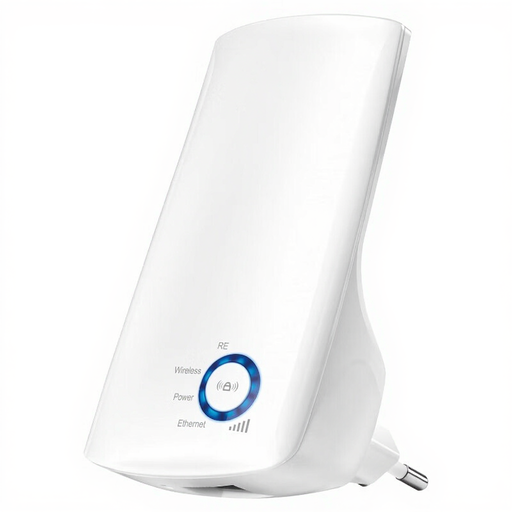
TP-Link TL-WA850RE universal Wi-Fi repeater, 300 Mbps

TP-Link TL-WA850RE 300 Mbps Universal

Ideal if you want to extend an existing Wi-Fi connection to a desk; check that there’s a suitable intermediate spot with a router signal.

The product name specifies a wireless data rate of 300 Mbps. That figure alone doesn’t tell you what upload speed you’ll get in the loft.

View at Joybuy

ASUS RT-AX52 AX1800 AiMesh router

ASUS RT-AX52 AX1800 AiMesh router

Ideal if you want to expand an existing compatible ASUS AiMesh network; the mesh expansion mentioned requires compatible ASUS AiMesh equipment.

The product name specifies dual-band 2.4 GHz/5 GHz and Gigabit Ethernet.

View at Joybuy

Frequently asked questions

How can you tell whether your upload problem is caused by Wi-Fi or your internet connection?

First, test using an Ethernet cable connected to your router, then compare the upload speed at your desk in the loft. If the wired connection is slow, investigate your internet connection; if it’s mainly the wireless test that’s weak, look at placement or consider adding an access point.

Where should you put a wireless repeater?

Choose a spot where the repeater can still receive a usable signal from the router, rather than automatically putting it in the loft where reception is poor. Keep obstacles between the Wi-Fi points to a minimum, then check the connection at your desk.

Will a mesh repeater work with your current router?

Check your exact router system and the mesh technology specified. The RE705X mentions OneMesh, the FRITZ!Repeater 1200 AX is described by FRITZ! as working with FRITZ! mesh, and the ASUS RP-AX58 mentions AiMesh with compatible routers. General use as an extender doesn’t automatically mean the corresponding mesh features will work.

What running costs and support should you consider?

Work out how many Wi-Fi points you need and remember that extra points use electricity. Check the installation and update support for the specific model too. Test your connection before adding equipment or choosing a more expensive broadband package.

Do you need a permit for Wi-Fi in the Netherlands, and what product rules apply?

According to the Dutch Authority for Digital Infrastructure, Wi-Fi is an example of licence-exempt frequency use, with no notification or registration requirement, provided the applicable conditions are met. Radio equipment placed on the market in the Netherlands must meet the relevant European requirements and carry a CE marking; check this for the specific version on offer.
