What should you look for when buying?
Start with the connection between the router and work area, then weigh up simultaneous use, access management and installation.
Wired access points
A good fit when: your existing router is up to the job, but a work area behind a wall needs extra coverage and you can run an Ethernet cable to it.
Bear in mind: you’ll need to run cables, provide power and do more configuration than with a simple mesh kit. TP-Link and Ubiquiti list network features for specific business access points.
Mesh with Ethernet backhaul
A good fit when: you want one unified Wi-Fi system and can position the units on either side of the walls with wired connections. TP-Link and ASUS describe Ethernet backhaul for specific mesh models.
Bear in mind: you’ll need several units, compatible connections and power sockets. Also check the ports and compatibility with your ISP router.
Wireless mesh
A good fit when: you can’t run cables and can position the units so they have a usable wireless connection to each other.
Bear in mind: the connection between units also has to pass around or through obstacles. Aruba describes mesh as a wireless path between access points, so test the placement on site.
Move or adjust your existing router
A good fit when: the problem may be down to the router’s position or settings. The Consumentenbond suggests improving Wi-Fi reception as an alternative to buying new equipment straight away.
Bear in mind: moving the router won’t add an extra Wi-Fi access point to a room that still has an inadequate signal.
| Consideration |
What should you check? |
Who is this important for? |
| Coverage behind walls |
Map out areas with weak signal and check whether an access point there can have a usable wired or wireless connection to the network. |
If I work in different places behind thick walls, I want to know that every workstation has coverage. Coverage is the top priority for around 36% of consumers. |
| Simultaneous use |
Count the devices used at the same time and compare the uplink and capacity. Don’t read stated radio speeds as guaranteed speeds for each device. |
When several designers are working online at the same time, I want to assess the capacity of the whole setup. Workloads involving simultaneous use are the top priority for around 29% of consumers. |
| Access management |
Decide whether a guest network is enough or whether you need separate SSIDs and VLAN integration; also check the management requirements. |
If staff and visitors use the same network, I want to be able to set appropriate access levels. Managing shared access is the top priority for around 21% of consumers. |
| Installation and use |
Check existing cables, available ports, power or PoE, the number of access points needed and any ongoing management requirements. |
If I want to keep the setup simple, I’ll first check what my existing router and cabling can already do. Easy installation and use are the top priority for around 14% of consumers. |
Joybuy products
This Joybuy selection includes mesh systems for multiple rooms and wired access points for installation near a workstation. For each model, check how it connects to your existing router, cabling and power supply.
 No image available
TP-Link Deco X50 (3-Pack), Dual-Band Wi-Fi 6 (802.11ax)
This set of three mesh units is designed for a setup with multiple Wi-Fi access points. Check where the units can connect to the network.
The product description lists three gigabit ports per unit, MU-MIMO and OFDMA.
Joybuy
 No image available
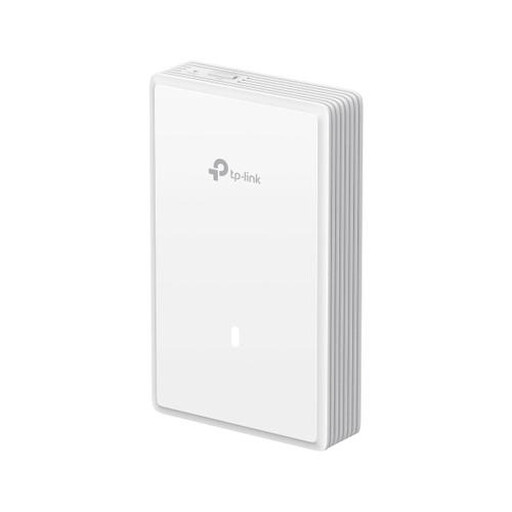
TP-Link EAP725-Wall
A wall- or ceiling-mounted access point may suit you if you want to install a wired access point near a work area. Check the power supply and network configuration.
The product description lists PoE, three Ethernet ports including 2.5G support, and VLAN support.
Joybuy
 No image available
TP-Link Deco X50-POE (2-Pack), Dual-Band Wi-Fi 6 (802.11ax)
This mesh kit with two units may suit several work areas. Check that the PoE power supply and cabling work for your planned setup.
The product description lists PoE, two Ethernet ports per unit, WPA3 and guest access.
Joybuy
 No image available
TP-Link Deco XE75 Pro (3-Pack), Tri-Band Wi-Fi 6E (802.11ax)
This set of three mesh units is an option for multiple rooms. Check that wired backhaul and the connection to your existing router are suitable.
The product description lists a wired backhaul option and guest network access. The stated bands are 2.4 GHz, 5 GHz and 6 GHz.
Joybuy
 No image available
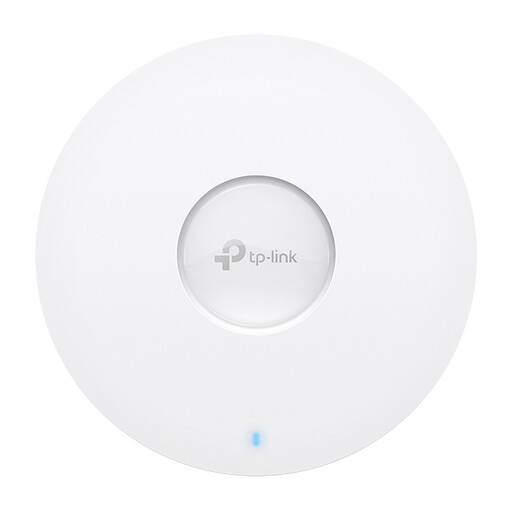
TP-Link Omada EAP613 Wireless Access Point
This business access point may suit a wired, room-by-room installation. Check what management and power the complete setup requires.
The product description lists Wi-Fi 6, PoE or DC power, WPA3 and wall or ceiling mounting.
Joybuy
Frequently asked questions
Do I need to replace my ISP router to use extra Wi-Fi access points?
Not necessarily. First check whether your existing router can work with wired access points or a mesh system. If you want to connect your own equipment directly to your ISP’s network, check the required settings and connection terms. The ACM explains the conditions for choosing your own router or modem.
How do I position an extra Wi-Fi access point behind a thick wall?
Position the access point near the workstation that needs extra coverage and check how it connects to the rest of the network. Supported Deco units can use Ethernet backhaul to connect to each other; without a cable, you’ll need to make sure the wireless connection works well on site.
What recurring costs or service terms should I check?
As well as the equipment, check for any costs for running cables, PoE power and management terms. NETGEAR includes one year of Insight with the WAX615; check what applies to your chosen version after that. If you’re buying on behalf of a business, consumer purchase rules don’t automatically apply; the Consumentenbond explains this distinction.
Do I need a licence to use Wi-Fi in a Dutch studio?
The Dutch Authority for Digital Infrastructure states that Wi-Fi in commercial buildings is licence-free when you use the designated frequencies and follow the conditions of use. This doesn’t replace equipment requirements: when buying, check details such as the CE marking on the version being offered.
What should I arrange after installation?
Agree who will manage the network and check what updates and management settings are needed for the equipment you’ve chosen. This makes it clear who is responsible for maintaining the shared network.


