An all-in-one Wi-Fi router may be enough if the work areas are within range and its guest access and wired connections suit your studio. If work areas are spread out, many devices are connected at once or you need separate networks, a gateway with wired access points is an option. Remember to factor in the extra equipment, cabling, positioning and management.
Who is this choice relevant to?
Studio with work areas in different locations
Needs usable Wi-Fi in different rooms and has to decide where to place the router and any access points. The Dutch Authority for Digital Infrastructure outlines the requirements for Wi-Fi in business premises, while TP-Link describes separate access points for its Omada setup.
Studio that welcomes clients
Wants to give visitors Wi-Fi without giving them the same network access as work devices. ASUS and FRITZ! describe guest access for specific models and operating modes.
Studio with lots of simultaneous activity
Needs to connect several work areas and wired devices, and is considering ports, uplinks and expandability. TP-Link and ASUS list these connections for specific models.
What should you consider when buying?
All-in-one Wi-Fi router
Suitable when: work areas are close to the router and one device with guest access and router functions is enough.
Trade-off: you have less flexibility over placement; check that the number and speed of the LAN ports meet your needs.
Gateway with separate access points
Suitable when: work areas are spread across several rooms or you need access points in other locations.
Trade-off: plan access points, cabling, power and mounting as one installation; the gateway does not always provide Wi-Fi itself.
Expandable UniFi system
Suitable when: the studio wants to manage VLAN segmentation, multiple WAN options and network expansion centrally.
Trade-off: check who will manage the configuration and whether you need access points; the stated coverage is not a measurement of your space.
Router to suit your existing connection
Suitable when: your DSL connection or external modem/ONT is compatible with the model you choose, and basic guest access and Mesh expansion are enough.
Trade-off: guest access may depend on the operating mode; check this for the connection you plan to use.
| Buying concern |
What to look for |
Who is this important to? |
| Coverage and placement |
Map out the work areas and router location; check where wired access points could go. |
If my work areas are in different rooms, I want to know where to place the router and access points for the best results. Around 31% of consumers prioritise coverage and placement. |
| Separating guest and work networks |
Check whether there is a guest network or VLAN, and which operating modes support the feature. |
When I give visitors Wi-Fi access, I want to keep their access separate from that of work devices. Around 25% of consumers give network separation top priority. |
| Connections and simultaneous use |
Count the LAN and WAN connections you need; also check the uplink for any access points. |
If several devices are in use at once and some need wired connections, I want to know in advance whether the ports and uplinks are suitable. Around 25% of consumers focus mainly on connections and capacity. |
| Management and continuity |
Check the options for firmware updates, connectivity and, if needed, a second WAN connection. |
When I manage the studio network, I want to know who will keep its settings and updates up to date, and whether the router is compatible with the connection. Around 19% of consumers prioritise management and continuity. |
Buying pitfalls
-
Comparing only the combined Wi-Fi speed
The stated radio speed does not tell you how fast the connection will be at a work area in your studio. The ports, access point uplink and Wi-Fi environment also play a part.
Compare the whole connection and assess the planned setup at the work areas.
-
Assuming a wired gateway is a complete Wi-Fi router
The TP-Link ER7212PC manages access points, but does not provide Wi-Fi coverage on its own, which may be why you are considering it.
Include suitable access points, cabling, power and placement in your installation plan.
-
Assuming guest access is available in every operating mode
According to FRITZ!, guest access is not available on the FRITZ!Box 7690 when it is used in IP client mode behind another router.
Check the planned connection and operating mode in the manual for the exact model.
Relevant brands for these network setups
ASUS
The ExpertWiFi EBR63 is an all-in-one Wi-Fi router for studios that want to manage guest and work devices within a single system.
- According to ASUS, the EBR63 supports up to five SSIDs, VLAN and a guest portal.
- The model specifications list one gigabit WAN port and four gigabit LAN ports; check that these suit the wired devices in your studio.
TP-Link
Omada offers a separate ER7212PC gateway and EAP650 access point for studios that want to distribute Wi-Fi across several locations.
- According to TP-Link, the ER7212PC can manage up to ten Omada access points and has eight PoE+ ports. The EAP650 supports PoE+ and has a gigabit Ethernet port.
- The ER7212PC needs a separate access point to provide Wi-Fi; specifications are not a measure of performance in a studio.
Ubiquiti
The UniFi Dream Router 7 combines Wi-Fi and gateway functions for a studio that wants to manage network segmentation and expansion centrally.
- Ubiquiti specifies VLAN and subnet segmentation, multi-WAN and integrated Wi-Fi 7 for the UDR7.
- The stated coverage is not a measure of your actual space; check whether you need additional access points.
FRITZ!
The FRITZ!Box 7690 is an all-in-one option if its connection, guest access and Mesh features suit your studio.
- FRITZ! lists DSL use and connection via an external modem/ONT, as well as separate Wi-Fi access for guests.
- According to the model-specific manual, guest access is not available in IP client mode behind another router.
Routers and mesh systems for shared studios
This Joybuy selection includes Wi-Fi routers and Deco mesh systems for shared studios. For the specific model, check the CE marking and make sure its frequency settings meet the conditions for use in the Netherlands. The Dutch Authority for Digital Infrastructure links licence-free Wi-Fi use to designated frequencies and compliance with those conditions.
 No image available
ASUS RT-AX52 AX1800 AiMesh Wi-Fi router
Worth considering if you need to account for simultaneous Wi-Fi connections and AiMesh expansion.
The product title lists dual-band (2.4 GHz / 5 GHz) and Gigabit Ethernet. Designed for indoor use.
Joybuy
 No image available
ASUS RT-AX52 Pro AX3000 Wi-Fi router
Worth considering if you are looking for a dual-band router with support for simultaneous connections and mesh expansion.
The product title lists Gigabit Ethernet and dual-band (2.4 GHz / 5 GHz). Designed for indoor use.
Joybuy
 No image available
TP-Link Deco XE75 tri-band Wi-Fi 6E
A mesh option for anyone looking to spread Wi-Fi across several locations and factor in guest access.
The product title lists tri-band (2.4 GHz / 5 GHz / 6 GHz) and Wi-Fi 6E. Designed for indoor use.
Joybuy
 No image available
TP-Link Deco X50-PoE dual-band Wi-Fi 6, 3-pack
Worth considering for Wi-Fi across several locations if PoE power suits your planned setup.
The product title lists three units, PoE, Wi-Fi 6, dual-band (2.4 GHz / 5 GHz) and two Ethernet ports.
Joybuy
 No image available
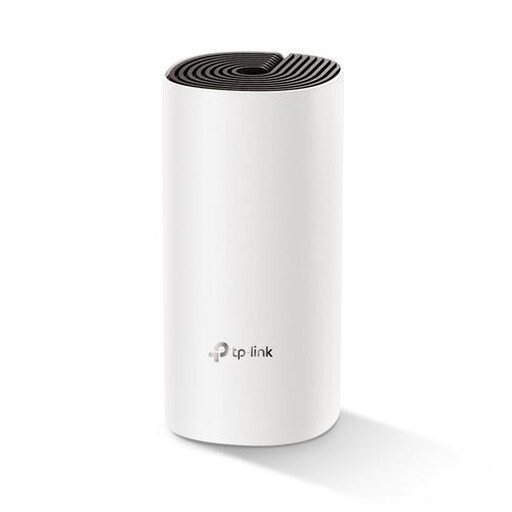
TP-Link Deco M4 dual-band Wi-Fi 5, 1-pack
A compact mesh option to consider if guest access and wired connections are part of your decision.
The product title lists a 1-pack, Wi-Fi 5, dual-band (2.4 GHz / 5 GHz) and two Ethernet ports.
Joybuy
Frequently asked questions
Can a shared design studio in the Netherlands use Wi-Fi without a licence?
Yes. According to the Dutch Authority for Digital Infrastructure, Wi-Fi in business premises is licence-free if you use designated frequencies and comply with the conditions of use.
Can the studio connect its own router to a business broadband subscription?
According to the Authority for Consumers and Markets, you can choose your own router, provided it meets your provider's security requirements and does not damage the network. Ask your provider for the connection settings and keep the router up to date.
Does the TP-Link ER7212PC provide Wi-Fi on its own?
No. TP-Link describes the ER7212PC as a router, switch and controller that connects to separate Omada access points. Make sure you include those access points and their placement in your installation plan.
What should you keep maintaining after installation?
Check for router updates and enable automatic updates if the device offers this option. In a shared studio, also agree who will manage the network.
What extra components should you check alongside a gateway?
A gateway with separate Wi-Fi may need access points, cabling and mounting. Also check the PoE power required and who will handle the installation and management.


