
Website builder working across browser windows
You want to view pages, the admin area and reference material at the same time while building your site. Consider whether one wide workspace or separate screens better suits the way you work.


An ultrawide monitor is a good fit if you want to keep browser windows side by side across one continuous workspace. A standard screen may suit you better if readability and a more compact desk are your priorities. Two screens are another option if you prefer to keep editing and browser testing separate, provided your computer supports the setup you want. Microsoft Support explains how to arrange windows on one screen and use multiple screens. Also check the text scaling, desk space and connections supported by your equipment.
You want to view pages, the admin area and reference material at the same time while building your site. Consider whether one wide workspace or separate screens better suits the way you work.
You read and edit long texts and want to set the display to a comfortable size. Vertical space and adjustability may matter more than maximum screen width.
You want to connect an external monitor without overlooking your laptop’s video output or charging capabilities. USB-C docking only works if your laptop supports the required features.
First, choose between one wide screen, a standard screen or two separate screens. Then compare how comfortably you can arrange your windows with the desk space available, and check that your computer and monitor support the connection you need.
| What to consider | What should you check? | Who is this most relevant to? |
|---|---|---|
| Space for browser windows | Compare the aspect ratio, resolution and physical width. Try arranging your windows using your preferred text scaling. | If I want to see pages, the admin area and references at the same time, usable space is my main concern. Around 36% of consumers give space for multiple windows top priority. |
| Text readability | View text at the scaling you actually want to use, and compare the vertical resolution too. | If I read or edit long consultation documents and forms, I want to be able to set the text to a comfortable size. Around 29% of consumers prioritise the readability of text and pages. |
| Connections and computer compatibility | Check the video output, the resolution available through your chosen connection, and how many external screens your computer supports in your intended setup. If you want USB-C power, check the charging wattage required too. | If I want to keep using my existing laptop or desktop, I need to know whether it can handle my screen setup. Around 21% of consumers put computer compatibility first. |
| Adjustability and workspace | Check the adjustability of the exact model and whether the screen and stand will fit on your desk. | If I want to position and adjust the screen properly at my workstation, I look at its dimensions and adjustment options. Around 14% of consumers give their workspace setup top priority. |
A 27-inch QHD screen and a 34-inch ultrawide have different aspect ratios and don’t offer the same horizontal space. Screen size alone won’t tell you whether your windows will fit at a readable size.
Compare the resolution and aspect ratio, and try your preferred window layout at your chosen text scaling.
Video, data and charging capabilities depend on the monitor, computer and connection. A USB-C port on its own doesn’t guarantee that your preferred screen setup will work.
Before buying, check the connections on both devices and the resolution available through your chosen connection.
If the connection isn’t suitable for your setup, you may need a different cable, port or dock.
The monitor needs to suit your window layout, but you also need enough room to position and adjust it properly.
Measure the available space and check the dimensions and adjustment options of the exact model.
The Pro Plus P2725DE we reviewed is a standard 27-inch QHD screen with USB-C hub features, designed as an option for a laptop workstation.
The B Line 346B1C/00 we reviewed is a 34-inch ultrawide designed for working with windows side by side across one workspace.
The 34BQ77QB-B we reviewed is a 34-inch ultrawide IPS monitor with USB-C.
The RD280U offers a different screen format for anyone who needs extra vertical space when working with long documents.
The ThinkVision P27h-30 is a 27-inch QHD option we reviewed, with connectivity and docking features.
These ultrawide monitors are for anyone who wants to arrange multiple browser windows across one continuous workspace. Compare the screen width with your desk, and check that your computer supports the required features if you’re considering a USB-C model.
 Image unavailable
The 21:9 screen, with 3440 × 1440 pixels, is designed for placing windows side by side across one wide workspace.
Product information lists USB-C with up to 90 W Power Delivery and an adjustable stand. USB-C charging requires a compatible laptop with USB Power Delivery and DisplayPort Alt Mode.
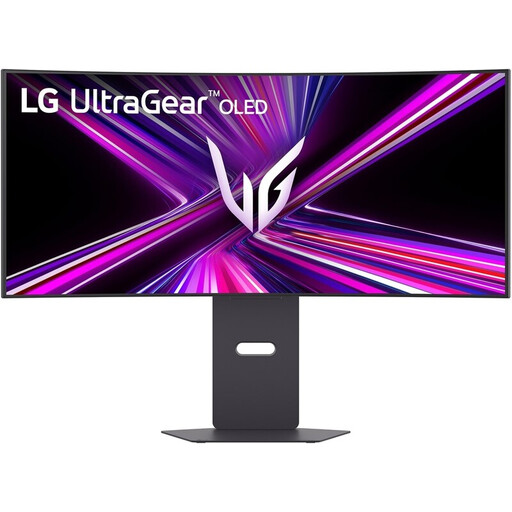 Image unavailable
This 34-inch ultrawide is an option if you want to arrange browser windows side by side on one screen.
Product information lists 3440 × 1440 pixels, 240 Hz, height adjustment and USB-C with up to 65 W Power Delivery.
 Image unavailable
The 32:9 aspect ratio and 5120 × 1440 pixel resolution are worth considering if you want to organise lots of windows on one screen.
Product information lists a screen width of 121,49 cm, a KVM feature and USB-C with 90 W Power Delivery. Measure your desk before choosing this wide format.
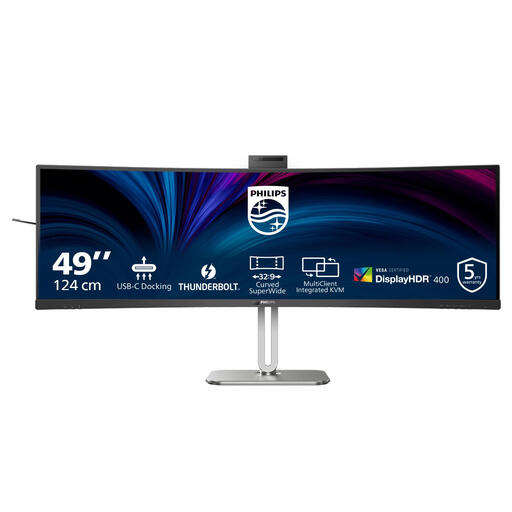 Image unavailable
The 32:9 screen, with 5120 × 1440 pixels, is designed for a wide layout with multiple windows side by side.
Product information lists Thunderbolt 4, up to 100 W Power Delivery, and height, swivel and tilt adjustment. The stated screen width is 119,2 cm, so make sure you have enough desk space.
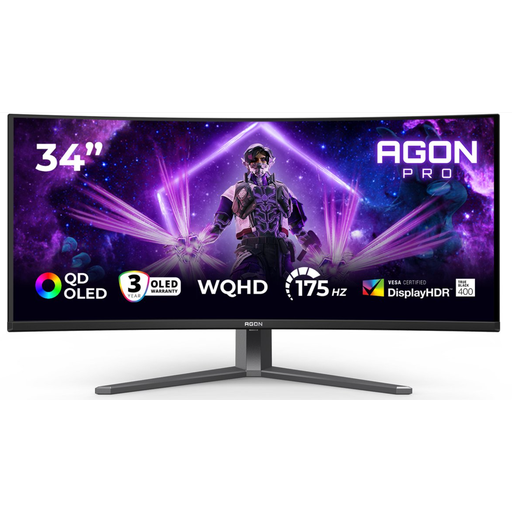 Image unavailable
The 21:9 aspect ratio and 3440 × 1440 resolution suit a setup with browser windows side by side.
Product information lists height, swivel and tilt adjustment, as well as a USB hub.
No, you can also arrange windows side by side or in a grid on one standard screen. Microsoft Support explains Windows’ snap feature. An ultrawide is worth considering if your windows need more combined width at your chosen text scaling.
No, it depends on the video and charging features supported by both your laptop and the exact monitor model. The Dell P2725DE we reviewed lists USB-C power delivery of up to 90 W, but check that your laptop supports the required features and how much charging power it needs.
Two screens are a good fit if you want to keep editing and browser testing separate. Check that your computer can drive two external screens in your preferred configuration; a video output or USB-C port alone doesn’t guarantee this.
Adjust the screen and workspace to suit the user, avoid distracting reflections and make sure the lighting is appropriate. Arboportaal also recommends varying your posture, looking away from the screen regularly and taking short breaks. This advice is not a legal monitor specification.
The rules for employees and employers depend on the working situation. According to Arboportaal, if you work at a screen for more than two hours a day, among other things, the screen and keyboard must not be attached to each other. This is not a uniform legal minimum requirement for everyone buying a monitor for personal use.