What should you look for?
Start by deciding whether the camera needs to show just you, a group or your work surface as well. Then check that the sound and controls suit your lesson setup.
One learner at their own computer
A good starting point if: you mainly need your face and pronunciation to come across clearly in the lesson.
Consider: individual framing won’t automatically show what is happening elsewhere in the room. Logitech says the C920e microphone is disabled by default.
Several people in one room
A good starting point if: several learners need to be on screen at the same time.
Consider: a wider view may show more of the room, but a stated microphone range doesn’t prove that everyone will be easy to hear.
Showing written work or objects
A good starting point if: you regularly discuss a page or exercise on your desk.
Consider: check that your model supports the desk view you want and that the text is readable from your usual working position.
| What to consider |
What should you check? |
Who is this important for? |
| Clear speech |
Make a test call from your usual seat and check which microphone is selected and enabled in the lesson app. |
When I’m taking a lesson myself, I want my pronunciation to come across clearly from my usual spot. Around 36% of consumers say clear audio of their own speech is their top priority. |
| Seeing and hearing a group |
Take a test video from the intended camera position and ask people sitting furthest away to speak. |
When we share one computer, I want to see and hear everyone at the same time. Around 29% of consumers prioritise having several people join in. |
| Showing work on a desk |
Test with a real page to see if the text is readable, and check how to switch between the view of your face and the desk. |
When I’m discussing a paper exercise, I want to show my work without having to hold the camera the whole time. Around 21% of consumers prioritise showing text or written work. |
| Connection and privacy |
Check the connection and any software requirements. Also agree who can appear on camera and whether recordings will be made. |
I want to know in advance whether I can connect the webcam and choose when to cover the lens. Around 14% of consumers say easy setup and control over the camera are their top priorities. |
Webcams at Joybuy
These Joybuy webcams are options for online lessons where you want to weigh up the framing, microphone and connection for your own computer.
 No image available
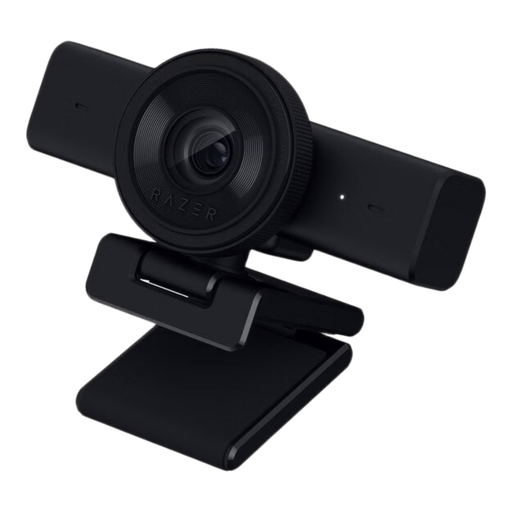
Razer Kiyo V2 X webcam
Could suit you if you take online lessons via Zoom or Teams and are looking for a USB webcam. Check that the camera and lesson app work with your computer.
The product title lists 1440p / 1080p at 60 FPS and USB.
View at Joybuy
 No image available
AOC 4K PRO webcam with Sony IMX363 sensor
Could suit you if you’re looking for a webcam for lesson calls and your computer has one of the listed USB connections.
The product title lists a Sony IMX363 sensor, PDAF autofocus, dual microphones, a lens cover, a 75° field of view, and USB-A and USB-C connections.
View at Joybuy
 No image available
AOC 4K webcam for PC with privacy shutter
Could suit you if you’re looking for a webcam with a privacy shutter for online calls. Check first that the connection is compatible with your computer.
The product title lists 4K, a 99° field of view, a built-in microphone, noise reduction and plug-and-play functionality.
View at Joybuy
 No image available
Philips 4000 Series 4K UHD webcam, EU Version, Black, SPL6408BT/00
Could suit you if you want a webcam with built-in dual microphones and a lens cover for online lessons.
The product title lists 4K UHD, 8MP, autofocus, dual built-in microphones and a privacy cover.
View at Joybuy
 No image available
Philips 2K QHD PC webcam, EU Version, Silver, SPL6308S/00
Could suit you if you’re looking for a clip-on webcam for a laptop or desktop. Check that the connection and setup work with your computer.
The product title lists QHD, a noise-cancelling microphone and a clip-on design.
View at Joybuy
Frequently asked questions
Can I rely on the webcam’s microphone alone for a language lesson?
Check by making a test call from your actual seat. A stated microphone range doesn’t guarantee that speech will be clear in a room. If you’re using the built-in microphone on a Logitech C920e, Logitech says you’ll first need to enable it through Logi Tune.
How can I show written exercises without holding a webcam?
A desk mode can help if your model supports it and the page is readable from your usual working position. Insta360 lists DeskView for specific Link models, controlled through Link Controller, and distinguishes DeskView from Overhead Mode.
Can I show classmates on camera or record the lesson without asking?
Don’t assume you have permission to film everyone or record the lesson. The Dutch Data Protection Authority advises that education guidelines should set out who may appear on camera and how recordings are made and stored. Whether a particular recording is allowed depends on the organisation, the purpose and how the footage is processed.
What if a webcam I bought online doesn’t suit my setup or breaks soon after?
For online consumer purchases, ACM ConsuWijzer says you generally have a statutory 14-day cooling-off period after delivery, with some exceptions. You also have a legal guarantee if a product doesn’t perform as you could reasonably expect under normal use; an extended warranty doesn’t replace this right.
What should I check before my next lesson?
Check the mount, framing and selected microphone in your lesson app. Logitech explains how to open and close the privacy shutter on the Brio 500. Also check that your webcam stays in the right position when you show work on your desk.


