
A group around one table
You’re organising a workshop in a small space, or sharing one with several participants, and want to show both the people in the room and their contributions. Logitech and Jabra describe solutions for group meeting rooms.


If you’re joining from your own computer, choose a personal webcam that frames you and can show your notes when needed. If several people are sitting around a table, check whether everyone will be in shot and easy to hear. A standard personal webcam won’t necessarily cover the whole group.
You’re organising a workshop in a small space, or sharing one with several participants, and want to show both the people in the room and their contributions. Logitech and Jabra describe solutions for group meeting rooms.
You’re at your computer and want to show notes or sketches on the table during the discussion. Logitech describes a Show Mode for the Brio 500, which lets you tilt the camera downwards.
You switch between speaking from your seat and presenting elsewhere in the room. OBSBOT specifies a controllable two-axis gimbal for the Tiny 2 Lite; check separately whether the whole group around the table stays in shot.
Best suited when: you’re at your computer and don’t need all the other participants to be on screen at the same time.
The trade-off: built-in microphones don’t necessarily pick up voices clearly from all around the table. Logitech says automatic framing on the Brio 500 requires Logi Tune and doesn’t work on ChromeOS.
Best suited when: several people around a table need to be in shot at the same time. Logitech specifies a 120° field of view and room audio for MeetUp; Jabra specifies a 180° panoramic field of view and eight microphones for PanaCast 50.
The trade-off: stated fields of view don’t guarantee that everyone will be clearly visible or easy to hear. Test the setup from the seats furthest from the camera.
Best suited when: you move around while presenting. OBSBOT specifies a controllable two-axis gimbal for the Tiny 2 Lite.
The trade-off: a stated diagonal field of view of 79.4° in 4:3 doesn’t guarantee continuous coverage of the whole table. Also check the computer requirements for the features you want to use.
| What to consider | What to check before buying | Who is this important for? |
|---|---|---|
| Everyone around the table in shot | Count the seats and decide where to position the camera; check the frame from the seats furthest away. | If I want to keep several people around the table in one shot, I pay attention to the edges of the frame. Around 36% of consumers prioritise a group view above all else. |
| Contributions that are easy to hear | Test the microphone from both the nearest and furthest seats; select the intended audio devices in your meeting app. | I want to be able to follow questions and feedback, even when someone is sitting further from the computer. Around 29% of consumers prioritise clear audio above all else. |
| Showing handwritten work | Check whether the camera can tilt downwards, then see if text is legible from that angle. | If I want to show paper or sketches, I need to be able to do so without relying solely on a face-level camera view. Around 21% of consumers prioritise showing written work. |
| Easy, controlled participation | Check the connection, operating system, required software and privacy cover; test the connection in advance. | I want to be able to select the right devices and stay in control of the camera view. Around 14% of consumers prioritise easy, controlled participation. |
A personal webcam’s field of view and built-in microphones don’t necessarily mean that everyone will be visible and audible.
Test the picture and sound from the furthest seats before choosing one camera for the whole table.
Your meeting service and subscription may limit the resolution of the video being sent. Zoom says that 1080p video for group meetings is limited to Business and Enterprise subscriptions.
Check the settings and terms of the meeting service you actually use before making resolution the deciding factor.
For automatic framing on the Logitech Brio 500, Logitech specifies that Logi Tune is required and says the feature isn’t available on ChromeOS.
Check the workshop computer and try the feature in advance. Remember to factor in installing and managing the required software, too.
Logitech offers both personal webcams and MeetUp, which is designed for small meeting rooms.
Jabra positions PanaCast 50 as a video bar for rooms where several people take part.
HP describes the Studio P5 as a personal webcam and the Studio P15 as a personal video bar.
AnkerWork describes the PowerConf C200 as a personal webcam with an adjustable field of view.
OBSBOT describes the Tiny 2 Lite as a moveable personal webcam.
This selection includes webcams for joining from a PC or laptop. Consider them as personal cameras and check separately whether their picture and audio are suitable for the number of people around your table.
 No image available
An option for joining from a PC or laptop if you want a built-in microphone.
The product description lists a 120° lens, an omnidirectional microphone and a flexible tripod base.
The title specifies USB plug and play.
 No image available
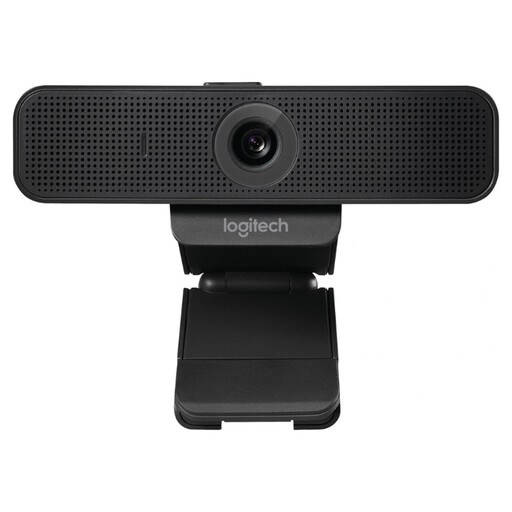
The description recommends the C925e for one or two people, making it suitable for individual participation.
The product description lists Full HD 1080p at 30 fps, autofocus, a 78° field of view and a built-in microphone.
It also mentions a privacy cover and an adjustable clip for a laptop or monitor.
 No image available
The product description recommends the C920e for individuals who want to join a meeting from their computer.
It lists 1080p, autofocus, automatic light correction and a fixed 78° field of view.
It also lists two integrated omnidirectional microphones, a privacy cover and an adjustable clip for a laptop or monitor.
 No image available
The product title lists dual microphones for video calls on a desktop computer.
The title specifies 4K UHD, autofocus and a privacy cover.
Check that your meeting service and settings support the picture resolution you want.
 No image available
A webcam for a PC or laptop if you want to use a built-in microphone for calls.
The product title specifies 2K QHD, a clip-on design and a noise-cancelling microphone.
Not based on the camera specifications alone. Zoom lists requirements and restrictions for HD video in group meetings; according to its guidance, 1080p is limited to Business and Enterprise subscriptions. Check the meeting service and settings you use.
Select and test the intended camera, microphone and speaker in your meeting app. Microsoft describes a meeting room mode for Teams that can select the room’s connected peripherals as active devices; check whether this setup suits your arrangement.
For a consumer purchase in the Netherlands, the seller must provide a solution if the product doesn’t meet what you’re entitled to expect, according to the Dutch government. For distance purchases, you’re also often entitled to a 14-day cooling-off period; check the relevant terms and exceptions.
Not automatically. The Dutch Data Protection Authority considers identifiable people in images to be personal data; processing this data requires a legal basis under the GDPR. Consent is one possible legal basis, but not the only one. Discuss any intended recording or publication with the organiser in advance and assess the specific processing separately.