
Vandaag of morgen in huis

Kwaliteit gegarandeerd

Welkomstaanbiedingen ontgrendelen: GRATIS bezorging | Tot 80% korting | Gratis 30 dagen JoyPlus-proefperiode
Download de app
A webcam for video conferencing might seem easy to choose: plug it in, open Teams or Zoom and you’re ready to go. In practice, problems often arise because of a narrow field of view, poor audio quality or limited compatibility. As a result, people working from home and small businesses sometimes buy a camera that looks impressive on paper but proves less practical in a real meeting.
Watch out for these three common pitfalls:
Resolution determines how many pixels make up the image. A Full HD webcam has a resolution of 1920 × 1080 pixels and is usually suitable for everyday video calls, online lessons and working from home. A 4K webcam can display up to 3840 × 2160 pixels. This is particularly useful if you want to crop a wider shot, include several people in the frame or make videos for content creation.
Also check the frame rate. 30 fps is standard for video conferencing. A higher frame rate can make movement look smoother, but may require more bandwidth and processing power.
A standard PC webcam with a limited field of view is suitable if you’re the only person sitting at a desk. A wider field of view is more practical for a small meeting room. The Logitech MeetUp lists a 113° field of view in its product specifications. The product description also mentions an ultra-wide view, so always check the model’s current specification table.
Autofocus helps the camera keep your subject sharp when you move closer to the lens. An autofocus webcam is a good choice for presentations, demonstrations and content creation. If you always sit at the same distance, autofocus is less important.
A USB webcam usually works straight away with a computer, but “plug and play” doesn’t guarantee that every feature will be available in every app. Check:
For a permanent workspace, a monitor with a built-in camera can save space. The iiyama ProLite XUB2490HSUH-B2 combines a 23.8-inch Full HD IPS screen with a built-in 1080p autofocus webcam and microphone. According to the product information, the webcam supports Windows Hello. Before buying, check that your Windows installation and security settings support this feature.

Why it suits this user: This desktop and laptop camera is designed for everyday video calls, working from home and simple streaming. Its stated QHD resolution offers a step up from Full HD without going all the way to 4K.
The built-in microphone is listed as having noise reduction, so you won’t need to buy a separate microphone straight away. However, check the sound quality in your own room.
QHD resolution, a clip for desktop or laptop use, and a built-in microphone, according to the stated product details.
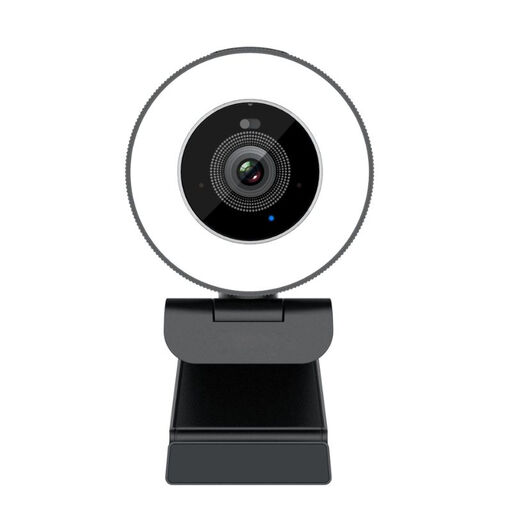
Why it suits this user: This 4K webcam is a good choice if you want high resolution, autofocus and privacy features in a single USB camera for meetings, presentations or recording.
The stated autofocus and privacy cover address two practical concerns: keeping the picture sharp when you move, and physically covering the lens when the camera isn’t in use.
4K UHD, 8MP, autofocus, dual built-in microphones and a privacy cover, according to the product title.
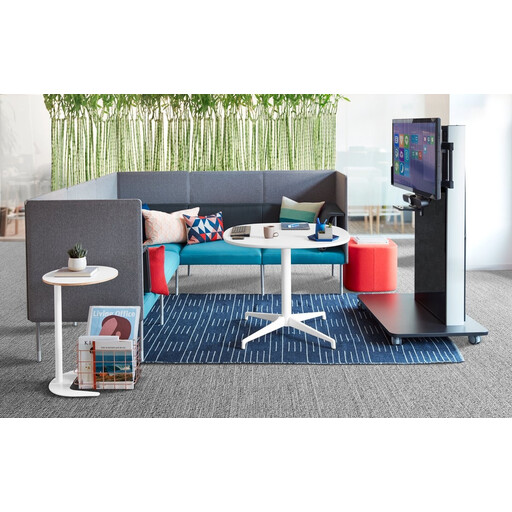
Why it suits this user: This conference camera is designed for small meeting rooms where several people need to be in the frame.
Its stated wide field of view is better suited to a room than a narrow-view desk camera. The built-in microphone and speaker also mean fewer separate devices to set up.
3840 × 2160 pixels at 30 fps, Bluetooth, and a built-in microphone and speaker, according to the product information.
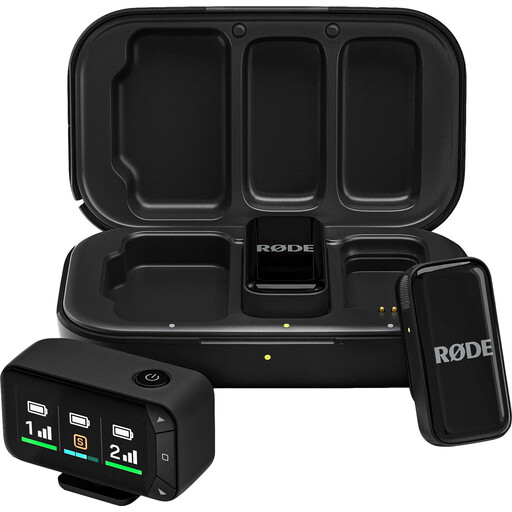
Why it suits this user: If you make interviews, tutorials or mobile videos, you can use two transmitters at once and connect a camera or USB-C receiver.
Unlike many built-in webcam microphones, these microphones aren’t positioned at a distance from the speaker. Check that your device has a USB-C port.
Two transmitters, a camera receiver, a USB-C receiver and a charging case, according to the product information.
Position the webcam at eye level and point the lens roughly towards the centre of your face. A window directly behind you can cause backlighting, so it’s better to put a light source in front of you. Before an important meeting, test both the picture and microphone in the settings for Teams, Zoom or a similar app.
If you’re using a conference camera in a small room, place it centrally and check that everyone is within its field of view. A separate wireless microphone for content creation works differently from a webcam microphone: the transmitter needs to be worn close to the speaker and paired beforehand.
We’ve put together a complete, up-to-date list of products that meet these strict selection criteria and the applicable European safety requirements.
For one person at a desk, a Full HD webcam is often enough. 4K is a better choice if you’re filming a wide room, want to crop the image or are making videos where detail matters. Also check that your video conferencing software and internet connection can handle the higher resolution.
Many USB webcams are recognised as camera and microphone devices as soon as you plug them in. Then select the webcam manually in the app’s audio and video settings. Features such as autofocus, privacy controls or Windows Hello may require additional operating system support.
How long it lasts depends on the cables, hinges, lens and how often you use it. Keep the camera stable, avoid pulling on the USB cable and clean the lens with a soft, dry cloth. Before buying, check the warranty and returns policy, and keep the documentation.
