
Study group around one table
If you’re all joining from one small room, check whether the students at the edges of the table will also be in shot. Logitech and HP Poly describe cameras for small meeting rooms with a wide field of view.


If you’re joining on your own from a laptop, a personal USB webcam may be all you need. If a group is sitting around one table, choose based on the seating arrangement and check separately whether the camera can capture everyone and pick up voices around the room; a wide field of view alone doesn’t guarantee that everyone will be heard clearly. A room camera also needs a suitable position and a connection to the computer.
If you’re all joining from one small room, check whether the students at the edges of the table will also be in shot. Logitech and HP Poly describe cameras for small meeting rooms with a wide field of view.
If students are speaking from different seats, don’t just look at the picture: check how the room audio is set up too. Logitech and HP Poly describe models with microphones and a speaker for shared use.
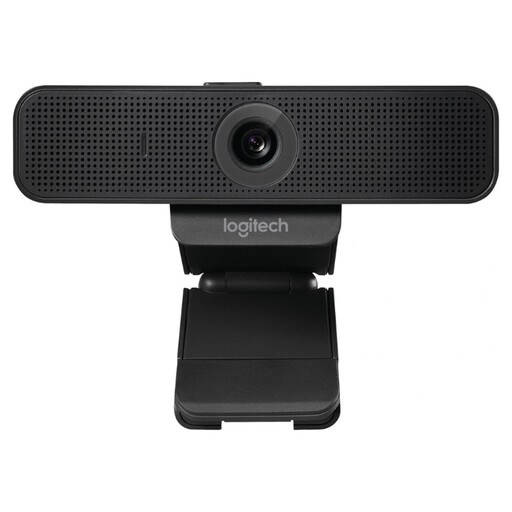
If you’re joining on your own and want to attach the camera to your laptop or monitor, a personal USB webcam is likely to be a better fit. Logitech describes the C920e for personal use, while AnkerWork calls the PowerConf C300 a webcam with an adjustable field of view.
First, choose based on who will be in front of the camera. Then decide whether you only need video or also want shared audio for the whole room.
Best for: when you’re the only one in front of the camera and everyone else is joining on their own device.
Keep in mind: a camera for one person won’t automatically capture the whole table or pick up voices from further away clearly.
Best for: when a small group is sitting close to one laptop and you want to be able to adjust the framing.
Keep in mind: a wider shot alone doesn’t tell you how well voices around the room will be picked up.
Best for: when several students are sharing one camera and you also need a shared speaker.
Keep in mind: you’ll need to position the camera opposite the seats and connect it to the computer; some setups also need mains power.
| What to consider | What should you look for? | Who is this important for? |
|---|---|---|
| Everyone around the table in shot | Map out the seating and camera position, then compare the field of view of the exact model. | If I’m sitting at one table with several students, I want the seats at the edges to be in shot too. Around 36% of consumers prioritise seeing the whole group. |
| Every speaker heard clearly | Check that both microphones and a speaker are included; test the setup with people speaking from their usual seats. | When people are asking and answering questions from different seats, I don’t want participants to keep having to repeat themselves. Around 29% of consumers prioritise clear group audio. |
| Connecting and positioning | Check the USB connection, whether mains power is needed, how the camera is mounted, and whether the setup works with your meeting app and computer. | When using different laptops, I want to be able to connect quickly without rearranging the whole room each time. Around 21% of consumers prioritise connectivity. |
| Personal use and lens | Check the mounting options and field of view; also see whether it has a lens cover if you want to cover the lens. | If I’m the only one in front of the camera, I want a personal setup that I can position and cover myself. Around 14% of consumers choose mainly for individual use. |
Resolution and field of view describe different features. The meeting app can also affect the video quality used during a call.
First, check that everyone will fit in shot from the planned camera position. Then consider whether extra resolution will make a difference for your calls.
A microphone designed for someone sitting by a laptop won’t necessarily pick up voices from other seats.
Before making your final choice, ask each participant to speak from their own seat during a test call, then check the sound at the other end of the connection.
These are separate models. Logitech describes specific BYOD setups for MeetUp 2; the one-cable connection mentioned requires an optional active USB cable.
Compare the full model name, included components and required connections for the exact version you’re considering.
The features below apply to the product lines and models mentioned; manufacturer specifications are not a like-for-like real-world test.
The range includes personal webcams such as the C920e, as well as cameras for small meeting rooms, including MeetUp and MeetUp 2.
HP describes the Poly Studio R30 as a USB video bar for small meeting rooms.
The PowerConf C300 is a USB webcam for a laptop setup, with an adjustable field of view.
Jabra positions the PanaCast 20 as a personal camera for video conferencing.
This selection includes personal USB webcams for use with a laptop or monitor, as well as a meeting camera for shared use in a small room.
 No image available
A personal webcam for joining calls on a PC or laptop; the product name specifies USB and Plug & Play.
Full HD 1080P; microphone; USB connection.
 No image available
An option for a personal laptop or monitor setup; check that the mount suits the position where you want to use the camera.
4K UHD; 8MP; autofocus; dual built-in microphones; privacy cover.
 No image available
For video calls on a laptop or desktop; check that the clip mount suits your screen and setup.
2K QHD; microphone with noise reduction.
 No image available
For a group sharing one camera: Logitech describes MeetUp as a meeting camera for small rooms. Check that you can position the camera opposite the seats.
The product name specifies 3840 x 2160 pixels and 30 fps.
 No image available
A personal webcam for anyone sitting in front of the camera while other participants join on their own devices.
USB; 30 fps. The stated field of view is designed for one or two people; check that it suits the number of people you want in shot at once.
No, not if one student is sitting alone at a laptop and everyone else is joining on their own device. If you’re sharing a camera, though, check separately that everyone’s in shot and that voices around the room can be heard; a wider lens won’t take care of the audio.
Check the camera position, USB connection and whether mains power is needed, then select the right camera and audio settings in your meeting app. HP describes the Poly Studio R30 as using a monitor clamp, mains power and a USB connection; Logitech describes MeetUp as connecting to a computer or laptop via USB.
For a standard online consumer purchase, you’ll generally have a statutory cooling-off period of up to 14 days after delivery, with some exceptions. Separately, the seller is responsible for the statutory guarantee if the product doesn’t meet what you could reasonably expect. ACM ConsuWijzer explains the cooling-off period, while the Netherlands Authority for Consumers and Markets explains the seller’s responsibility for guarantees; also check who is selling your order.
Don’t assume that an invitation to a video call also gives you permission to record it. For video calls in education, the Dutch Data Protection Authority says that recordings showing pupils or students can’t simply be made and that institutions must agree arrangements for matters including informing people, storing recordings and deleting them. Before recording, check who is organising the session and what arrangements apply.