Start by adjusting your camera setup and checking your face in your meeting app’s preview. A different angle or available lighting setting may be all you need. If backlighting is still a problem, compare the exposure features of the exact model. Choose Show Mode or a tilting camera if you also want to show your notes, and check the microphone, connection and app settings separately. Manufacturer features are no guarantee of how the picture will look in your room.
Who is this webcam guide for?
Student sitting beside a bright window
You can’t easily move your workspace and want your face to remain visible as the daylight changes. Compare the exposure features of each model and test them in the app you use; Logitech and Dell describe these features for specific models.
Student who wants to show notes
You switch between your face and your work on the table during the call. Logitech describes Show Mode for the Brio 500 and MX Brio. Check that your own page is framed well and remains readable from your usual distance.
Student in a shared space
You want to be heard clearly without showing more of your room or housemates than necessary. Check which microphone your meeting app is using, how the picture is framed and whether the exact model has a physical privacy shutter.
What should you look for in a webcam beside a bright window?
Adjust your setup first
Choose this if: your current camera is usable, but the window leaves your face poorly lit.
Bear in mind: a different angle or app setting may not help enough if you can’t change the position of your desk or window. Zoom describes a video test and lighting settings.
A model with exposure features
Choose this if: adjusting your setup isn’t enough and you want to stay visible as the daylight changes.
Bear in mind: HDR and face exposure features are model specifications, not a measured result in your room. Dell lists these features for the WB3023; Logitech describes backlight processing for the MX Brio.
A tilting camera for showing notes
Choose this if: you regularly want to show sketches or notes on the table during your study group.
Bear in mind: being able to tilt the camera doesn’t mean small print will be readable; test your own page in the meeting app. Logitech describes Show Mode for the Brio 500 and MX Brio.
A simpler model with an adjusted setup
Choose this if: you can keep the window out of shot or adjust the lighting, and don’t need HDR.
Bear in mind: AnkerWork advises against using the PowerConf C200 in backlit conditions because this model doesn’t have HDR. That warning applies to the C200, not to all webcams.
| What to consider |
What should you check? |
Who should pay particular attention? |
| Keeping your face visible when backlit |
Check the preview at different times of day. Compare HDR or face-focused exposure on the exact model; Dell and Logitech describe these features for the WB3023 and MX Brio respectively. |
If the window is behind you and you can’t easily change your workspace, you’ll want your face to remain recognisable on camera as the daylight changes. Around 33% of consumers give visibility in backlit conditions top priority. |
| Showing notes |
Test the tilt angle, mounting and readability of your own page in the preview. Logitech describes Show Mode for the Brio 500 and MX Brio, but this doesn’t guarantee that small text will be readable. |
If you regularly show work on the table, you’ll want to switch between your face and your notes without any unnecessary hassle. Around 20% of consumers prioritise showing work on the table. |
| Clear audio and connection |
Check the connection on the exact model and select the right microphone in your meeting app. Microsoft says that the Modern Webcam’s built-in microphone is off by default. |
If you rely on clear audio and a suitable port on your computer, you’ll want to know which microphone is active before your study group. Around 20% of consumers give audio and connectivity top priority. |
| Privacy and framing |
Check whether the exact model has a physical privacy shutter and review the full frame before joining. The Dutch Data Protection Authority advises educational institutions to minimise privacy intrusions during online video calls. |
In a shared room, you’ll want to avoid accidentally showing housemates or documents. Around 14% of consumers prioritise privacy and a limited frame. |
| Features you’ll actually use |
Decide whether you mainly want to show your face, your notes or movement. Logitech says RightSight framing on the Brio 500 requires Logi Tune. |
If you’re mainly looking for a reliable webcam for your study group, you won’t want to choose features you won’t use. Around 13% of consumers give a suitable, straightforward set of features top priority. |
Common pitfalls when buying a webcam for a study group
-
Choosing on resolution alone when you’re beside a bright window
A higher resolution doesn’t automatically mean your face will remain clearly visible. Dell lists exposure features separately from resolution; AnkerWork warns about backlighting with the PowerConf C200.
Test your setup first, then compare the exposure features of the exact model.
-
Assuming the built-in microphone is active automatically
Microsoft says that the Modern Webcam’s built-in microphone is off by default.
Before your call, check your camera and microphone selection in the meeting app and test the audio.
-
Assuming a tilting camera will make your notes readable
Logitech describes Show Mode for work on your desk, but that doesn’t tell you whether your text will be readable from your chosen distance.
Test your own page, lighting and framing in the meeting app.
Brands to compare
Logitech
The Brio 500 and MX Brio are worth comparing if you’re looking for lighting features or a way to show work on the table.
- Logitech describes Show Mode for both models; according to Logitech, the MX Brio also has backlight processing.
- According to Logitech, RightSight framing on the Brio 500 requires Logi Tune. Test the framing in your own meeting app.
Dell
The WB3023 is a separate 2K QHD model with HDR and face-focused automatic exposure listed by Dell.
- Dell lists HDR and Facial Detection Auto Exposure as specifications for the WB3023.
- Check the connection and exact version; the listed features are not an independent test in your room by the window.
AnkerWork
The PowerConf C200 is mainly worth comparing if you can avoid backlighting by adjusting your setup.
- AnkerWork suggests software settings as a possible adjustment if you can’t avoid backlighting.
- AnkerWork says the C200 doesn’t have HDR and advises against using this model in backlit conditions.
Razer
The Kiyo Pro may be worth considering if you use your webcam for other video applications as well as study groups.
- According to Razer, HDR on the Kiyo Pro works at 1080p/30 fps; another mode supports up to 1080p/60 fps.
- Razer lists USB 3.0 as a requirement. Check the port on your computer and don’t confuse the Kiyo Pro with the Kiyo V2 X.
Microsoft
The Modern Webcam is worth considering for a Windows and Teams setup, with a choice of mounting options.
- Microsoft describes mounting the webcam on a screen, desk or tripod, and says it is certified for Teams.
- According to Microsoft, the built-in microphone is off by default; check which microphone your fellow callers can hear.
Webcams and cameras for video calls at Joybuy
Below you’ll find webcams and a conference camera for video calls. Check that the connections, features and field of view of your chosen model suit your computer and whether you’ll be on a call with one person or a group.
 Image unavailable
AOC 4K PRO Webcam with Sony IMX363 sensor
Worth comparing if you’re looking for a webcam with a privacy shutter and dual microphones.
4K; PDAF autofocus; dual microphones; privacy shutter; 75° field of view; USB-A/USB-C.
View at Joybuy
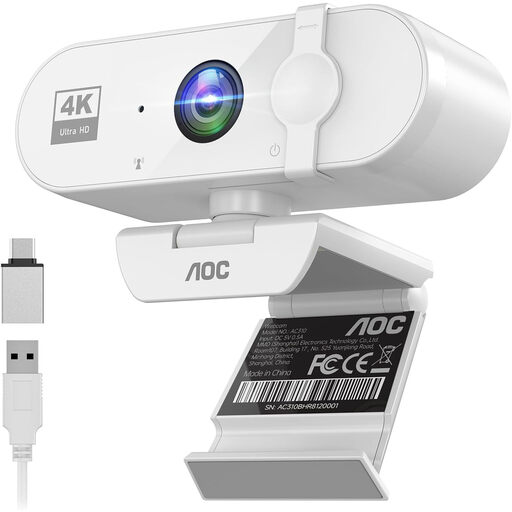 Image unavailable
AOC 4K webcam for PC with microphone, white
Worth comparing if you’re looking for a webcam with a privacy shutter and a wide field of view.
4K; 99° field of view; noise-cancelling microphone; privacy shutter; white.
View at Joybuy
 Image unavailable
Philips 4000 Series 4K UHD Webcam, EU version, black, SPL6408BT/00
Worth comparing if you want autofocus, dual microphones and a physical privacy shutter.
4K UHD; 8 MP; autofocus; dual microphones; physical privacy shutter; EU version, black.
View at Joybuy
 Image unavailable
Philips 2K QHD webcam for PC, EU version, silver, SPL6308S/00
Worth comparing if you’re looking for a 2K QHD webcam with a microphone and noise reduction.
2K QHD; noise-cancelling microphone; EU version, silver.
View at Joybuy
 Image unavailable
Logitech MeetUp conference camera, black, 3840 × 2160 pixels
A conference camera worth comparing if you’re looking for a model from the MeetUp range for video calls.
3840 × 2160 pixels; black. The product information warns against exposing the camera to direct sunlight.
View at Joybuy
Frequently asked questions
How should you test your setup before the study group?
Check your camera in the meeting app before joining and test it in the daylight you’d normally use. Zoom describes a video test and lighting settings; check the settings in other apps separately.
Does the Microsoft Modern Webcam’s microphone work in Teams straight away?
Not in the default setup described by Microsoft: the built-in microphone is switched off. Select another microphone or follow Microsoft’s steps to turn on the webcam’s microphone, then test the audio before your call.
What are your rights if a webcam bought online doesn’t work properly?
According to ACM ConsuWijzer, if a product is faulty, you’re entitled to a legal guarantee and the seller must offer an appropriate solution, such as a repair or replacement. For a standard online purchase, you’ll usually also have 14 days from delivery to change your mind, subject to legal exceptions.
Are there privacy rules for video calls during lessons?
The Dutch Data Protection Authority says that schools and universities should minimise privacy intrusions during online video calls and set policies covering matters such as recordings and informing students. If you’re taking part in an educational activity, ask what arrangements apply; this doesn’t mean that a student has to buy a particular webcam model.
Does 4K on the box mean other participants will see you in 4K?
Not necessarily. According to Zoom, HD video also depends on factors such as your subscription, device and bandwidth. A camera specification alone therefore doesn’t confirm what resolution will be transmitted.


