
Tutors who move around
You switch between sitting and standing, or walk over to a board, and want to stay in shot. Insta360 and OBSBOT describe models with a physically moving gimbal.


If you walk around or move to a board during a tutorial, look for a webcam that can physically pan and tilt. If you stay in one place, a fixed webcam may be enough. If you also want to show what you’re doing on your desk, check that the camera angle and focusing distance suit your setup. Test how your voice sounds when you’re standing, too, and bear in mind that the video quality your participants receive also depends on the video-calling platform and its settings.
You switch between sitting and standing, or walk over to a board, and want to stay in shot. Insta360 and OBSBOT describe models with a physically moving gimbal.
You switch between speaking to the camera and demonstrating something on your desk. The camera angle, focusing distance and mounting method all affect what you can show. Insta360 describes DeskView as one option for this.
You usually stay in front of your screen and are mainly concerned with a suitable frame, clear speech and a connection that works with your computer. Logitech states that the C920e’s microphones are disabled by default.
First, decide whether you’ll move around while explaining; then consider whether you also want to show a desk, object or board. Finally, check the speaking distance and make sure the camera and video-calling platform suit your computer and settings.
| What to consider | What should you check? | Who should give this more weight? |
|---|---|---|
| Staying in shot while moving | Check whether the camera can physically pan and tilt, and whether the required software works with your computer. | If I walk over to a board while explaining, I want to stay in shot without having to keep repositioning the camera. Around 31% of consumers say freedom of movement is their main buying concern. |
| Showing desk work or a board | Check that the camera angle, mounting and focusing distance suit the demonstration, and that details remain clear. | When I show something on my desk, I want my hands and the details to be clearly visible. Around 25% of consumers give showing actions or a board their highest priority. |
| Speech when standing | Compare the stated microphone range with where you’ll be speaking and make a test recording. Also check that the microphone is enabled. | If I explain something while standing, I want to be clearly heard from that distance. Around 25% of consumers put clear speech first. |
| A fixed camera setup | Measure the distance from the lens and check the desired field of view, connection and platform settings. | If I stay mostly in one place, I want a suitable frame that works without unnecessary adjustments. Around 19% of consumers say a suitable fixed setup is their main buying concern. |
A stated camera resolution doesn’t guarantee that participants will receive video at that resolution. Zoom lists separate requirements for HD and Full HD, including settings that must be enabled through Zoom Support.
A high-resolution camera doesn’t automatically mean your video-calling platform will stream at that resolution. Zoom has separate requirements for HD and Full HD.
Check the platform, your account and the video settings you’ll use during the tutorial in advance.
According to Insta360, the Insta360 Link 2 has a physically moving gimbal, while the Link 2C uses automatic framing. These features are not the same.
If you walk to the side, check whether your chosen model physically pans and test its usable range of movement in your own setup.
Logitech lists a microphone range of up to 1 m for the C920e and states that its microphone is disabled by default.
Measure the distance from where you’ll be speaking while standing, check the microphone setting and make a test recording.
If the built-in microphone doesn’t pick up your voice clearly in your setup, you may need a separate microphone.
Insta360 describes DeskView as a way to show your desktop temporarily; it isn’t the same as a dedicated overhead setup.
Test at the actual desk height to make sure your hands and important details are fully in shot and easy to see.
A dedicated overhead setup may require additional mounting equipment.
The Link 2 is worth considering if you move around during a tutorial or want to show your desktop or a board temporarily.
The Tiny 2 is worth comparing if you move around during tutorials and want a webcam with a rotating lens.
The C920e is worth comparing if you speak from a relatively fixed position, while the Brio 4K has adjustable fields of view. Check the exact model, as features vary.
The Facecam MK.2 is worth comparing if you stay at a fixed distance from the lens and want to control the camera view yourself.
The Joybuy products below are webcams for PC or desktop use. Compare each model’s stated video specifications, microphone and connection with your tutorial setup and video-calling platform.
 No image available
An option for a fixed tutorial setup; choose a video mode that suits your calling platform.
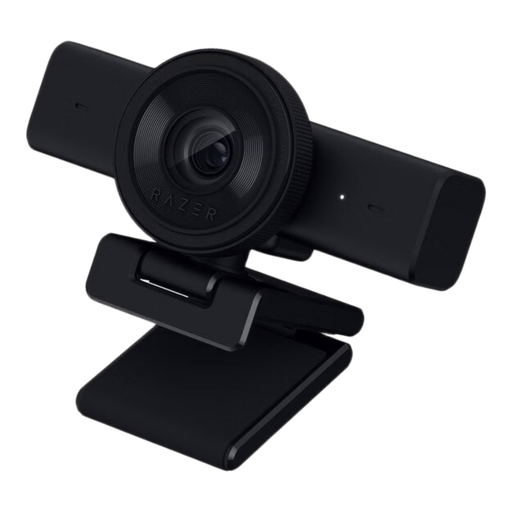 No image available
An option for a fixed tutorial setup; check that the stated video mode works with your platform.
 No image available
An option to compare if you’re looking for a webcam with autofocus and built-in microphones for online teaching.
 No image available
An option for a fixed workspace where you want to compare a wide field of view and a built-in microphone.
 No image available
An option to compare for a desktop setup with autofocus and built-in microphones.
No. Insta360 describes DeskView on models including the Link 2 as a temporary view of your desk from a camera mounted on your screen. For a separate overhead view, the manufacturer specifies a dedicated overhead mount. Check that the details are clear in your own setup.
According to Logitech, the C920e’s built-in microphone is disabled by default. Enable it through Logi Tune if you want to use it, then select the correct microphone in your calling software.
No. The camera’s resolution doesn’t automatically determine the resolution participants receive. Zoom lists requirements for HD and Full HD, including account, settings, computer and bandwidth requirements. Check the requirements of the platform you use for teaching.
For online consumer purchases, ACM ConsuWijzer states that you generally have a statutory cooling-off period of up to 14 days after delivery, with some exceptions. If a product breaks down too soon during normal use, statutory warranty rights also apply; the seller is responsible for this. Check who the seller is when you buy.
Not necessarily. The Dutch Data Protection Authority explains that recognisable images can be personal data, and that a legal basis under the GDPR is required when images are recorded and published for professional or business purposes. For educational institutions, the regulator also refers to agreements about recordings, informing participants and retention periods. The legal basis and measures required depend on who you film and what you do with the footage.