If colleagues mainly need to review digital text, share the window or file first: Microsoft Support explains these presentation options in Teams, while a webcam won’t make text on your screen easier to read. Then choose a camera based on what matters most in your home, such as background noise, privacy or changing light. Stated microphone and video features aren’t a guarantee of how the camera will perform in your room. Before buying, check the connection and software requirements; before each call, check the camera preview, microphone and shared content.
Who is this for?
Calling from a shared room
You want to take part in the call without unnecessarily showing housemates, the room or confidential documents. The Dutch Data Protection Authority stresses the importance of handling sensitive information carefully during video calls.
Calling in a noisy environment
You’re discussing something while other people are at home, and want to check whether the microphone settings suit your usual speaking position.
Discussing a concept with colleagues
You want to appear on camera, but above all you want colleagues to be able to follow the right document or window. Microsoft Support explains how to present a window or file in Teams.
What should you look for when buying?
First decide how colleagues will view the concept; then choose a webcam to suit your room, speaking position and connection. For a digital document, sharing the window or file is a separate step from showing your camera feed.
| What to consider |
What to look for |
Who should pay particular attention? |
| Privacy and what’s in view |
Check whether the camera has a physical lens cover and, if you want to adjust the framing, an adjustable field of view. Check the camera preview before joining. |
If I’m calling from a shared room, I want to keep housemates and confidential papers out of view; around 36% of consumers put privacy and limiting what’s visible first. |
| Clear audio |
Check whether the model offers microphone settings, and test the recording from your usual seat. |
When housemates are at home, I want colleagues to hear my comments clearly without assuming a feature will remove all noise; around 29% of consumers give clear audio in a noisy environment their top priority. |
| Video for the meeting |
Decide whether you want to show a digital document, a paper sketch or mainly yourself. Then check which camera features will suit your needs. |
When I’m discussing a digital concept, I want colleagues to be able to follow the document and only show myself when needed; around 21% of consumers prioritise the camera view they want for the meeting. |
| Connection and setup |
Check the connection, system requirements and included accessories for the exact model against your computer. |
I want to connect the webcam without having to find a separate solution first; around 14% of consumers give ease of connection their top priority. |
Common buying mistakes
-
Assuming a higher camera resolution will make digital text easier to read
A webcam shows the speaker. For a digital concept, you can also present a window or file in Teams, as Microsoft Support explains.
First decide how colleagues will view the document, then compare cameras for the video you need.
-
Assuming a blurred background will hide confidential information
Microsoft warns that blurring or replacing the background may not prevent confidential information from being visible.
Check the camera preview, keep sensitive documents out of view and share only the intended content.
-
Using a directional microphone setting while moving as you speak
For the PowerConf C200’s directional mode, AnkerWork advises staying directly in front of the camera. According to the manufacturer, your voice may drop out or become distorted if you move outside its recording angle.
Test the setting in your usual speaking position, and choose another mode if you regularly stand up or speak from the side.
-
Checking the connection or software requirements only after buying
Elgato states that a separate adapter is needed to use the Facecam Neo with USB-A. Logitech lists Logi Tune for advanced framing on the Brio 500.
For the exact model, check the ports, included accessories and any software needed for the features you want to use.
Brands to consider for specific features
Logitech
Logitech describes the Brio 100 as a Full HD option with a microphone and lens cover. According to the manufacturer, the Brio 500 adds features including noise-cancelling microphones, light correction and automatic framing.
- The Brio 100 and Brio 500 offer different features to compare if you’re looking for a lens cover or additional camera settings.
- Logitech lists Logi Tune for RightSight framing on the Brio 500. These features are manufacturer claims, not the result of an independent comparison.
Trust
Trust lists Full HD video, a microphone and a privacy shutter for the Tanor. According to Trust, the Taxon also features QHD, autofocus and a dual microphone.
- The models listed offer different features to compare if you’re looking for a shutter or a wider field of view.
- A wider field of view may show more of the room. Trust’s performance descriptions are manufacturer claims, not independent test results.
AnkerWork
AnkerWork says the PowerConf C200 offers software-adjustable fields of view and different microphone recording modes.
- The manufacturer describes a choice between directional recording and wider, omnidirectional recording.
- For directional recording, AnkerWork advises staying directly in front of the camera. The manufacturer advises against using the C200 in backlit conditions because it doesn’t have HDR.
Elgato
Elgato specifies autofocus for the Facecam Neo. It’s worth considering if the camera feed matters more to you than an all-in-one video-calling setup.
- The manufacturer lists 1080p60 and autofocus for the Facecam Neo.
- According to Elgato, the camera has a fixed USB-C connection; a separate adapter is needed for USB-A. Check the audio setup for your chosen camera separately.
OBSBOT
OBSBOT describes the Meet 2 as a compact camera with autofocus and automatic framing.
- OBSBOT lists a maximum resolution of 4K at 30 frames per second.
- According to OBSBOT, some 4K effects require additional computer specifications. A camera’s maximum resolution doesn’t automatically mean a video-calling app will stream the meeting in 4K.
Webcams and cameras at Joybuy
This selection includes webcams for video calls and a monitor with an integrated webcam. Check each model’s connections and features to make sure they suit your computer and meetings.
 Image unavailable
Dell Pro P P2726DEV 27-inch QHD IPS monitor, 100 Hz, webcam
A good fit if you’re looking for a monitor with an integrated webcam for video conferencing.
The product title lists 27-inch, QHD, IPS and 100 Hz; the product description mentions an integrated webcam.
View at Joybuy
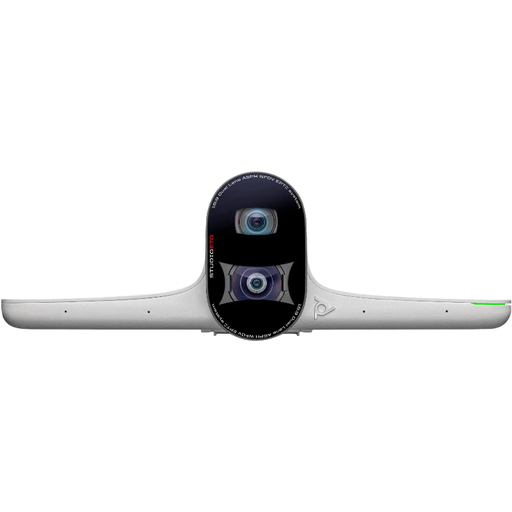 Image unavailable
HP Poly Studio E70 Smart Camera
A desktop camera to consider if you’re looking for a camera for meetings.
For the exact version, check that the connections and settings required are suitable for your computer and meeting setup.
View at Joybuy
 Image unavailable
Philips 2K QHD PC Webcam, EU Version, Silver-SPL6308S/00
A good fit if you’re looking for a webcam with a clip mount for a monitor or laptop.
The product title lists 2K QHD, a noise-cancelling microphone and a clip mount for a desktop or laptop.
View at Joybuy
 Image unavailable
Insta360 Link 2C Standard Bundle, Graphite Black
An option to consider if you want to show movement or a physical concept during a call.
The product title lists 4K, Auto-Framing, HDR and a microphone with AI noise cancellation. Check that the features are compatible with your meeting software and computer.
View at Joybuy
 Image unavailable
Insta360 Link 2 Standard Bundle
A good fit if you’re looking for a webcam with features for video calls and capturing movement.
The product title lists 4K, AI Tracking, HDR and a microphone with AI noise cancellation. Check that the features and software suit your computer.
View at Joybuy
Frequently asked questions
Do I need a 4K webcam to review text in a concept together?
Not if the concept is available digitally: Microsoft Support explains that you can present a window, screen or file in Teams. Choose a webcam for the speaker’s image, and decide separately how to share the document.
How can I stop housemates or other information appearing on camera?
Check the camera preview before joining and choose suitable framing. Microsoft warns that blurring or replacing the background may not hide confidential information. Keep sensitive documents out of view, and close the lens cover when you’re not using the camera.
What should I check when setting up a webcam?
Check the connection and system requirements for the exact webcam against your computer. According to Elgato, the Facecam Neo has a fixed USB-C connection; a separate adapter is needed for USB-A. After connecting it, check which camera and microphone are selected in your meeting app.
How should I handle a confidential work concept carefully during a video call?
For work discussions, follow the process set by your organisation. The Dutch Data Protection Authority stresses that organisations should provide secure video-calling options and advises taking care with sensitive documents; a lens cover or background filter is no substitute for that security.
Do I have a cooling-off period when buying a webcam online?
For distance purchases from a business, a 14-day cooling-off period applies in many cases in the Netherlands, according to the Dutch government. There are exceptions, so check the seller’s information for your order.


