What should you look for?
First decide whether you mainly need to show one presenter or several attendees. Then match the field of view and audio to the seating arrangement.
| What to consider |
What to look for when buying |
Who is this important for? |
| Everyone in shot |
Compare the horizontal field of view and planned camera position with the table and seating arrangement. |
If I want remote attendees to see the colleagues around the table too, capturing the whole group is my top priority. Around 33% of consumers prioritise showing all participants. |
| Room audio |
Check the stated microphone range and test the audio from the furthest seat. |
If several people in the room will be asking questions, I want their voices to be clear to remote attendees. Around 27% of consumers prioritise making multiple speakers audible. |
| Charts and slides |
Check whether your meeting software can share a window or presentation file. |
When attendees need to read tables and figures, I want to share that content directly rather than rely on the camera view. Around 20% of consumers prioritise making research information easy to read. |
| Presenter on the move |
Check whether tracking is useful and whether the field of view suits the area where you’ll be presenting. |
If I move around while explaining something, I want the camera to keep following me without assuming the rest of the table needs to stay in shot. Around 13% of consumers prioritise tracking a single presenter on the move. |
| Connection and positioning |
Check the required USB connection, power supply, mounting and cable routing. |
For a shared room, I want different users to be able to connect the equipment in the right place. Around 7% of consumers prioritise a straightforward setup that can be repeated easily. |
Joybuy products
This selection includes cameras for individual presenters and meeting cameras for small groups. First decide who needs to be in shot and whether you need room audio.
 No image available
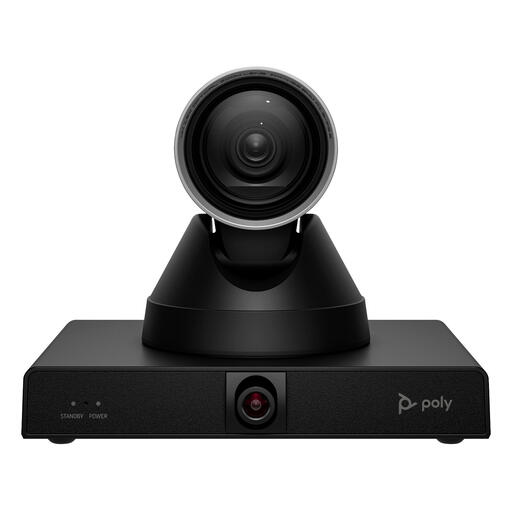
HP Poly Studio E60 Smart Camera, 4K MPTZ, 12x Optical Zoom
Suitable for a presenter who moves around while speaking; the product information lists presenter tracking and AI framing.
The product information lists 4K video and 12x optical zoom.
According to the product description, the camera weighs 1.79 kg and needs a secure mount. It can be powered using the adapter or PoE+.
View at Joybuy
 No image available
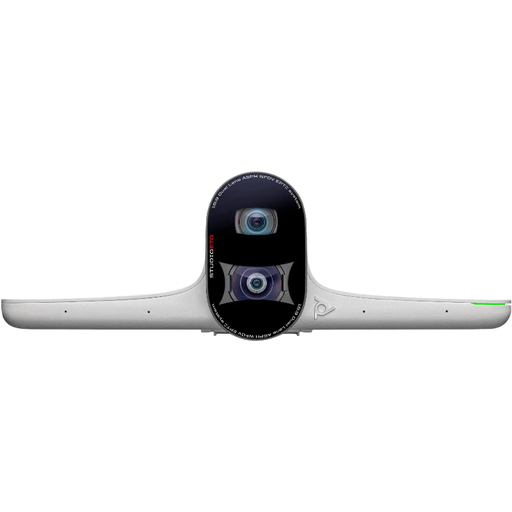
HP Poly Studio E70 Smart Camera
The product information describes a dual-camera setup with framing and tracking modes for hybrid meetings.
The description lists 4K video, 20 MP and a field of view of 93° to 111°.
According to the description, this model is intended for indoor use and needs mains power; it can connect via USB and Ethernet.
View at Joybuy
 No image available
Philips 4000 Series 4K UHD Webcam, 8 MP (EU Version, SPL6408BT/00)
A webcam for presenting on your own; check that the built-in microphones suit the distance between you and the camera.
The product title lists 4K UHD, 8 MP, autofocus, dual built-in microphones and a privacy shutter.
The description says it can be mounted on laptops, desktop computers and monitors.
View at Joybuy
 No image available
Philips 2K QHD PC Webcam (EU Version, Silver-SPL6308S/00)
A PC webcam for individual video calls or presentations; test the microphone from the distance you’ll actually be speaking from.
The product title lists 2K QHD and a noise-cancelling microphone.
The description says it can be mounted on a desktop monitor or laptop screen, or placed on a tripod.
View at Joybuy
 No image available
Logitech MeetUp, Black, 3840 × 2160 pixels, 30 fps
The product description presents this all-in-one meeting camera as suitable for small meeting rooms; check the view from the planned seating positions.
The product information lists 3840 × 2160 pixels, 30 fps, built-in microphones and a speaker.
According to the description, it connects to a computer via USB.
View at Joybuy
Frequently asked questions
Should you film your charts with the webcam?
No, not if you can share the charts as a file or window. Microsoft explains how to share a window or PowerPoint file directly in Teams, among other options. Use the camera view for the presenter or group, and check before the meeting that attendees can see the shared content.
How should you test your setup before the presentation?
Hold a test call using your chosen camera and check the audio from the furthest planned seat. Select the intended camera, microphone and speaker in your meeting software. Also test the group framing and share a research figure. Stated microphone ranges are manufacturer figures, not a guarantee of performance in your room.
Should you buy an extended warranty?
The camera specifications won’t tell you that. If Dutch consumer law applies to your purchase, the statutory guarantee is separate from any additional manufacturer or seller’s warranty. ACM ConsuWijzer points out that an agreement used mainly or exclusively for business purposes generally falls outside consumer protection, so check who is buying and which terms apply.
Can you record identifiable attendees or share the recording without further consideration?
No. Don’t assume that buying a webcam gives you permission to do this. The Dutch Data Protection Authority states that organisations need a lawful basis under the GDPR to process personal data; consent is one possible basis. Consider the specific purpose, inform the people involved and follow your organisation’s privacy policy before recording or sharing any material.
Is every video-calling app suitable for discussing research data?
Not necessarily. According to the Dutch Data Protection Authority, organisations must provide secure video-calling options; stricter requirements apply in some sectors. Decide which platform may be used based on the data being discussed and your organisation’s policies.


