Start with your setup: lighting your face from the front and adjusting the camera angle can make more difference than choosing a higher resolution. Logitech recommends front lighting. If the window still looks bright in the frame, compare the light correction or HDR specified by the manufacturer for the exact model, but don’t assume these features are guaranteed to work for your setup. Choose a desk view if you want to show papers, and physical tracking if you’ll be moving around as you explain. Also check which video mode your meeting app supports and whether you need a separate microphone.
Who is this webcam guide for?
Presenter beside a bright window
You’re usually seated and want to avoid backlighting making your face look dark. First, try lighting your face from the front or changing the camera angle. Logitech describes this as a way to avoid appearing as a silhouette.
Presenter showing printed results
You want to show a printed chart or notes from time to time during your presentation. So don’t just focus on resolution: test whether the desk view is sharp and easy to read, too. Logitech and Insta360 describe camera modes for showing work on your desk.
Presenter who moves around
You sometimes stand by a board or screen and want to stay in the frame as you move. Compare digital reframing with a camera that physically follows you; Insta360 describes both options for different models.
What should you look for when choosing?
Improve the lighting and camera angle first. Then decide whether you mainly need light correction, a desk view, freedom to move around or suitable audio.
| Buying concern |
What should you look for? |
Who will find this most important? |
| Staying visible when backlit |
Try lighting your face from the front and changing the angle of the window. Then compare the light correction or HDR on the exact model. Logitech and Creative describe different features, but neither provides a direct comparison of their performance against backlighting. |
When I’m presenting with a bright window behind me, I want my face to remain recognisable without immediately opting for extra features. Around 36% of consumers make staying visible in backlit conditions their top priority. |
| Showing papers on your desk |
Check how the desk view works and test small text at the distance you’ll use the camera. A temporary DeskView isn’t the same as a dedicated overhead setup. |
When I show a printed chart or notes, the relevant text needs to remain readable. Around 29% of consumers make showing work on their desk their top priority. |
| Staying in frame while moving |
Choose between digital reframing and physical tracking based on how you’ll move around. Also check what software is required and whether the entire board stays in frame. |
If I walk over to a board while explaining something, I don’t want to keep having to return to stand in front of the camera. Around 21% of consumers make freedom to move around their top priority. |
| Audio and meeting software |
Decide whether you want a built-in microphone or will use a separate audio source. Also check which video mode your meeting app and account actually support. |
When being easy to hear and joining without any hassle are my main priorities, I look at audio and software settings first. Around 14% of consumers make this their main buying concern. |
How to avoid common buying mistakes
-
Comparing maximum resolution alone
A high resolution on the box doesn’t tell you which video mode your meeting app will support. Creative says that certain 4K and 2K modes on the Live! Cam Sync 4K are available through third-party applications.
Before buying, check the video output mode in the software you use for presentations.
-
Expecting HDR to fix every bright window
A bright background can make your face look dark. An HDR specification doesn’t independently guarantee a good picture with your window setup.
First, try front lighting or a different camera angle, then compare test footage in the setup you intend to use.
-
Confusing a desk view with a document camera
A mode for showing your desk isn’t automatically suitable for small text. Insta360 distinguishes between DeskView and a separate overhead setup for a more professional top-down view.
Test the smallest chart labels you need to show at the actual distance before choosing a model.
-
Assuming every webcam records audio
Elgato says the Facecam MK.2 doesn’t have a built-in microphone and leaves audio to other devices.
Check which audio source you need and select it separately in your meeting app.
Brands to compare
Logitech
The Brio 500 is worth considering if you want to compare light correction, automatic reframing and a mode for showing work on your desk.
- Logitech lists RightLight 4 and Show Mode for showing objects on your desk.
- RightSight requires Logi Tune; Logitech says this software isn’t available for ChromeOS.
Creative
The Live! Cam Sync 4K is a fixed webcam which, according to Creative, offers backlight compensation and a wide field of view.
- Creative lists a 95° field of view and dual microphones.
- According to Creative, 4K and 2K modes at 25 fps are available through third-party applications. Check the output in your own meeting app.
Insta360
The Link 2 and Link 2C are models to compare if you need tracking or a desk view.
- Insta360 describes the Link 2 as physically tracking your movements and the Link 2C as using digital reframing; DeskView is listed for both.
- For a more professional top-down view, Insta360 describes a separate overhead setup.
Elgato
The Facecam MK.2 is designed for a fixed workstation where you want to adjust the camera image and compare HDR.
- Elgato lists HDR up to 1080p/30.
- According to Elgato, the camera has no built-in microphone. Its fixed focus is designed for 30–120 cm, according to the specifications.
OBSBOT
The Meet 2 and Tiny 2 are models to compare if you’re considering automatic reframing or tracking.
- OBSBOT lists autofocus and HDR for the Meet 2; according to the manufacturer, the Tiny 2 offers physical tracking.
- These model features don’t constitute an independent comparison of image quality in backlit conditions.
Webcams for presentations
This selection of Joybuy products includes webcams for video calls and presentations, with a range of resolutions, microphone features and mounting options. Compare the details with your window setup and the video mode supported by your meeting software.
 No image available
Razer Kiyo V2 X, Quartz, webcam
An option for video calls if you want to compare a built-in microphone and flexible video modes.
The product description lists 1440p at 30 fps or 1080p at 60 fps, autofocus, an 80° lens and a built-in stereo microphone.
The description states that it supports Windows 10 (64-bit) and Windows 11.
View at Joybuy
 No image available
AOC 4K PRO webcam with Sony IMX363
A fixed webcam to compare if automatic light correction and document shots are important to you.
The product description lists PDAF autofocus, a 75° field of view, dual noise-cancelling microphones, and automatic light and colour correction.
The description mentions a tabletop tripod.
View at Joybuy
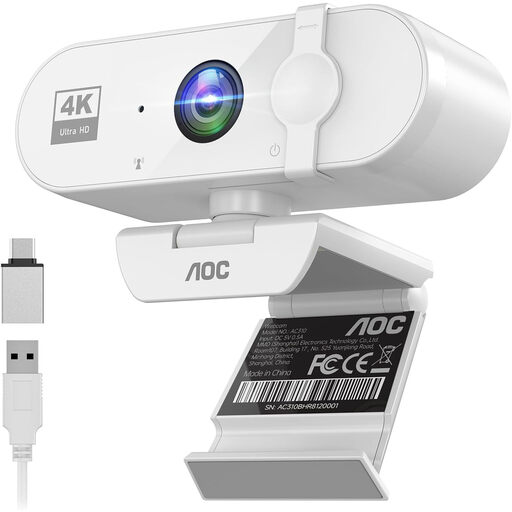 No image available
AOC webcam, 4K, 99° field of view
An option to compare if you’re looking for image correction, a microphone and flexible positioning in one camera.
The product description lists 4K UHD at 30 fps, a 99° field of view, HDR, automatic light correction and a built-in noise-cancelling microphone.
According to the description, the camera tilts 180° and rotates 360°.
View at Joybuy
 No image available
Philips 4000 Series 4K UHD Webcam, SPL6408BT/00, EU Version, Black
An option for video calls if you want to compare autofocus and built-in microphones.
The product title lists 4K UHD, autofocus, dual built-in microphones and a privacy cover.
View at Joybuy
 No image available
Philips 2K QHD PC Webcam, SPL6308S/00, EU Version, Silver
A webcam to compare if you’re looking for a clip-on model with a built-in microphone.
The product title lists 2K QHD and a noise-cancelling microphone.
According to the title, the clip-on design is made for a desktop or laptop.
View at Joybuy
Frequently asked questions
Will 4K help if the window makes your face look dark?
Not necessarily. Logitech recommends lighting your face from the front and warns that a brightly lit background can make you appear as a silhouette. Then compare the light correction on the model you’ve chosen and check which video quality your meeting app broadcasts.
How can you show a printed chart while speaking?
Logitech describes Show Mode for the Brio 500; Insta360 lists DeskView for models including the Link 2 and Link 2C. Record a test in advance to check the smallest relevant text. For a consistent, precise top-down view, Insta360 describes a separate overhead setup.
Why can’t participants see your camera in Teams?
Check the device settings in Microsoft Teams to make sure the correct camera and microphone are selected, and view the video preview. Also check your model’s privacy cover and connection.
Should you buy an extended warranty for a webcam?
You don’t need an extended warranty to have statutory consumer rights. ACM ConsuWijzer says that if a product is faulty despite being used normally, the seller must provide a remedy free of charge. Only compare paid cover based on the additional risks it actually covers.
Can you record and share your online research presentation?
It depends on the circumstances. According to the Dutch Data Protection Authority, the GDPR applies when an organisation films identifiable people or publishes footage for professional or commercial purposes; there must be a lawful basis under the GDPR. Consent is one possible lawful basis, but it isn’t automatically the only one. For a business or educational recording, agree the purpose, access and retention period in advance, and follow the organising institution’s policy.


