
Presenter who moves around
You lead the meeting standing up and move between your desk and a presentation area. Check whether automatic framing or physical tracking can keep you in shot as you move.


The right webcam depends mainly on what people need to see: you, your movements, a physical planning board or several people at once. A fixed webcam may be enough if you stay in roughly the same place; automatic framing or physical tracking gives you other options when you move around. Also check the software you need, the framing in your meeting app and whether everyone can be heard clearly.
You lead the meeting standing up and move between your desk and a presentation area. Check whether automatic framing or physical tracking can keep you in shot as you move.
You discuss tasks or deadlines on a planning board or on paper. Make sure participants can see the full frame and the key text.
Colleagues sit or stand together around the desk while others join remotely. Consider both the camera’s coverage and how clearly everyone can be heard from different positions.
Best if: you stay in roughly the same place during the meeting and share plans digitally.
Bear in mind: a fixed camera won’t follow you around the room.
Best if: you switch between sitting and standing, or occasionally show something on your desk. Logitech describes automatic framing and Show Mode for the Brio 500.
Bear in mind: RightSight requires Logi Tune, which Logitech says is not available for ChromeOS. Tilting the camera towards your desk does not guarantee that a whole sheet of paper or small text will be readable.
Best if: you move around or discuss a physical board. Insta360 describes the Link 2’s gimbal as rotating and tilting; OBSBOT lists tracking and adjustable camera modes for the Tiny 2 Lite.
Bear in mind: the Link 2’s standard whiteboard mode uses recognition markers; according to Insta360, Smart Whiteboard works through Link Controller without those markers.
Best if: colleagues in different positions around the desk need to be seen and heard together. Owl Labs positions the Meeting Owl 3 as a camera for a shared space.
Bear in mind: this requires a different set-up from a personal webcam. Test the placement and audio clarity in the room itself.
First decide whether movement, showing a readable board, group participation or a fixed speaking position matters most. Use the table to turn that need into practical checks.
| Consideration | What to check before buying | Who is this important to? |
|---|---|---|
| Staying in shot while moving | Compare digital framing with physical tracking and test your planned route in your meeting app. | If I move between my desk and a presentation area, I don’t want to disappear from the shot. Around 33% of consumers prioritise tracking movement. |
| Showing a physical planning board | Check the whole board and the smallest essential text in your meeting app; also check the software requirements for the board mode. | When I discuss tasks on a board or paper, remote participants need to be able to read the information. Around 27% of consumers prioritise the physical plan. |
| Seeing and hearing a group clearly | Test the camera framing and make a short audio recording from each position in use. | If colleagues take part together around the desk, I want them to be visible and easy to hear remotely. Around 20% of consumers place the greatest importance on group participation. |
| A fixed set-up for one speaker | Measure the distance between the camera and your standing position, and check the connection and microphone set-up. | If I stay in one place and share plans digitally, a predictable fixed set-up may be enough. Around 20% of consumers prioritise simplicity for a single speaker. |
Digital framing and a gimbal that rotates and tilts work in different ways. Check which feature is compatible with your computer and whether you’ll stay within the set tracking area.
Walk your actual route beforehand and test the framing in your meeting app.
A dedicated board view does not automatically make the whole board or the smallest text readable. The Insta360 Link 2’s standard whiteboard mode uses recognition markers.
Test the framing and text size in your meeting app, and check which board mode you need.
A webcam and microphone designed for one speaker may not be enough if colleagues are speaking from different positions. Owl Labs lists 360° video, eight microphones and a speaker for the Meeting Owl 3; placement in your room still matters.
Ask each person to record a short test sentence from their own position, then listen to it remotely.
The Brio 500 is worth considering if you switch between sitting and standing and sometimes show something on your desk.
The Link 2 is worth considering if you move around or want to show a planning board.
The Tiny 2 Lite is worth considering if you move around and want to use pre-set camera positions.
The Facecam MK.2 is designed as a fixed webcam for a speaker who stays within a known distance of the camera.
The Meeting Owl 3 is a meeting camera for several people around a shared workspace, rather than a personal webcam.
These products are suited to planning meetings with one speaker, a fixed set-up or a presenter who moves around during the meeting.
 No image available
An option for meetings where one speaker is on camera and the webcam’s microphones are used.
4K video; PDAF autofocus; dual microphones; 75° field of view; USB-A/USB-C connections; lens cover.
 No image available
An option if you want to capture more of your workspace and be able to tilt and rotate the camera.
4K video; 99° field of view; 180° tilt; 360° rotation; built-in noise-cancelling microphone; privacy shutter.
 No image available
A fixed webcam for a speaker who stays in roughly the same place during the meeting.
1080p video; fixed 78° field of view; autofocus; automatic light correction; two omnidirectional microphones.
 No image available
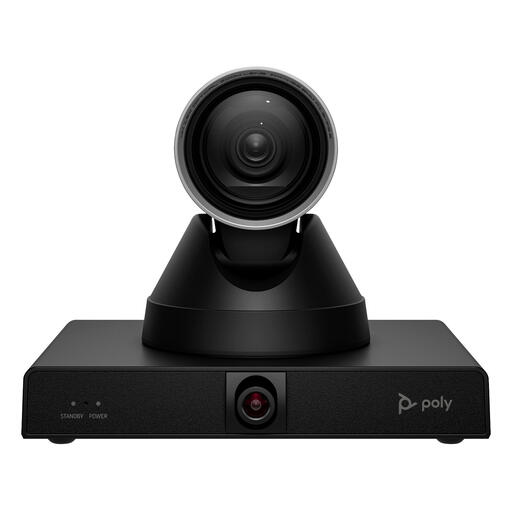
An option to consider when the presenter moves around and the set-up is intended for a meeting room.
12× optical zoom; 4K video up to 60 fps; Presenter Tracking and Smart Group Framing. When mounting it, check that the bracket can support the specified weight of 1,79 kg.
 No image available
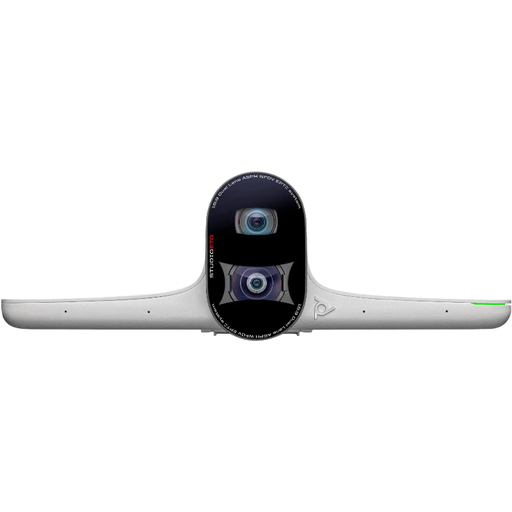
An option for a hybrid meeting where the camera needs to use framing and tracking modes.
Two cameras; 4K video; 93° to 111° field of view; AI framing and subject tracking.
Yes. Microsoft describes a way to share content in Teams on a desktop computer using a camera pointed at the whiteboard. Microsoft says you need a Windows or Mac computer, the Teams desktop app and a built-in or USB-connected camera. Check that this works with your meeting app and the position of your board.
Check your computer port, operating system and meeting app, and test the camera at both sitting and standing height. Logitech lists Logi Tune as a requirement for RightSight on the Brio 500; OBSBOT describes using OBSBOT Center to set presets on the Tiny 2 Lite.
For a qualifying distance sale to a consumer in the Netherlands, you generally have a cooling-off period of up to 14 days after delivery, with some exceptions. You also have statutory rights if a product does not perform as you could reasonably expect under normal use; the manufacturer’s warranty does not automatically limit those rights. The rules may differ for purchases made on behalf of a business.
Turning on a webcam for a meeting is not the same as agreeing to continuous monitoring or recording. The Dutch Data Protection Authority sets separate, strict conditions for camera surveillance of employees and states that permanent camera surveillance at a fixed workplace is generally not allowed. For work calls, use a video-calling service provided securely by your organisation.